

The email editor screen
Short answer
Every email you create opens in this editor, with Jounce AI on the left and Undo, Redo, Preview, Send test and Continue in the top bar. The settings panel on the right shows the settings for what you select, including how many items a list holds; folded, it counts the Before you send lines that stop the send.
Every email you create opens in this editor, whether you start from a template, with AI, or from scratch. So does a copy of one. It opens here again whenever you open it from your Emails page.
An email that was made in the earlier editor still opens there, and so does a copy of one. That editor shows the email’s name in its top bar, and its Undo and Redo sit at the bottom right. See The earlier email editor.
The top bar
- Emails, at the far left, takes you back to your Emails page. In an email that belongs to an automation, it reads Automation and takes you back to the automation, with the email’s step open.
- The email’s name doesn’t show in this editor. Rename it from your Emails page; see Rename an email.
- Undo and Redo are the two arrows on the right. They step back and forward through your changes, Jounce’s too. The keys are ⌘Z or Ctrl+Z to undo, and ⇧⌘Z or Ctrl+Shift+Z to redo. See How the editor saves your work.
- Preview shows the email the way it arrives. Back to draft returns you here. See Preview your email.
- Send test sends the email to your own inbox first. See Send a test email.
- Continue opens the send steps: who gets it, the subject line, and when it goes. While Before you send still has something to fix, Continue keeps you where you are. A note over the list says how many, as in Fix these two things, then press Continue again. Show me selects the first one.
Until you save a brand kit, the email wears a draft of it: your logo, colors, and fonts where Jounce has them, and plain defaults where it doesn’t. Before you send lists it as Your brand kit isn’t saved yet. Select the line to open your brand kit, check it, and save it before you send.
An email that belongs to an automation has Done where Continue sits, because its automation sends it. Done saves your last change and takes you back to the automation, with the email’s step open.
In an email with no blocks yet, Send test and Continue are dimmed. Add a block and they work.
While Jounce builds an AI draft, the buttons in the top bar wait until it’s done. Emails still works, so you can leave. See Start an email with AI.
The chat
The chat on the left is labeled Jounce AI. Right after Jounce builds a draft, the chat opens with your description as its first message. Otherwise it rests folded to a thin edge reading Jounce AI. Select the edge to open it. The arrow at its top, Collapse Jounce AI, folds it again. See Edit your email with Jounce AI.
The email
Your email sits in the middle, built from blocks stacked top to bottom. Point at any part of it and a thin outline shows what a click selects.
- The first click selects. Click the selected text again to put your cursor there and type.
- Esc steps back out one level at a time: out of typing, then from a part to its block, then to nothing.
- Select the space around the email to select nothing. The settings panel then shows the email’s own settings.
Select a block and a column of tools stands beside it. Point at each to see its name: Move up, Move down, Duplicate, Favorite, and Delete block. A countdown has no Favorite. The tools step aside while you type.
Move up and Move down move the block one place per press. Move up is dimmed on the first block, and Move down on the last. See Move, duplicate, or delete a block.
The tools belong to the whole block, so they step aside while a part inside it is selected. To bring them back, click the block’s empty space, press Esc, or select Block at the top of the settings panel.
In a block with one part, such as a Text or Image block, the tools show when you select that part too.
Point at a block, or select it, and a + appears on the line above and below it. Select the + to add a block there.
An email with no blocks yet reads Start your email, with the tray of tiles open under it. An email you start from scratch opens that way. See Add a block.
The bottom right corner stays empty until something needs you. If a change fails to save, you see Couldn’t save there. See Why does the editor say Couldn’t save?
The settings panel
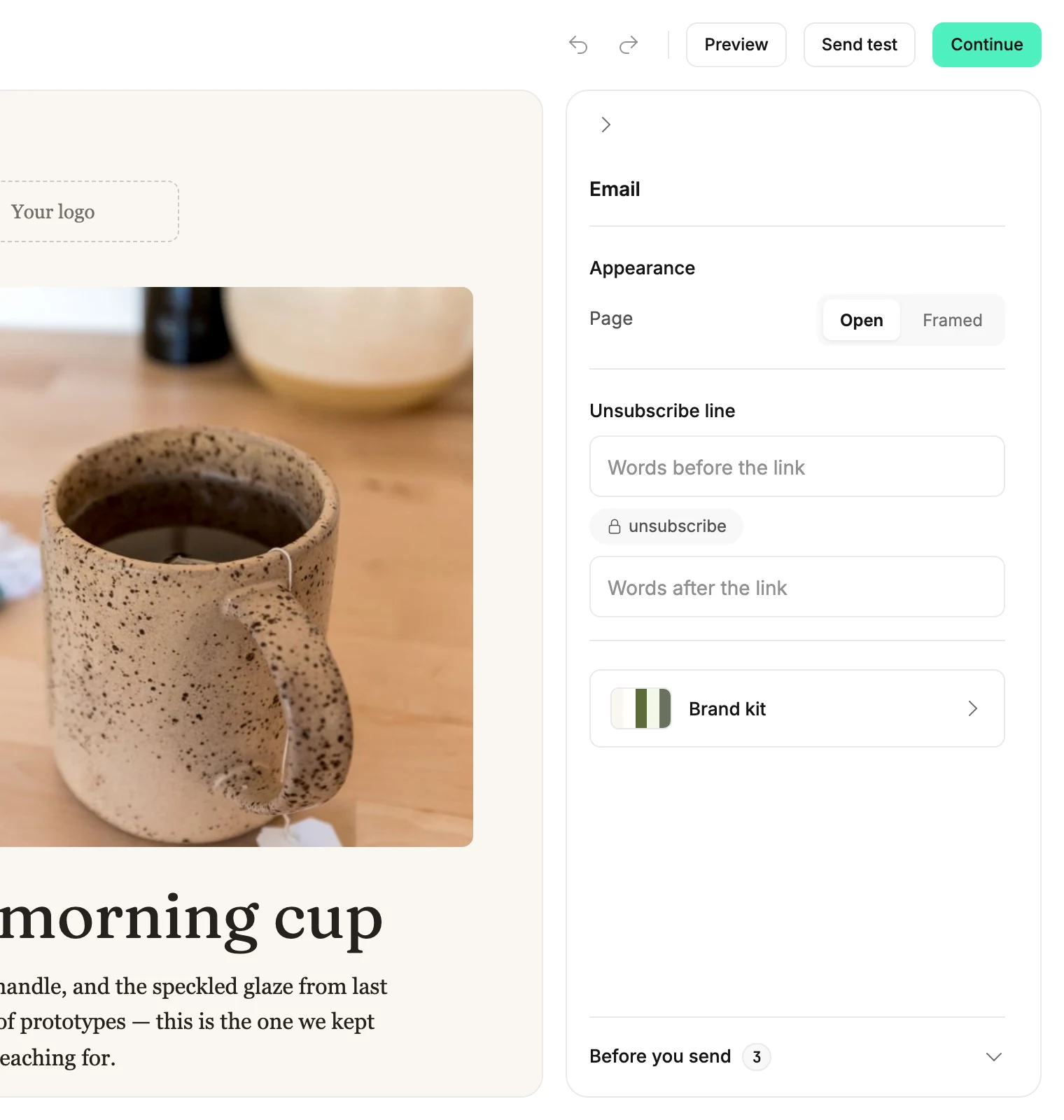
The settings panel on the right shows the settings for what you select. With nothing selected, its heading reads Email, as in the picture at the top.
- Page, under Appearance, sets how this email sits in the inbox. Open runs the email’s background edge to edge. Framed sets the email in a column on a slightly different shade.
- Pick the one your brand kit doesn’t use, and a note under Page names your brand kit’s choice, like This email only. Your brand kit uses Open. Pick the brand kit’s choice again, and the note goes away.
- Unsubscribe line holds your own words around the unsubscribe link at the bottom of the email. See Add your own words around the unsubscribe link.
- Brand kit opens the Brand page over the email: the website scan, your colors, fonts, shape, logo, social links, and brand profile. Save kit keeps a change, and Back to draft brings you back. See The Brand page.
The subject line and preview text aren’t here. You write them in the send steps, after Continue. For an automation’s email, they’re in its Send email step.
Select a block and the heading reads Block. Swap design, when it shows, offers similar layouts to switch the block to. In a block with several parts, select one, like its title. The heading names that part, with Block › before it. Select Block to step back up.
A link sits with the thing it links. Select a button, and Link holds where it goes. Select the block itself, and Block link sends a click anywhere in the block to one web address.
The picture in a video layout has a Link too. See Link a video layout to your video.
Not every block has a Block link. In a block with one part, such as an Image block, it also shows when you select that part.
Select an icon in a block, and the panel shows a grid of icons to pick from. See Change an icon in a block.
Items in a list
Some blocks hold a list, such as products, dishes, or testimonials. Select the block, and the settings panel shows the list’s name, such as Products, with the number of items between − and +. When a whole item is selected, the same control reads Number of items.
+ adds an item at the end. If you removed items from this list, + brings them back first, the last one you removed first, with your words still in them.
Once none are left, a new item’s words are placeholders to write over, such as Product name or Step title. A price or other number shows a dash, and a button or link has no web address yet. Any photo spot is empty, marked Your photo.
− removes the last item. Each design holds a range of items, so + stops at the most and − at the fewest. A list with a fixed number of items shows neither.
Until you fill in a new item, Before you send lists what it still needs, and the email can’t be sent. Jounce AI can add an item too. It brings back an item you removed the same way and keeps its words. For a new one, it writes the words and picks a photo for any photo spot.
To remove any one item, select the whole item and press Delete. Jounce says how many are left and offers Undo. Delete stops at the fewest items too, and Jounce says so.
To select a whole item, point at an empty part of it, away from its words and pictures. A thin outline wraps the item. Click, and the panel’s heading ends in the list’s name, such as Block › Products.
Where an item is one part with no space around it, such as a link in a row of links, select that part and press Delete. A photo empties first and goes on the second press.
Before you send
At the foot of the settings panel, Before you send lists what the draft still needs from you. There’s one line for each kind of thing, such as One button still needs a link.
The lines come in two groups. Each line at the top has a solid ring, and the email can’t be sent until it’s fixed. Under Worth a look · won’t stop the send, each line has a dashed ring. Check those, but the email can go as it is.
Select a line and Jounce selects the spot where the fix goes, scrolling to it if it’s out of sight. Your brand kit isn’t saved yet opens your brand kit. The email still needs some text opens the tray near the end of your email, with Text picked. Where a block’s words are switched off, it selects that block instead.
This editor has no size label. Once an email is past Gmail’s size limit, Gmail will cut off the end of this email shows under Worth a look. Select it, and Jounce selects the block that adds the most to the email’s size. See Why does the editor say Gmail will clip this?
Two lines wait until you send a test or select Continue: The email still needs some text, and the line about pictures and words. A new email often has no words while you build it.
The list covers the email itself. You write the subject line and preview text in the send steps.
The list stays in place whatever you select. It steps aside only while you choose a layout or an icon, and comes back when you’re done.
To give the settings above more room, select Before you send. The lines fold away, and a count beside the title shows how many still stop the send. Lines under Worth a look aren’t counted. Select the title again to bring them back. The list starts open each time you open an email.
On a small screen, the list folds itself when the settings above it need the room, and the count stays on its title. It stays open once you open it, until you select something else. When you select Continue with something left to fix, the list opens again to show you.
What each line means is in What an AI draft leaves to you.
Next and Hide
A line at the top can cover more than one spot, such as Three lines still have sample text. Select it, and Next shows at the line’s end. Each press selects the next spot.
Each line under Worth a look has Hide at its end. It shows when you point at the line or tab to it, and always on a touch screen. Lines at the top can’t be hidden.
Hide puts the line away for this email. Until you leave the email, Undo brings it back. The line also comes back when more of its kind turns up, such as a second play button that opens nothing.
When a line is done
When you fix the last thing a line names, its ring turns into a check. The line says what’s done, such as Every button has a link, and a moment later it goes.
When the last line at the top goes, Ready to send takes its place. It also shows once you send a test or select Continue with nothing left to fix. While the email has almost no text, Ready to send holds back, even before the text line shows. Lines under Worth a look can still show below it.
With a screen reader, you hear the words of a line that’s done, and Ready to send when the last one goes. You also hear where Next lands, such as 2 of 3, and when Hide puts a line away.
Folding the settings panel
The arrow at the top of the settings panel, Collapse settings, folds it to a thin edge reading Settings. Select the edge to open the panel again. While lines that stop the send are left under Before you send, the edge shows how many.
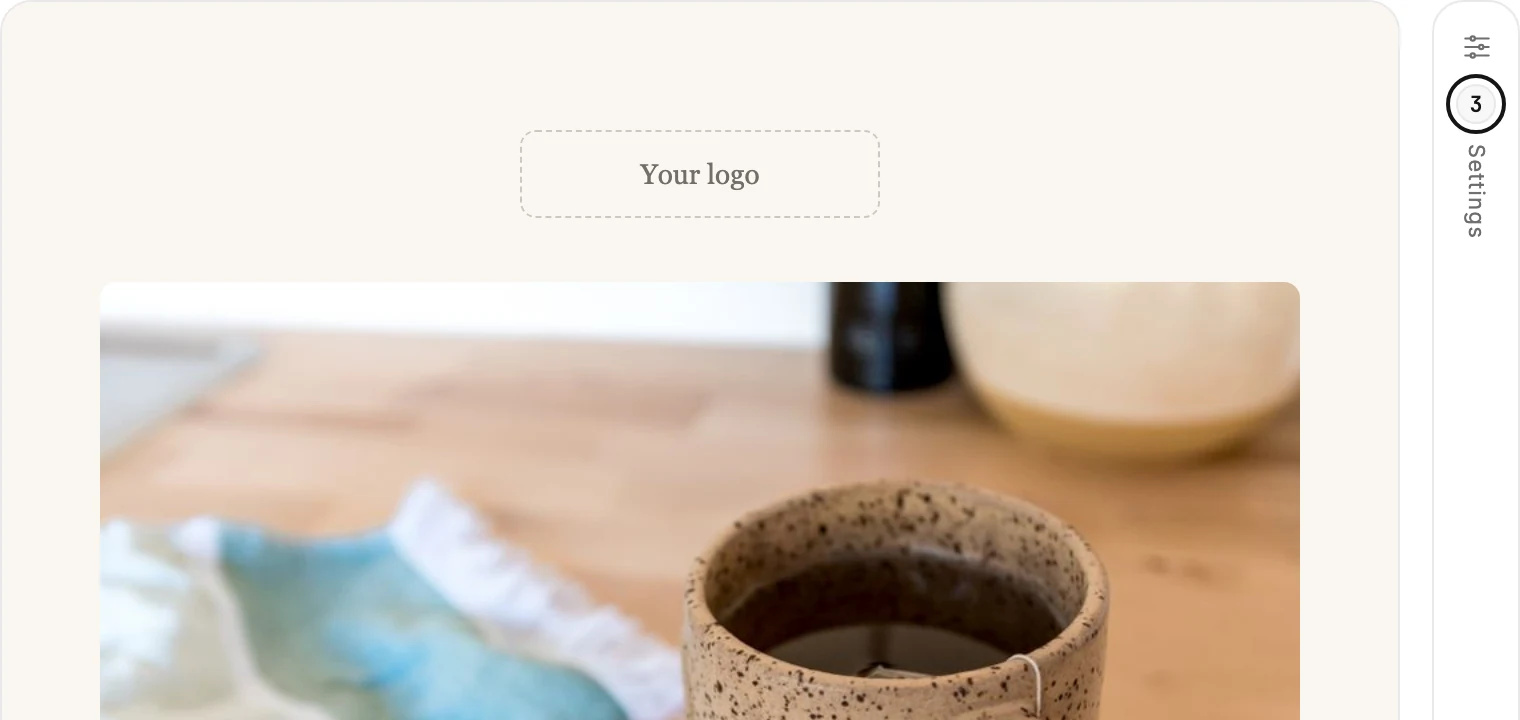
On a wide window, the chat and the settings panel can both stay open, and each folds on its own. On a narrower one they take turns, one open at a time. Selecting a block never changes which one is open, so open Settings from its edge to change the block.
The chat opens right after Jounce builds a draft. So on a narrower window, the settings panel starts folded.
More in this topic
Updated