

Send from your own domain
Short answer
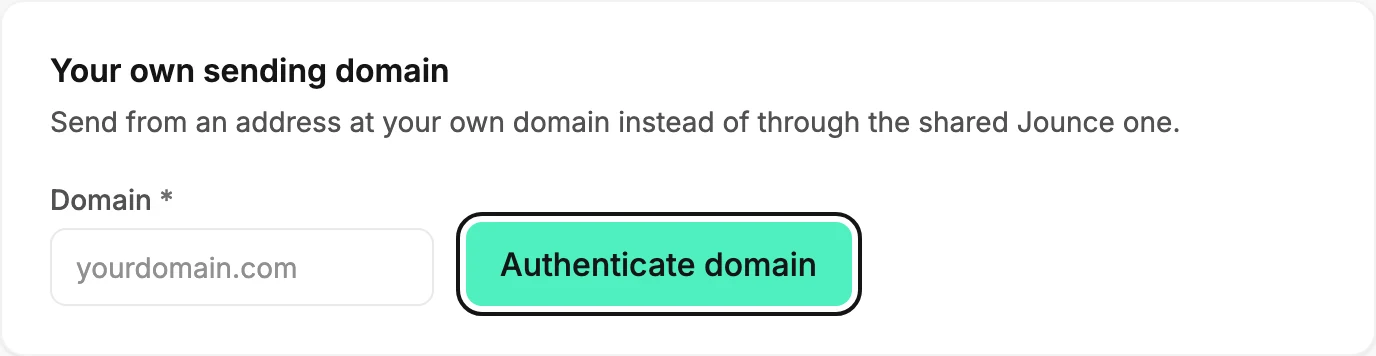
On the Sending page, type your domain in the Your own sending domain card and select Authenticate domain. Add the three records it shows where you manage your domain, then select Verify.
When you’re done, the Your own sending domain card reads Authenticated. Your emails then go out from hello@ at your domain instead of the Jounce address.
You need two things: a domain you own, and a sign-in where its records are managed. That is usually the company you bought the domain from, or your website host. Only an admin or a manager can add a domain.
Add the domain
- Select your avatar at the top right and choose Sending.
- In the Your own sending domain card, type your domain in the Domain field: yourbrand.com, or a subdomain such as news.yourbrand.com. Leave off https:// and www; Jounce drops them for you. If Jounce says That didn’t go through, see Why won’t Jounce accept my domain?
- Select Authenticate domain. The badge reads Pending, and the card lists three records to add.
Add the records where you manage your domain
- Sign in where you manage the domain and open its DNS settings, the page that lists the domain’s records.
- For each record on the card, add one of the Type shown, with the Name and Value shown. Use the Copy buttons so nothing is mistyped. The records Jounce asks you to add explains each field.
- Back on the Sending page, select Verify. If your provider hasn’t published the records yet, the badge stays Pending. Jounce keeps checking on its own for a while, so you can leave the page. If the records never appear, the badge turns to Not authenticated. Verify still checks whenever you select it.
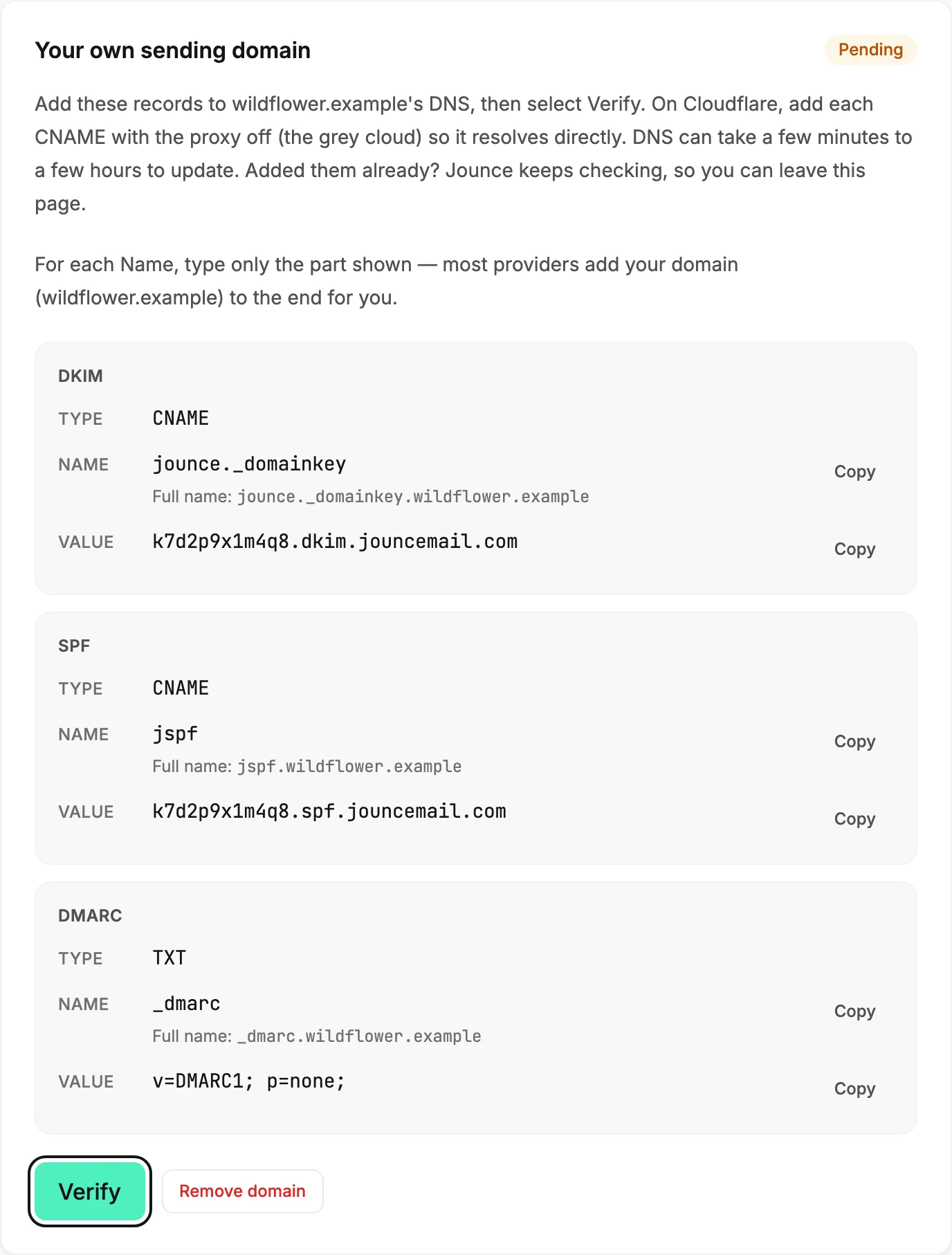
The card’s own line says how long the wait can be: DNS can take a few minutes to a few hours to update.
What changes
When the badge reads Authenticated, the card says ⟨your domain⟩ is set up — nothing left to do here.
Your emails come from hello@ at your domain, and the From card shows that address with an Authenticated badge. That covers every email from the workspace: your sends, your tests, your automation emails, and the email that asks a new signup to confirm.
Replies still go to the workspace owner’s sign-in email, so you don’t need a mailbox at hello@. The address your emails come from has the details.
Anyone in the workspace can select Verify, so a teammate can finish the check after you’ve added the records.
Note Jounce works with one domain per workspace. To switch to another domain, remove the current one first; see Remove your sending domain.
Next step
To see the new From address in your own inbox, Send a test email. If the badge isn’t Authenticated yet, see Sending domain statuses.
More in this topic
Updated