

Create a new email for a step
Short answer
Select the Send email step, choose Create a new email, and pick a template. The editor opens; Done brings you back to the step with the email in place.
When you’re done, the step’s panel shows the email’s picture, and the card on the canvas reads its subject.
-
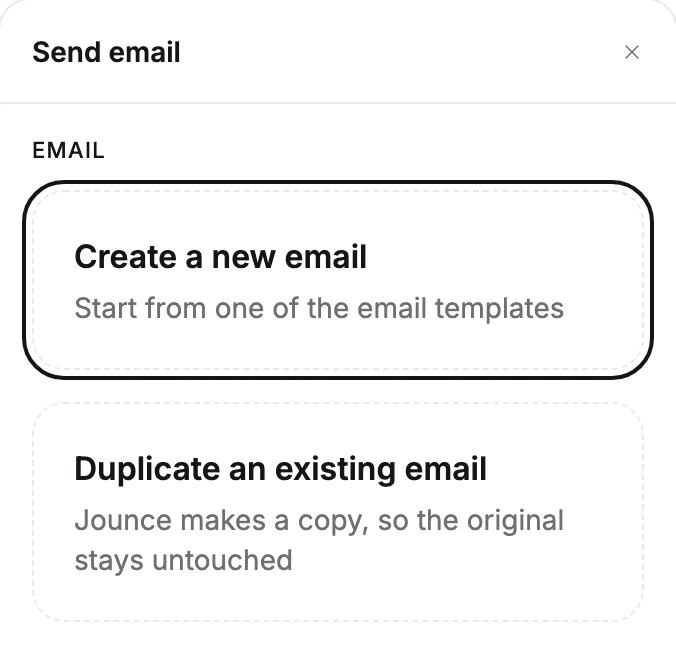
Select the Send email card. Its panel opens with two boxes under Email.
-
Select Create a new email. The template gallery opens. A line across the top reads You’re making an automation email. It attaches to the step you came from. Back to automation returns you to it with nothing added.
-
Pick a template. Jounce makes the email, puts it on the step, and opens it in the editor. See The template gallery.
-
Make your changes. The link at the top left reads Automation, and Done sits where Continue usually is. Preview and Send test work as they do for any email.
-
Select Done. Jounce saves your last change, and you’re back in the automation with the step’s panel open and the email’s picture in it.
For an empty email instead, select Start from scratch, under the goal buttons. Jounce makes the empty email at once, puts it on the step, and opens it in the same editor. Automation and Done work the same way.
The email belongs to this step. Set its Sender name, Subject, and Preview text in the rows under the picture. An email from scratch has no subject line until you set one there. See The Send email step. The email doesn’t appear on your Emails page. See Why isn’t my automation’s email on the Emails page?
If you leave the gallery any other way, the step stays empty. Once you pick a template or Start from scratch, the email is on the step. It stays there even if you leave the editor without changing anything.
Next step
Space out the next email with Add a wait between two emails, or see this one in your inbox first: Send a test email.
More in this topic
Updated