

The Send email step
Short answer
A Send email step sends one email to each subscriber who reaches it. Its panel is where you create or duplicate the email, then set the sender name, subject, and preview text.
Each Send email step sends one email. A subscriber who reaches it gets that email once, then moves on to the next step. Select the card and the panel reads Send email.
Choosing the email
Until the step has an email, the panel shows two boxes under Email.
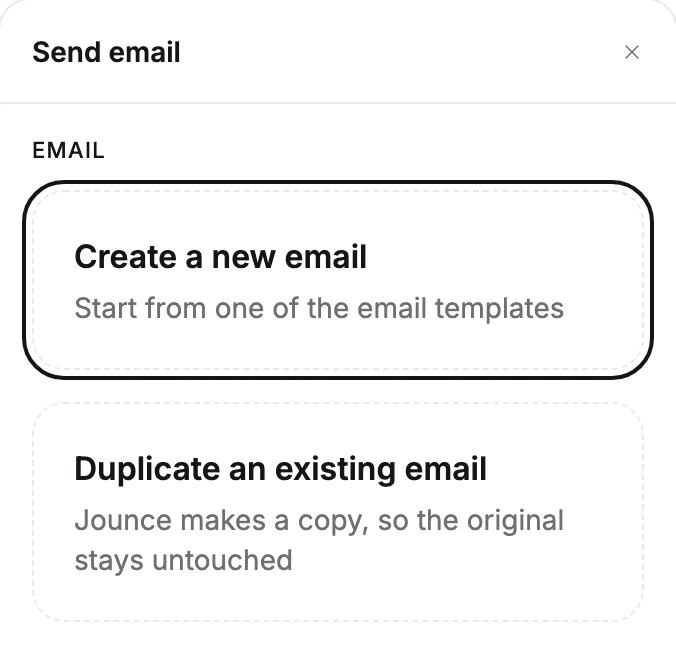
- Create a new email opens the template gallery. Pick a template, and the email comes back to this step.
- Duplicate an existing email shows a page of your emails. Pick one and Jounce makes a copy for this step. As the box says, Jounce makes a copy, so the original stays untouched.
Either way, the email belongs to this step. When you edit it, only this automation changes. Until an email is in place, the card reads Choose an email with a red line, Choose an email to send, and Launch waits.
Once an email is chosen
The panel shows a picture of the email. Select the picture to open the email in the editor. The whole picture is the Edit button. Under the picture are the email’s name and Sends from, then the address your automations go out from.
It’s the same address as your other emails: your business name at send.jouncemail.com, or hello@ at your own domain once it’s authenticated.
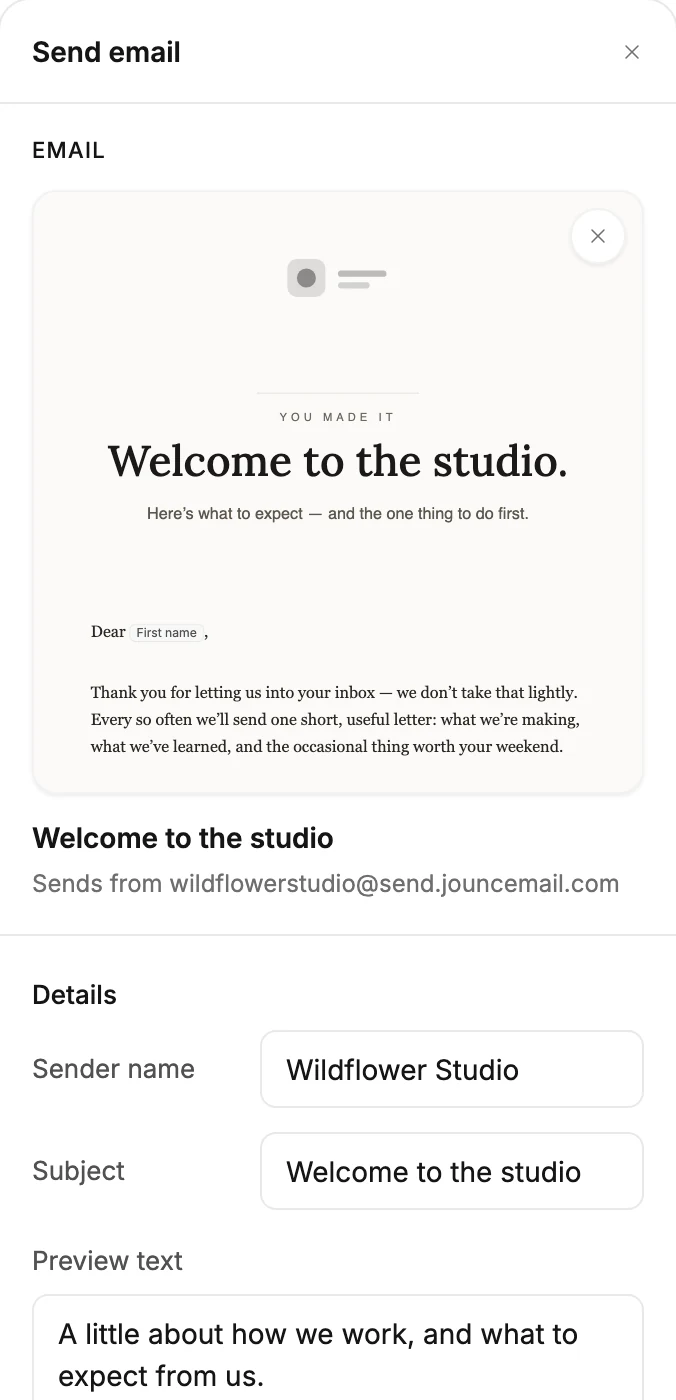
The × at the picture’s corner is Remove email. It clears the step, and a message offers Undo for a moment.
- In a draft, the × removes the copy too.
- In a live or paused automation, Jounce keeps the copy for the people already inside. The message names the email, then says Anyone already in this automation still gets it.
Details
Three rows edit the email itself: Sender name, Subject, and Preview text. Preview text is the line inboxes show after the subject. The subject is what the card on the canvas shows. An email with no subject keeps a red line, Add a subject line to the email step, until you add one.
When the email goes out
Jounce sends the email as each subscriber reaches the step. A new subscriber’s email can wait here first, while Jounce checks that their address can receive mail. The card’s number counts them while they wait. See How subscribers move through an automation.
Every email carries your postal address in its footer. So Launch asks for one before an automation with this step goes live. On a live automation with no address on file, Jounce holds the emails here until you add one. See Why hasn’t the next email gone out?
If Jounce flags the email
A note under the picture names something worth fixing before the email goes out. It comes with an Edit the email link. It never stops a launch.
A red line on the card is different. In an email you create, a red line can mean the email still holds something to fill in. One often reads Your button points somewhere that isn’t a real web address. Launch waits until you fix it in the email.
See What an AI draft leaves to you.
The red line Your button points somewhere that isn’t a real web address works the same way in any email. Launch waits until each button or link it names has a real web address.
If the email can’t be found
When the email behind a step has been deleted, its card reads Choose another email, with the red line That email couldn’t be found. Select the card, and the panel says That email couldn’t be found. The rest of the automation is untouched. Select Choose another email to pick again. Launch waits until the step has an email again.
Jounce never sends a deleted email. In a live automation, anyone already inside who reaches that step stops there for good. The email you pick goes to new subscribers only. See Why did subscribers stop partway?
More in this topic
Updated