

The Emails tab
Short answer
The Emails tab adds up every email you sent in the time range. It has four cards, a bounces and complaints line, a chart of each send’s open and click rate, two ranked lists, and Recent sends.
Open Analytics in the top bar and choose the Emails tab. Everything on it comes from sends that finished inside the time range. The range is at the top right. Change the range and a send drops out or comes in, with all its numbers. What the Emails tab counts says which sends those are.
The four cards
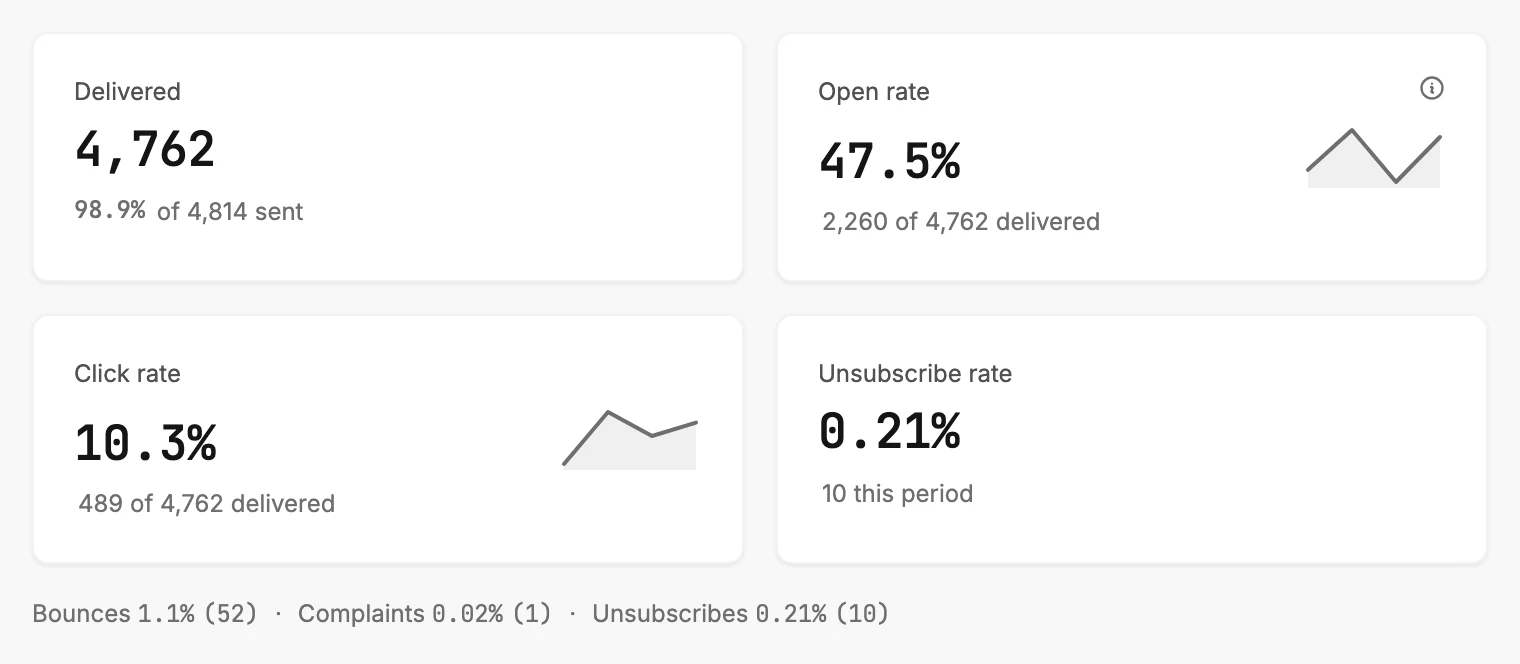
| Card | The number | The line under it |
|---|---|---|
| Delivered | Messages the receiving mail servers accepted. | Their share of everything sent, as 98.9% of 4,814 sent. |
| Open rate | The share of delivered mail that was opened. | The counts behind it, as 2,260 of 4,762 delivered. |
| Click rate | The share of delivered mail that was clicked. | The counts behind it, the same way. |
| Unsubscribe rate | The share of delivered mail whose reader left. | How many people, as 10 this period. |
Open rate carries an ⓘ. Rest your pointer on it, or tap it on a phone. It reads Includes auto-opens from some mail apps. Some mail apps open an email for the reader before they see it, so opens run high. Clicks are the number to trust when you compare two emails. See How Jounce counts opens, clicks, and bounces.
With two or more sends in the range, Open rate and Click rate show a small line beside the number. It traces each send’s own rate, from oldest to newest. The chart below draws the same points.
Bounces, complaints, and unsubscribes
One line sits under the cards. It reads Bounces 1.1% (52) · Complaints 0.02% (1) · Unsubscribes 0.21% (10): each rate, then the count behind it.
Complaints turns amber when the range holds more than one complaint and they reach 0.1%. A second line appears. It reads Complaints of 0.1% or more make every email you send harder to get into the inbox. Send only to people who asked for your emails.
One complaint on its own never turns the word amber, whatever its rate reads. See Why does Analytics say complaints are high? For unsubscribes over a period, read See how many people unsubscribed in a period.
Engagement over time
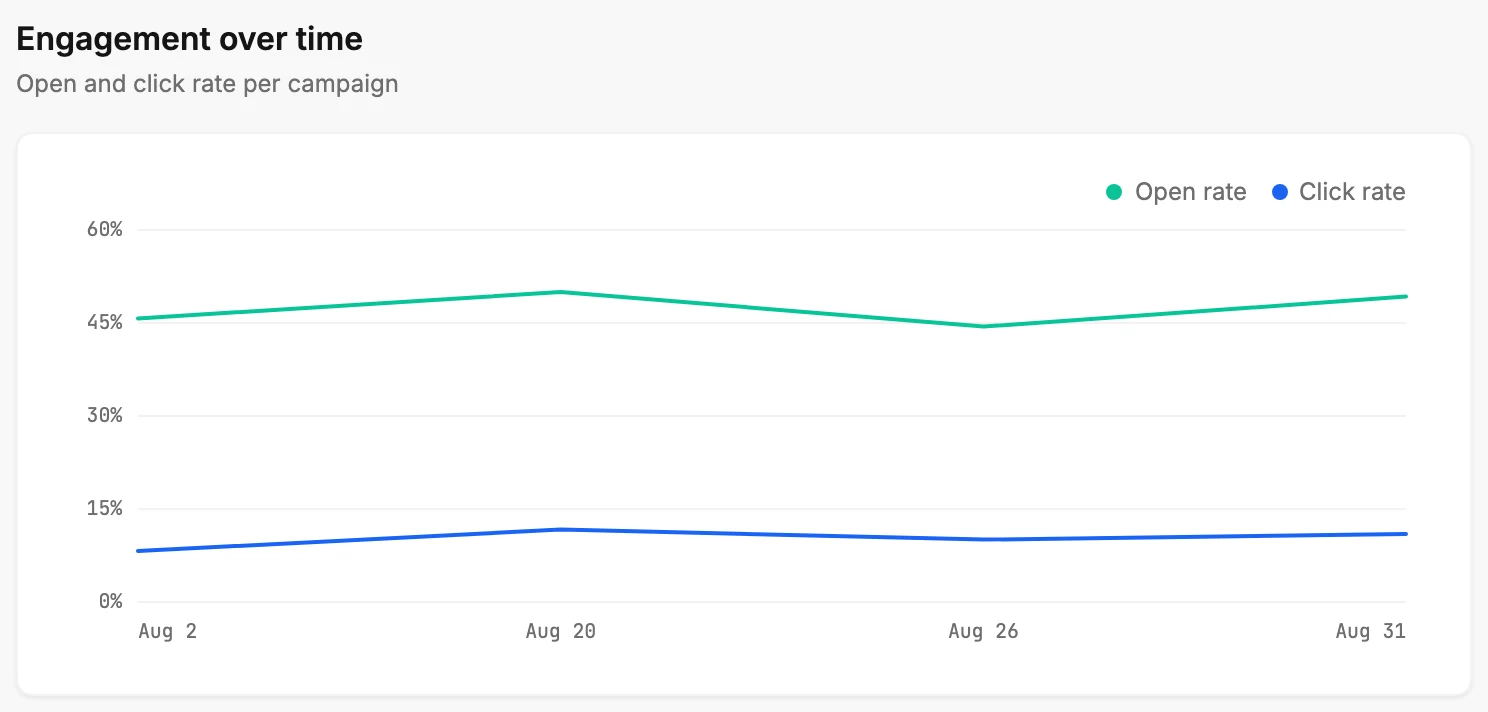
A chart with two lines, Open rate and Click rate. The note beside the heading reads Open and click rate per campaign. Each point is one send’s rate, with its date underneath. The oldest send sits on the left. Rest your pointer on the chart to read both rates at a send.
With one send in the range there is no trend to draw. Where the chart would be, a line reads Send another campaign to see your open and click trend over time.
Opens by mail app and Clicks by device
Two ranked lists follow the chart, each row with a bar, a count, and its share. Clicks by device splits the clicks between Mobile, Desktop, and Tablet.
Opens by mail app splits the opens between the mail apps. It appears once the whole range is after Jounce began recording mail apps. See Opens by mail app and clicks by device across your sends.
Recent sends
The last section is a table of the ten newest sends in the range, newest first. Each row shows a send’s subject, its status, how many people it went to, its own open and click rates, and the day it was sent. Select a row to open that email’s results page. See The Recent sends table.
When there is nothing to show
If no send finished in the range, the tab shows one line: No sends in the last 30 days. Under it: Send an email and its delivery, opens and clicks land here. Pick a longer range, or see Why is an Analytics tab empty?
If the numbers can’t be fetched, a card reads Couldn’t load your email analytics. It has a Try again button. Your sends and their numbers are safe. See Why won’t Analytics load?
More in this topic
Updated