

The help button
Short answer
The question mark at the top right opens Help. Search this help center, chat with Jo, browse the articles for the page you’re on, or take a tour.
The help button is the question mark in the top bar, just left of your avatar. On a phone it sits before your avatar and the Menu button. Select it to open a small panel: a search box, then Chat with Jo, Browse help, and Take a tour.
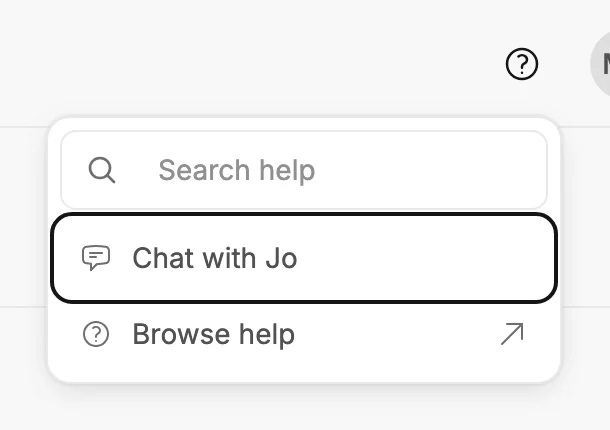
Search help
Type your question in Search help and press Enter. This help center opens in a new tab, already searching for your words.
Chat with Jo
Opens Jo, Jounce’s AI support assistant, in a panel at the right of the page. Jo answers from this help center and shows the article each answer came from. For a general email-marketing question no article answers, such as how often to send, Jo gives general advice instead.
Ask what happened in your own account, such as why an email didn’t send, and Jo can check before it answers.
Ask Jo to make an email, a form, or an automation, and it shows a card with a button that starts the draft. See Ask Jo to start an email, a form, or an automation.
A small label at the top left of the box you type in names the page you’re on, such as Emails. Jo sees that name and nothing else on the page. Once you’ve asked something, moving to another page adds a line such as Viewing Audience to the chat.
Collapse chat folds the panel to a narrow edge; select the edge to bring it back. On a phone the chat fills the screen, with Close chat at the top.
Jo keeps one chat while Jounce is open. Closing Jo, moving between pages, or coming back from an editor keeps it where it was. It closes when you select Close chat on a phone, and when you start a draft from one of its cards. Jo starts a fresh chat when you switch workspaces or reload the page.
A very long chat starts over in place: a Fresh start line marks where, and your earlier messages stay above it.
For a person, see Get help from a person at Jounce. What Jo can see and check, and what Jounce keeps from the chat, are in How Jo uses your messages.
Browse help
Opens this help center in a new tab, starting with the articles for the page you’re on, under Help with and the page’s name, such as Help with Emails. Six show at first; if there are more, Show all lists them. The rest of the help center sits below.
A page with no articles of its own shows the ones for the area it sits in: from a subscriber’s page, you get Help with Audience.
Help opens in its own tab so the page you were on, and anything you were in the middle of, stays where it was.
Take a tour
Opens a short list of tours beside the panel. Pick one, and Jounce walks you through that job one step at a time. The row isn’t shown on a phone or in a narrow window. See Take a tour.
A suggestion from Jounce
When Jounce has a suggestion for your workspace, it’s the panel’s last row: an action, such as Create form, over one sentence about it. Select it to start. Jounce suggests one thing at a time, and with nothing to suggest the row isn’t there.
The same suggestion can sit at the foot of an email’s results page. The sign-up form suggestion can also open once as a pop-up, as you open Jounce on your Emails, Forms, Audience, or Automations page. Not now closes it for good, and so does closing it any other way. The suggestion stays here in Help.
Close the panel
Press Escape, select the question mark again, or select anywhere outside the panel. If you’ve typed in Search help, the first press of Escape clears your words and the second closes the panel.
More in this topic
Updated