

The Brand page
Short answer
The Brand page holds the colors, fonts, shape, logo, and social links your emails use, and a scan that fills them from your website. Save kit keeps them.
Select your avatar at the top right and choose Your brand, or open All settings and select Brand in the settings list.
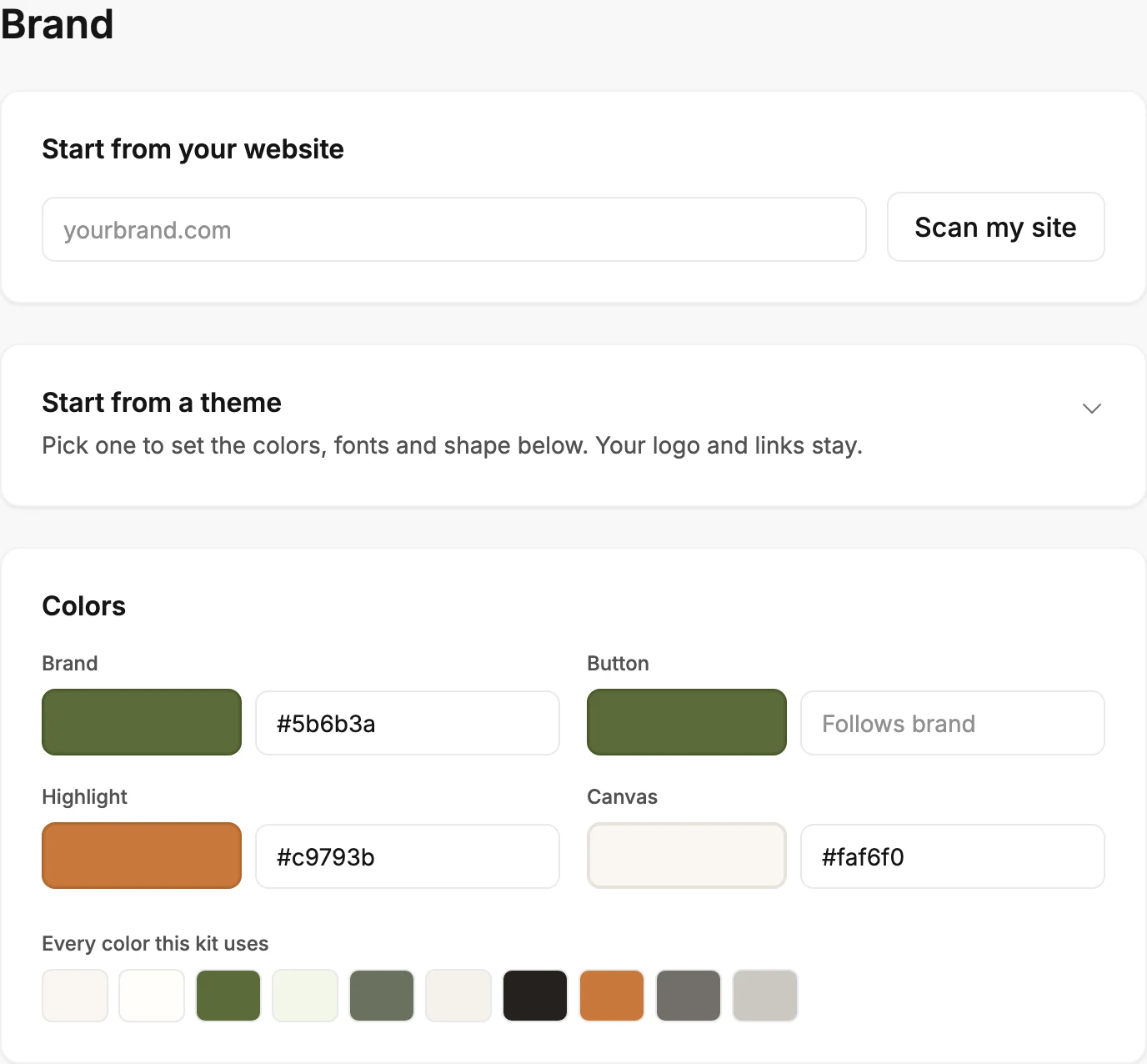
Start from your website
Type your site’s address in the box and select Scan my site. Jounce swaps in your site’s colors, fonts, button shape, and social links for you to check. It fills in your brand profile and offers the logos it found. See Fill your brand from your website.
If the scan stops with a message, see Why couldn’t Jounce read my website?
A scan can also set your workspace icon from your site’s icon. The card then says Your site’s icon is now this workspace’s icon. See Change your workspace icon.
If you gave your website in setup, Jounce read it once already, for fewer things than a scan reads. See What Jounce reads from your website.
Start from a theme
Seven looks to start from: Warm, Editorial, Elegant, Calm, Modern, Bold, and Playful. Each tile shows a sample of its heading font and three of its colors. The card says Pick one to set the colors, fonts and shape below. Your logo and links stay.
Until you save a brand, the themes are open. Once you’ve saved one, the card starts folded. Select Start from a theme to open the themes, and select it again to fold them away.
When a scan of your website fills in your brand, the themes fold so you can check what it found. If you opened them yourself, they stay open.
A pick changes the cards below it, and Save kit keeps it. Until you save, Back to what you had puts your earlier colors, fonts, and shape back. See Start your brand from a theme.
Colors
Four colors, each a well that opens the color picker, beside a box for its hex code:
- Brand colors the banner, the shaded sections, and quiet labels. The button, links, and check marks follow it unless you give them their own.
- Button colors the button and the links.
- Highlight colors one accent label per email, plus icons and check marks.
- Canvas is the background behind everything. Your text color follows it.
An empty Button or Highlight box says Follows brand. To go back to that, point at the color well and select its ×.
Under the four, Every color this kit uses shows each color your emails paint. When your Highlight color is hard to read as text, it says Hard to read on this background. Fix contrast changes it to one that reads. See Set your brand colors.
Fonts
Heading font and Body font. Each list draws every font name in its own face, and you can type to search it. Body font lists only the fonts that show reliably in email. The line under them says Most inboxes show a close match for these fonts. See Choose your brand fonts.
Shape
Five rows set how your emails are drawn:
- Corners: how round the corners are, from square to pill.
- Buttons: the button style, from filled to a plain text link.
- Button case: button labels in sentence case (Aa) or capitals (AA).
- Depth: Flat, Soft, or Lifted, for no shadow, a light one, or a deeper one.
- Page: Open runs your Canvas color to the edge. Framed sets your email as a column on a page one shade off it.
Logo
Shows at the top of your emails and links to your site. With no logo, the card holds an upload box. Under it, Without a logo, show sets what your emails put in the logo’s place: Your brand name or Nothing. See Send emails without a logo.
With a logo, the card shows it with a Name box, a Links to box, and Remove logo. The name shows in place of the logo when images are off, and screen readers read it aloud. See Upload your logo. If an upload is refused, see Why won’t my logo upload?
Below it, On colored backgrounds shows your logo on your brand color, the way some emails place it. For a one-color logo, Jounce makes a version for colored backgrounds itself and says Recolored from your logo. Save to use it. Upload a version adds your own, and Remove version takes it off.
After a scan, this card asks which of the logos it found is yours. See Choose the logo Jounce found.
Social links
Shown at the end of your emails, as icons that link to your profiles. Each row is one platform: its icon, your profile’s address, and × to remove it. + Add platform opens the list. If the card is empty, a scan of your site fills it. See Add a social link.
Brand profile
A written description of your brand: what you do, who it’s for, how you sound. Select the card to open it. A scan drafts it, and you can edit every line. Before anything is written, it says Scan your site above, or write it yourself. See The Brand profile.
An account that turned off Apply my brand to older emails sees that switch below this card. It reaches only your confirmation email and emails that open in the earlier editor. Every email you create uses your saved kit either way. See Apply your brand to new emails.
Jounce branding
Show the Jounce credit controls the small line at the end of your emails, your published forms, the thank-you page people see when they confirm, and the page people see once they unsubscribe. Its hint reads Your emails, published forms, thank-you page and unsubscribe page end with a small line that links to Jounce. It’s how new people find Jounce.
The line’s words can vary, such as Made with Jounce or Designed with Jounce. The switch saves the moment it flips. See Remove the Jounce credit.
Saving
Save kit sits at the bottom of the page. It keeps your colors, fonts, shape, logo, and social links. Unsaved changes shows beside it while you have edits to keep. Before your first save, Not saved yet shows there: an email you create can’t send until you save.
After a save, Jounce says Kit saved. New emails use it and offers Undo. With an email scheduled, the message also says whether that send keeps the look you approved or picks up your new logo or social links.
Leave the page with unsaved edits and Jounce asks Discard your edits? first. Keep editing stays, and Discard edits keeps your kit as it was. Switching workspaces and signing out ask it too.
The brand profile and the switches save on their own, like every settings page. See How settings save.
See your brand on an email
The Brand page has no sample email. To see your saved kit at work, start an email from a template in the template gallery, or start one with AI. Both use your colors, fonts, and logo.
More in this topic
Updated