

Import subscribers from a CSV file
Short answer
Open Audience, select Add subscriber, then Add from CSV. Upload your file, check the matches, confirm everyone asked to hear from you, name the batch, and select Import subscribers.
When you’re done, everyone Jounce could take in is on your Subscribers page. New people have the status Subscribed, and their source reads CSV import. Anyone Jounce already knew keeps the status and source they had. The whole file lands in a segment of its own, a saved group you can send to later.
Before you start, prepare your CSV file: a header row and one column of email addresses.
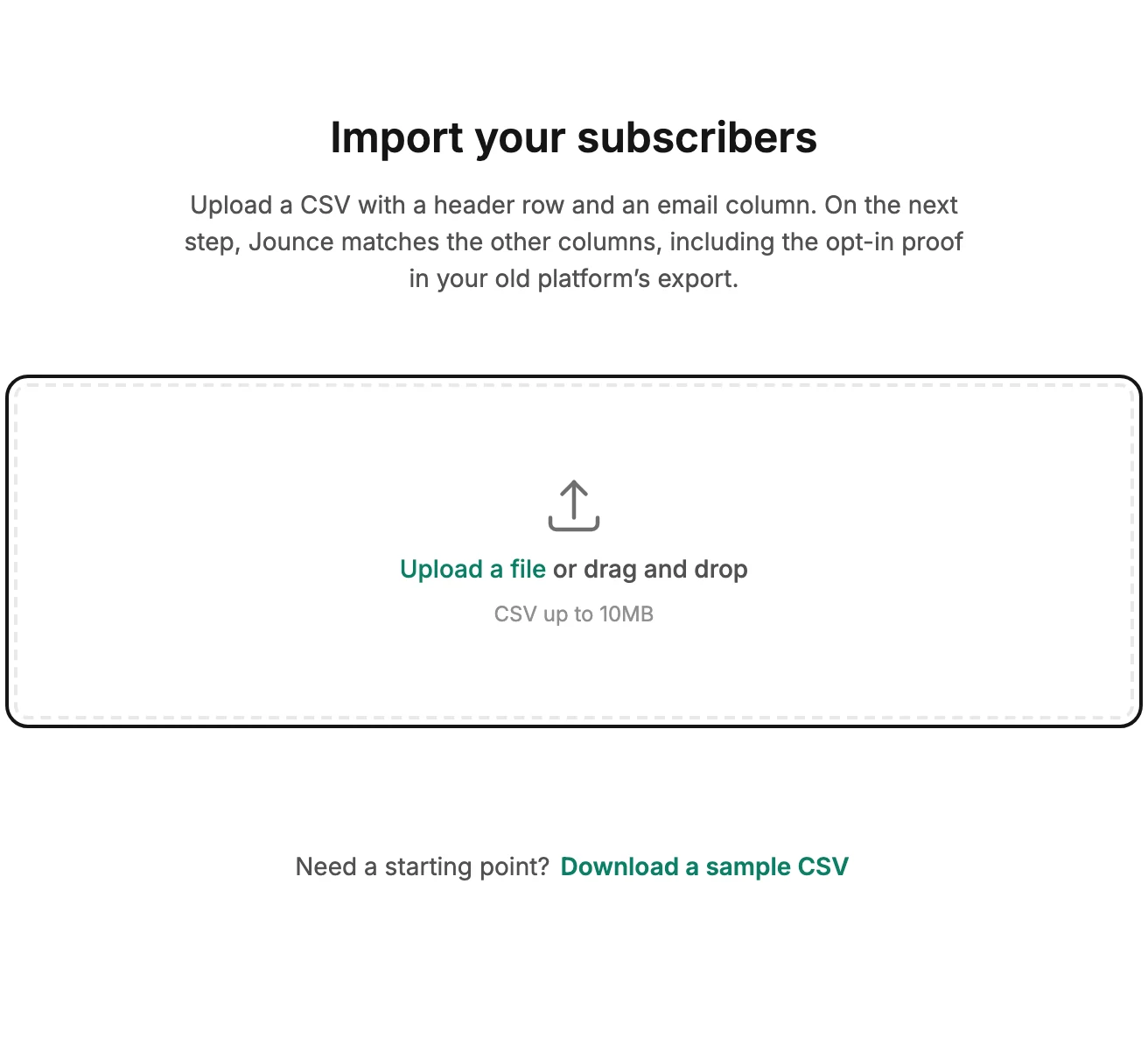
- Open Audience. Select Add subscriber, then Add from CSV. The Import subscribers screen opens on its first step, Upload.
- Select Upload a file and pick your CSV, or drag it onto the box. Jounce reads it and moves to Match your columns, the Map fields step.
- Check the table. Each row is a column from your file, and Maps to says which field it becomes. Fix any Jounce guessed wrong; one column must be Email.
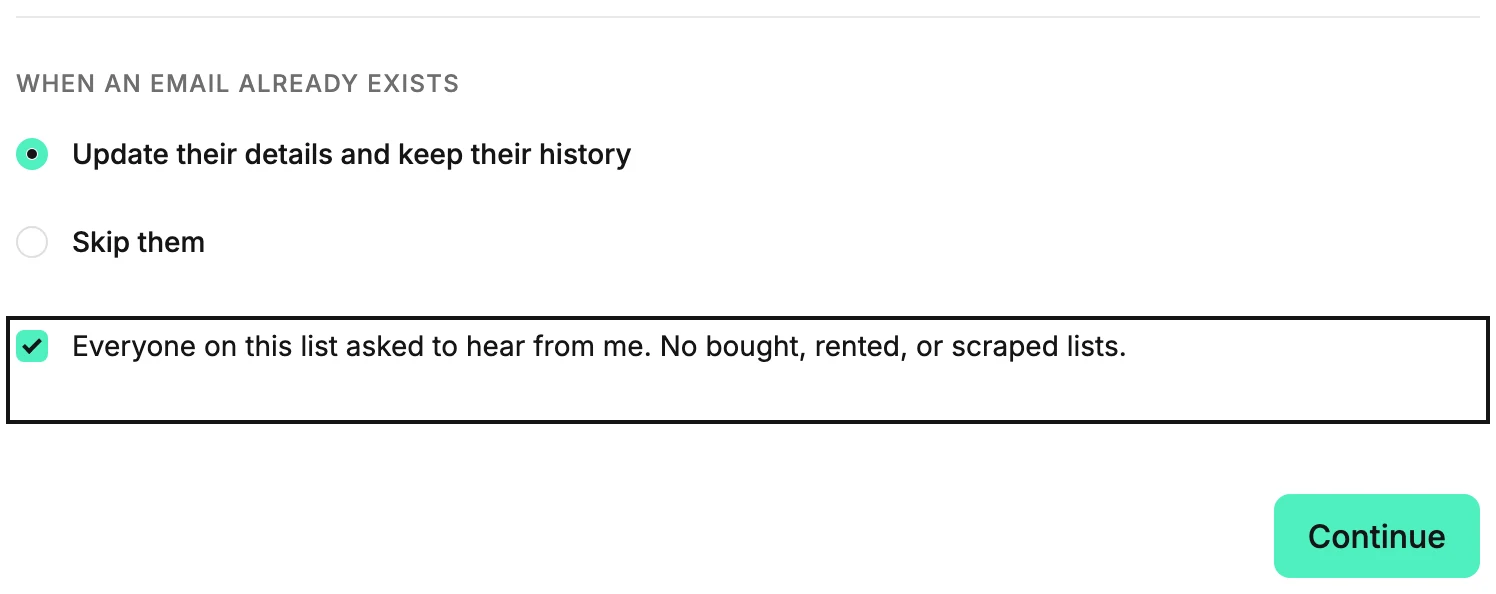
- Under When an email already exists, keep Update their details and keep their history, or choose Skip them.
- Tick Everyone on this list asked to hear from me. No bought, rented, or scraped lists. Then select Continue.
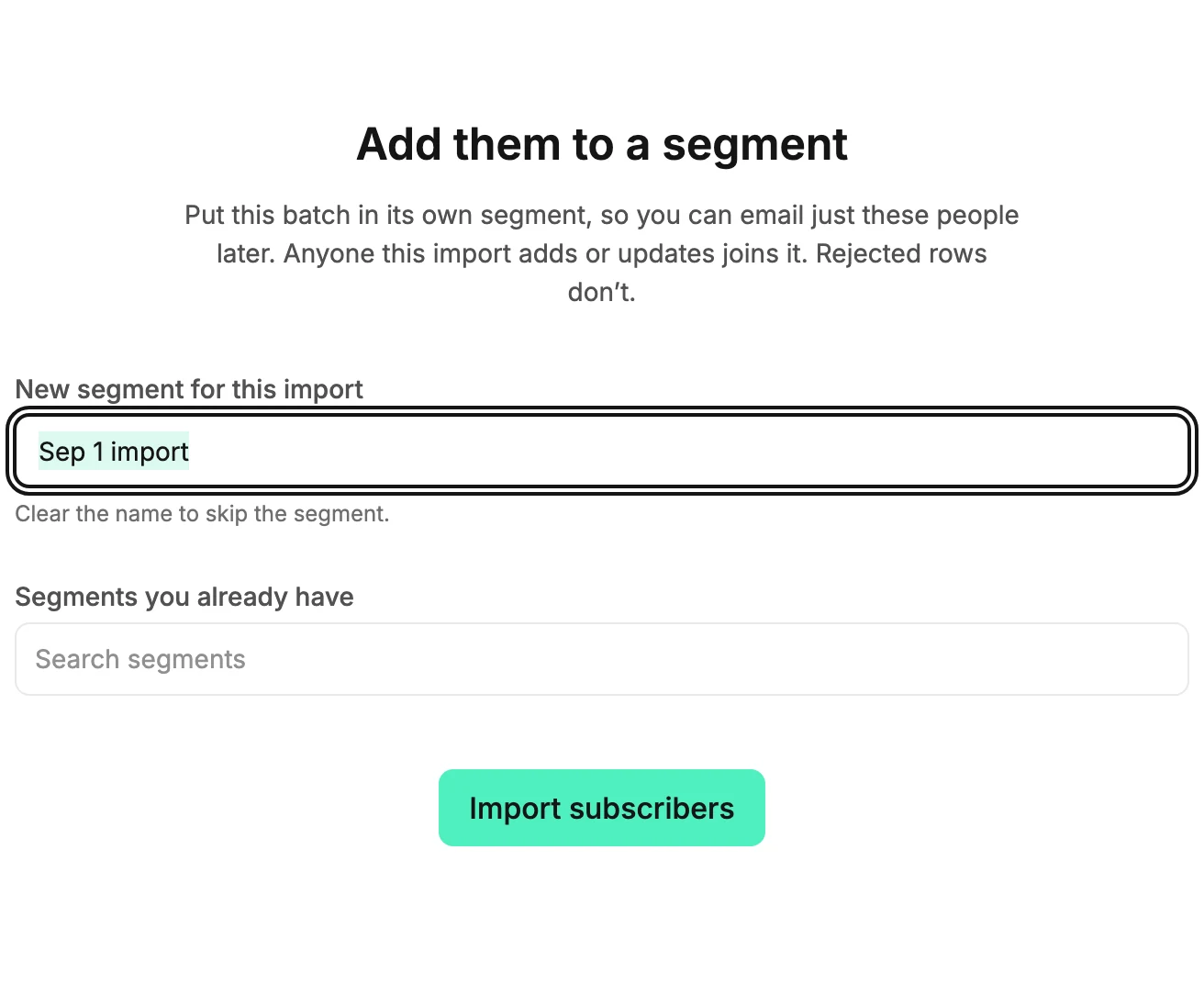
- On Add them to a segment, the Segment step, keep the batch name, change it, or clear it. Select Import subscribers.
- Jounce checks the addresses and adds them. The summary says how many came in and how many it set aside. Select Done.
Careful There’s no undo for an import. Anyone it adds stays on your list until you delete them, so check the matches before you continue.
What to expect next
A short list finishes while you watch. A long list runs in the background: the screen says Your list is importing, and Jounce emails you when it’s done. Imports that finish in the background says what the email holds.
Did Jounce reject some rows? Select Download the rejected rows on the summary to see each address and its reason. Why were some rows rejected? explains each one.
Next step
Find the batch on The Segments page, then send to it with Choose who gets your email.
More in this topic
Updated