

What Launch checks
Short answer
Launch and Relaunch wait until every step has what it needs to run, and the message names the first thing to fix. Then Jounce checks that your email is verified and, for an automation that sends email, that your postal address is on file.
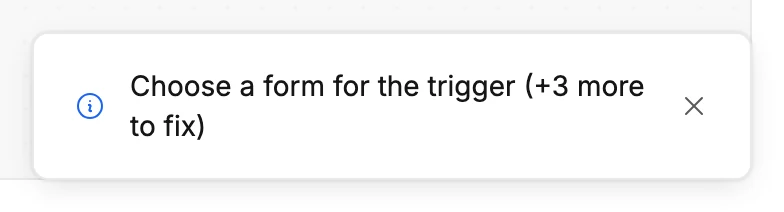
Select Launch and Jounce reads every card first. A step that still needs a choice shows a red line with one of the lines below. The message after Launch repeats the first of them. When more than one step needs something, the message ends (+2 more to fix), with the real count. Relaunch runs the same check.
Select a marked card. Its panel opens on the choice it needs, and the line clears as soon as you pick.
The trigger
| The line | What to do |
|---|---|
| Choose what starts this automation | Under Begin when, pick a start. |
| Choose a form for the trigger | Pick a form in the Form row. |
| Choose a segment for the trigger | Pick a segment in the Segment row. |
Send email
| The line | What to do |
|---|---|
| Choose an email to send | Create a new email for the step, or duplicate one of yours. |
| That email couldn’t be found | The step’s email was deleted. Select the card, then Choose another email. |
| Add a subject line to the email step | Type one in the panel’s Subject row, or give the email itself a subject. |
| Your email has a block with a missing design | Open the email and delete the block that reads This block can’t be shown. See Why does a block say it can’t be shown?. |
| Your button points somewhere that isn’t a real web address | Open the email and add a real web address to each button or link the line names. In every email you create, buttons start without one, and the editor lists them under Before you send. |
| One line of your email still has sample text | Open the email and replace it with your own words. Its kin: Your testimonial still has sample text, One number in your email is still missing, Your email has an empty picture, Your countdown still needs its end time. |
| Your email has too many designs that go out as pictures | One email can send only so many designs as pictures, and each video on its own is one. Open the email. The line for it under Before you send says how many to delete, and selecting it selects the first one. |
The lines in the last two rows apply to every email you create. See What an AI draft leaves to you.
Time delay
| The line | What to do |
|---|---|
| Set how long the delay should last | For needs a number above zero and a unit. |
| Pick at least one day for the delay | Tick a day under Days. |
| Pick a time for the delay | Set the time the step waits for. |
| Pick a date for the delay | Set the date the step waits for. |
Action
| The line | What to do |
|---|---|
| Choose an action type | Pick what the step does under Type. |
| Choose a segment for the action | Pick the segment it adds people to or removes from. |
Condition
| The line | What to do |
|---|---|
| Choose a condition | Pick what the step checks. |
| Add at least one filter for the condition | Complete at least one filter row. |
| Set the condition time window | Give the open or click a time window above zero. |
| Replace the deleted segment in this condition | A Segments filter names a segment that was deleted. Remove it, or pick one that still exists. See The Condition step. |
Percentage split
| The line | What to do |
|---|---|
| A split needs at least two branches | Add a second branch. |
| Every branch needs at least 1% of subscribers | Give each branch a share of at least 1%. |
| Split percentages must add up to 100% | Adjust the shares, or select Split evenly. |
The whole automation
| The line | What to do |
|---|---|
| Add at least one step to the automation | A trigger alone can’t launch. Add a step below it. |
A template or an AI draft leaves several of these for you at once. See Why does my new automation have red warnings on its steps?
Your email address
Once every card passes, Jounce checks that you’ve verified your email. If you signed up with an email and a password and haven’t yet, a window opens: Verify your email to launch. See Verify your email address.
Your postal address
Then Jounce checks for your postal address. Every email carries it in the footer, so an automation with a Send email step can’t launch without one. An automation with no Send email step sends no email, and Launch never asks.
With no address on file, a window opens: Add your postal address. Under the title it says Your postal address has to be on every email. Once it’s saved, you can launch. On a paused automation, it ends you can relaunch.
Fill in the same fields as the Address page in Settings, or select Use my current location. Then select Save address. Jounce says Address saved and closes the window. Your settings keep the address, so nothing asks for it again.
Jounce doesn’t launch on its own. Select Launch or Relaunch again. Cancel closes the window, and the automation stays as it was. See Add your mailing address.
More in this topic
Updated