

The Social links card
Short answer
Your social links live in the Social links card on the Brand page: one row per platform, each with the profile’s full address. Once you select Save kit, the social icons in your emails link to them.
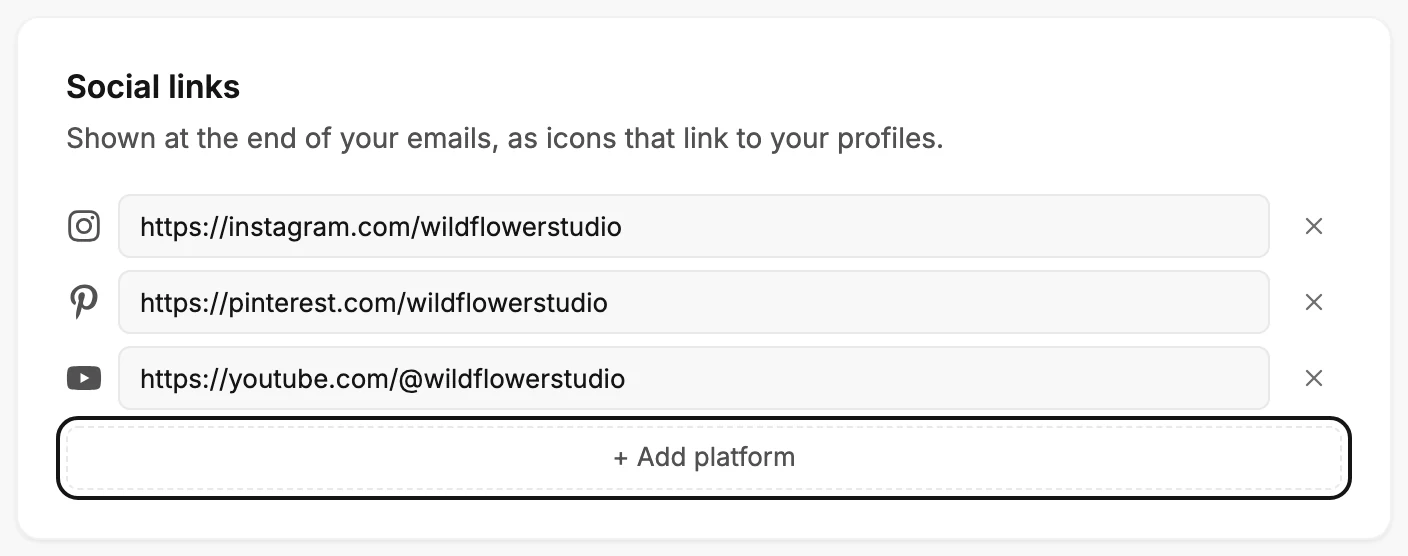
Select your avatar at the top right and choose All settings, then Brand. The Social links card sits below the Logo card. Its line says what it’s for: Shown at the end of your emails, as icons that link to your profiles.
The rows
Each platform you add is one row: its icon, a box for the profile’s full address, and an ×. The box reads the platform’s name until you fill it, Instagram link for example.
Type or paste the address. If you leave out https://, Jounce adds it when you leave the box. The × takes the platform out. With no rows, the card reads No links yet.
+ Add platform
+ Add platform opens the list of platforms you haven’t added yet. Pick one and its row appears at the end of the card. The list covers the networks most people link: Instagram, Facebook, Pinterest, LinkedIn, YouTube, TikTok, X under its older name Twitter, and more.
The card holds up to eight platforms. At eight rows, the button is replaced by Up to 8 links. Remove one to add another.
How it saves
A change here waits for Save kit at the bottom of the page. Until then, Unsaved changes shows beside the button. A row with no address isn’t saved. After the save, Jounce says Kit saved. New emails use it, with Undo beside it.
If you leave the page before you save, Jounce asks Discard your edits? first. Everyone in the workspace can change these links. The rest of the page is in The Brand page.
Where the links go
An email that opens in the earlier editor uses these links in every Social links block, in place of the rows in the block’s panel. The editor shows them, and the sent email carries them.
The icons follow the order of the rows on this card. A platform that isn’t on the card doesn’t show, even when the block lists it.
With no links saved on the card, each block keeps the rows in its panel. See Why did the links in my Social block change?
In every email you create, the Sign-off and Colored close blocks show these links under their closing line.
Click the icons in either block to edit the links from the email; each change saves to this card. With no links saved, the editor shows a dashed Your social links spot instead, which never goes out. See Edit your social links from an email.
A scheduled email that opens in the earlier editor sends with the links you saved. The save message says so. Any other scheduled email keeps the links it was scheduled with.
When the send steps find social icons with no link, they offer to add the links. What you type in that step is saved to this card. See What Jounce checks before it sends.
More in this topic
Updated