

Sign out of Jounce
Short answer
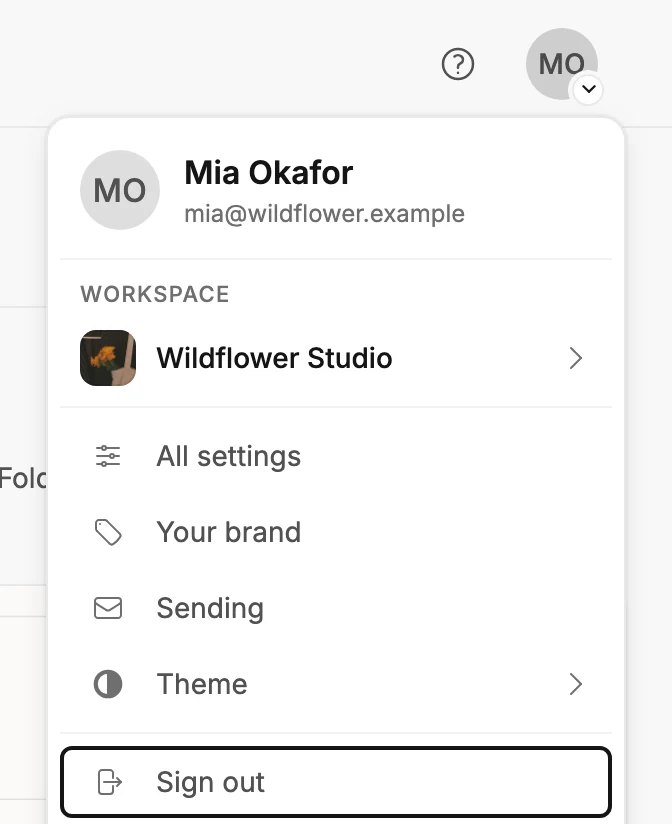
Open the account menu at the top right and choose Sign out, the last row. Only this browser signs out and forgets your workspace, and if a change you just made hasn’t reached Jounce yet, it asks first.
When you’re done, this browser shows the sign-in page and keeps nothing from your workspace. Scheduled emails still go out, automations keep running, and your teammates keep working.
- Select your avatar at the top right. The account menu opens. A page that fills the whole window, like an editor, has no avatar; see The account menu for the way back to it.
- Choose Sign out, the last row of the menu. Jounce signs you out, clears this browser’s copy of your workspace, and opens the sign-in page, which says See you soon. If Jounce asks Sign out anyway? instead, see the choice below.
What signs out
Only this browser. If you’re signed in on your phone or another computer, you stay signed in there until you sign out on it too.
Every Jounce tab open in this browser signs out with you. A tab on any page of your workspace lands on the sign-in page; a tab on a help article stays open.
Signing out is not leaving. To give up your place in a workspace, see Leave a workspace. It isn’t closing your account either; see Close your Jounce account.
What this browser forgets
Jounce keeps a copy of your workspace in your browser so pages open fast. That copy holds your subscribers, your emails and forms, your analytics, and the addresses of your last test send.
Signing out clears all of it, so the next person at a shared or public computer finds none of your subscribers here. Sign in again and Jounce loads it fresh.
Your theme choice stays, along with the card-or-list and rows-per-page choices on your lists and any tip you closed.
If the Brand page has unsaved changes
Your kit on the Brand page waits for Save kit, so signing out would drop changes you haven’t saved. Jounce asks Discard your edits? first.
- Keep editing keeps you signed in, on the Brand page.
- Discard edits signs you out without them.
If Jounce asks before signing you out
Before you sign out, Jounce sends your last changes and gives them a moment to arrive. That includes a change you made a second ago. If some are still on their way, Jounce asks Sign out anyway? instead of signing you out. That usually means your browser is offline.
- Stay signed in changes nothing. The changes reach Jounce on their own once you’re back online, even if you close the tab and open Jounce again later on this browser. Escape, the dialog’s Close button, and a click outside it do the same.
- Sign out anyway signs you out and clears this browser’s copy of your workspace. The button shows a spinner until the sign-in page opens.
Careful The changes that hadn’t reached Jounce are cleared with the copy, and nothing brings them back.
When nothing is waiting, Jounce signs you out right away without asking.
Two other places you can sign out
- The card that says you’re not in a workspace has a Sign out button under Create a workspace. See Why does it say I’m not in a workspace?
- An invite page that says the invite went to a different address has a Sign out button. Select it, sign in with the address the invite went to, and you come right back to the invite.
Either button can ask Sign out anyway? too, with the same choice.
Sign back in
Open app.jounce.com and sign in the same way you signed up. To use a different login, sign out first, then sign in with the other one.
Next step
When you come back, see Sign in to Jounce.
More in this topic
Updated