

Set your brand colors
Short answer
On the Brand page, under Colors, set Brand, Button, Highlight, and Canvas with the color well or a hex code, then select Save kit. Leave Button or Highlight empty and it follows Brand.
When you’re done, your kit holds your brand’s colors, and the emails you make next start in them.
- Select your avatar at the top right and choose Your brand. The Brand page opens.
- Under Colors, select the Brand well. The color picker opens.
- Pick a color from the grid, or type its code into the box beside the
well, like
#a6512e. The well changes as you pick. - Set Button, Highlight, and Canvas the same way. Leave Button or Highlight empty to have it follow Brand.
- Select Save kit at the bottom of the page. Jounce says Kit saved. New emails use it, with Undo beside it.
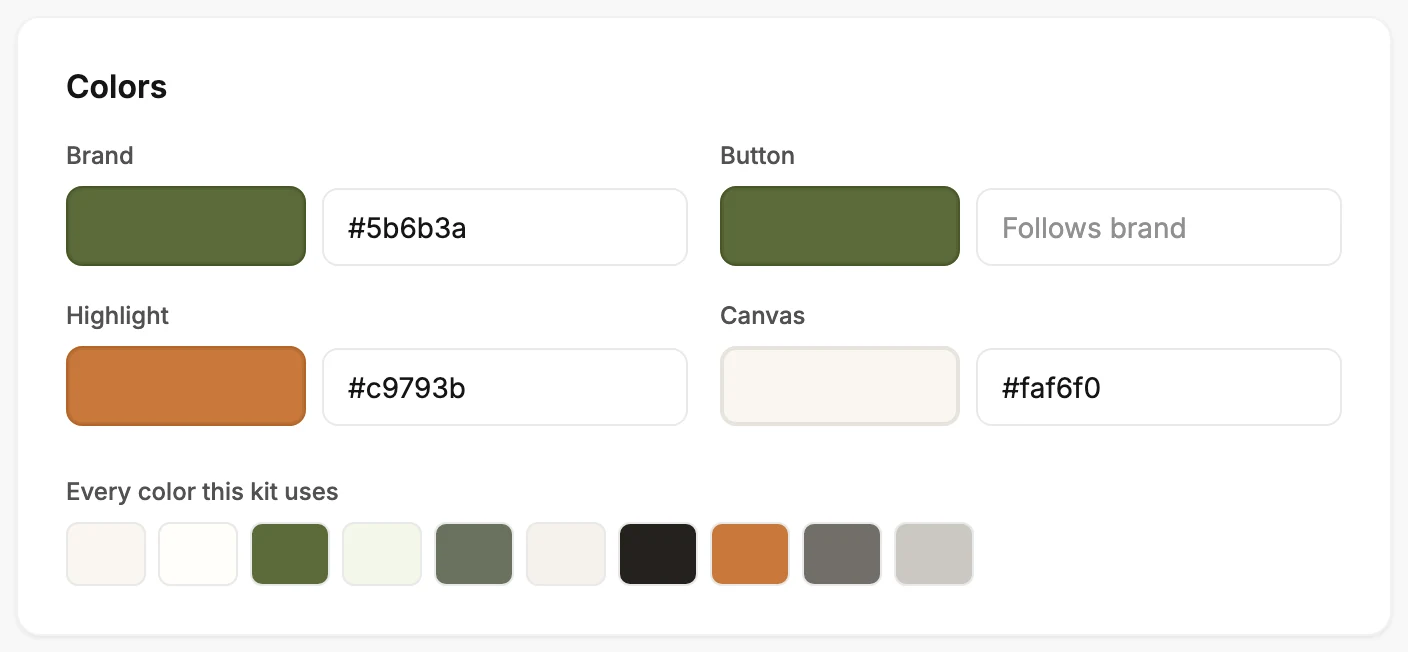
Nothing is kept until you select Save kit. If you leave the page first, Jounce asks whether to discard your edits. Scan my site at the top of the page fills these colors from your website. See Fill your brand from your website.
What each color does
| Color | What it colors |
|---|---|
| Brand | The banner, the shaded sections, and quiet labels. The button, links, and check marks follow it unless you set their own. |
| Button | The button and the links. Left empty, they use your Brand color. |
| Highlight | One accent label per email, plus icons and check marks. Left empty, it takes a shade of Brand. |
| Canvas | The background behind everything. Your text color follows it. |
An empty Button or Highlight box says Follows brand. To make one follow Brand again, point at its well and select the ×.
Under the four, Every color this kit uses shows each color your emails paint, shades included. To see them on an email, save your kit and start a new email.
Hard to read on this background
If your Highlight is hard to read as text on your background, Jounce flags it under the field. The flag says Hard to read on this background, with its contrast ratio. Select Fix contrast, and Jounce swaps in a readable shade of the same color. A code that isn’t a color shows Needs a hex color, like #a6512e.
Where your colors go
Every email you create uses all four, and one that’s still a draft picks up each saved change. In an email that opens in the earlier editor, each block you add takes Brand and Highlight. See Apply your brand to new emails. Brand and Highlight also come first in the earlier editor’s color picker.
Next step
Your fonts are the next card down. See Choose your brand fonts.
More in this topic
Updated