

Send your email at each contact’s local time
Short answer
On the Review step, choose Their time under When and pick a date and a time. Each contact gets it at that time where they live, and contacts Jounce has no time zone for go by your workspace’s.
When you’re done, the email is scheduled, and each contact gets it at the time you picked on their own clock. A 9:00 AM send reaches New York at 9:00 AM there, and Tokyo at 9:00 AM there.
-
Go through the send steps to Review.
-
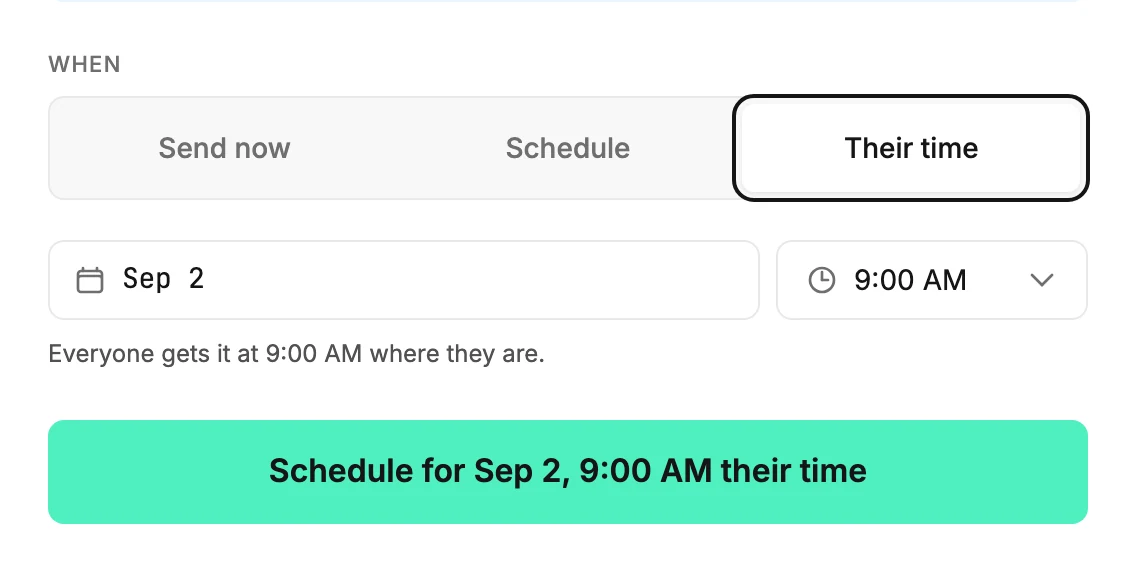
Under When, choose Their time. The date and time stay, and the time zone list steps aside. If the time is still Review’s own, about an hour from now, it moves to 9:00 AM tomorrow. Switch away, and it moves back.
-
Pick the date and the time. A line under them reads Everyone gets it at 9:00 AM where they are.
-
Select the button at the bottom. It reads Schedule for and your pick, like Schedule for Jun 14, 9:00 AM their time.
Clocks reach that time one after another, so the send can take up to about a day. The page after you send says when it starts on your clock.
When Their time shows
It shows when your recipients live in more than one time zone, as far as Jounce knows; see Where a contact’s location comes from.
It isn’t offered with an A/B test, on an email sent in steps, or while your list’s warm-up would make it late. If one of these comes up after you choose it, When goes back to Schedule, and a line says why.
If the warm-up would make it late after you schedule, Jounce doesn’t send it, and nobody is emailed. Its status label then reads Failed. Its results page says While your list is warming up, Jounce can’t start this email by its first time zone’s send time. Pick a later date, or send it at one time for everyone.
People with no time zone
Anyone Jounce has no time zone for gets it at the time you picked in your workspace’s time zone. That’s the Time zone on the Basics page. If it’s empty, they go by the time zone of the device you schedule from.
People who join after you schedule
Someone who joins after you schedule, or whose time zone Jounce learns after, may reach the time you picked before the first time zone does. They get it with that first time zone instead.
When the time has passed somewhere
Where your pick has already passed on that date, people get it a day later at the same time. A second line counts them: It’s already past 9:00 AM on Jun 14 for 8 people, so they get it Jun 15.
A countdown in the email
A countdown has to outlast the last time zone. If it ends too soon, a note reads Your countdown ends too soon for everyone to get this at their time. The send button then takes you to Send at one time instead, which switches to Schedule. Or pick an earlier date, or move the countdown’s end.
Part of Pro
On a Plus plan, Their time opens the Upgrade to Pro screen, titled Send at their time. Upgrade there, and it’s picked for you. With no plan, the pay pop-up opens instead. While your plan can’t move up to Pro, such as a paused one, it doesn’t show. See Upgrade to Pro.
While it goes out
Its card on your Emails page reads Scheduled for the date you picked. While it goes out, the label reads Sending by time zone. Cancel sending in the card’s menu stops the time zones still to come.
Next step
To stop it partway, see Cancel a scheduled or sending email.
More in this topic
Also answered here
- why don't I see their time
- what time do people with no time zone get it
- why does their time ask me to upgrade
Updated