

Claim your handle
Short answer
If your workspace has no handle yet, publishing a full page or a link-in-bio page asks for one under Your address in Share: type one, wait for Available, and publish. You can set the same handle any time in Settings › Public address.
When you’re done, every full page and link-in-bio page you publish lives at
your-handle.myjounce.com. Links you share show a preview card.
Admins and Managers set the handle. An Editor can read the address but gets no box to change it. See Why can’t I change the public address?.
You can set it in two places, and both save one handle for the whole workspace.
Both ask for a verified email first. If yours isn’t verified yet, the button opens Verify your email to set your public address, or Verify your email to publish on a draft. Open the link Jounce sent you, select I’ve verified, then select the button again.
While you publish a page
- Open the page and select Share at the top right. If no handle is saved, you see Your address where Your link usually is. Its box already holds a suggestion.
- Keep the suggestion, or type your own. Jounce checks as you type and says Available, or why the handle won’t work.
- Select Publish page, or Publish link in bio. Jounce saves the handle first, then puts the page live at its new address.
The line under the box says what that button does: Publishing claims this address for every page you publish. Under the button, You can change any of this after it’s live.
A page that is already live shows Your address between Your link and Share it. Its line reads Claim your address here and this page gets a short link that previews when shared. Select Claim address. Your address goes away, and Your link holds the short address.
In Settings
- Select your avatar at the top right and choose All settings.
- Select Public address under Brand.
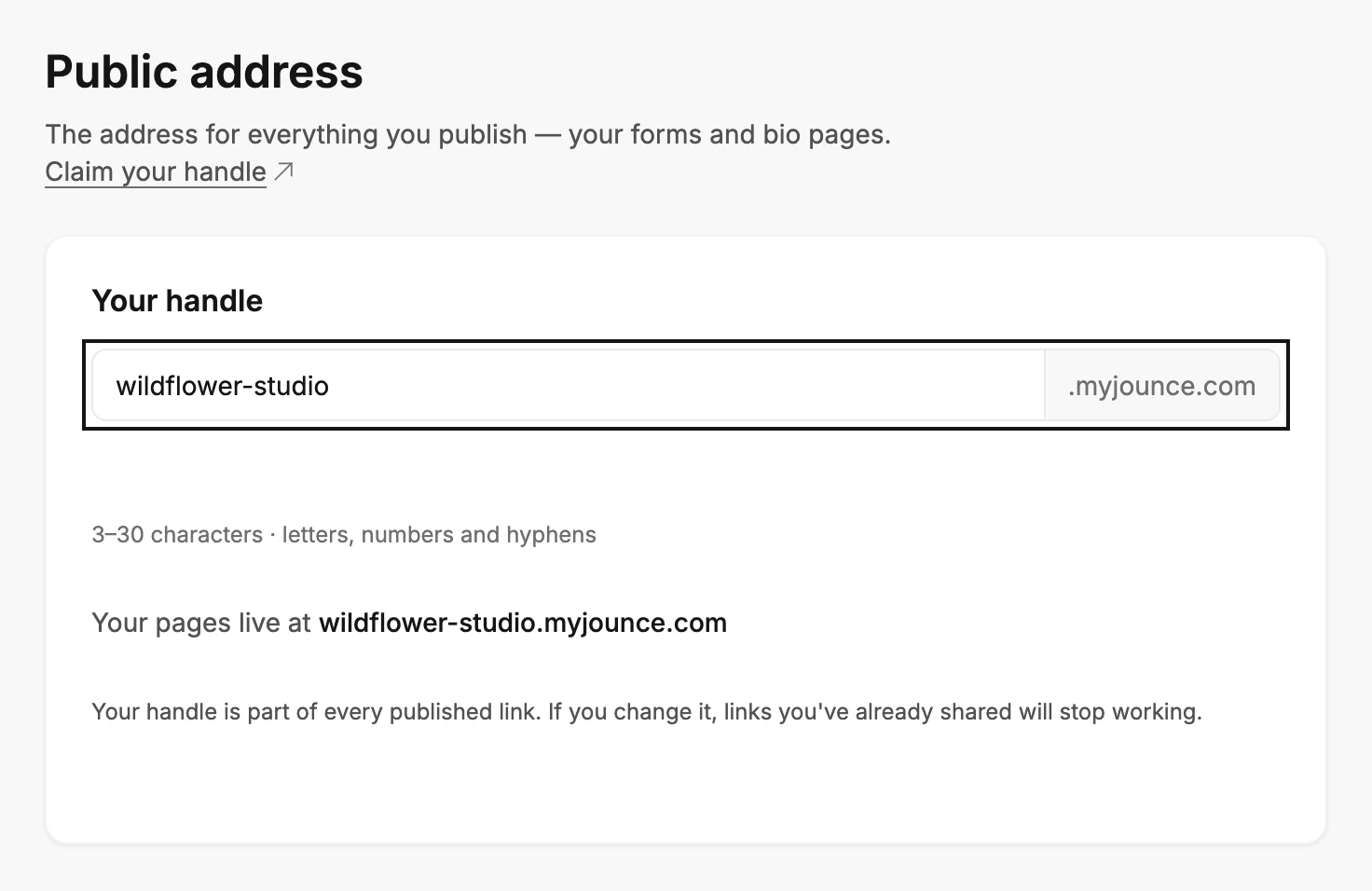
- Under Your handle, type the handle you want. With none saved, the box already holds a suggestion.
- Read the line under the box: Your pages live at your address.
- Select Save handle. Jounce says Saved — your address is your new address.
What a handle can be
The rule under the box: 3–30 characters · letters, numbers and hyphens. As you type, capitals turn to small letters and spaces turn to hyphens. A handle Jounce can’t use turns the box red and says why. See Why won’t Jounce accept my handle?
Your live pages follow
Claiming a handle moves all your live pages to the new address. If a page stays behind, both places name it: Your address is set, but Sunday Edit didn’t move to it. Open it and change anything — that moves it. With more than two, Jounce gives a count instead: 5 live pages didn’t move to it.
If Jounce can’t tell whether they moved, it says Your address is set, but your live pages may not have moved to it.
Open each one and change anything. The live page catches up. See Editing a live form.
Changing a handle you already have
Careful Your handle is part of every published link. If you change it, links you’ve already shared stop working. Anyone who opens an old link sees a Jounce page. It says the link doesn’t lead anywhere.
If you already have a handle, Jounce asks Change your handle? when you select Save handle. It shows the address you’re leaving. Keep current handle closes it; Change handle makes the change. Then share your pages’ links again from Share.
If it didn’t save
Jounce says That didn’t save. Your current address is unchanged — try again. The handle you typed is still in the box. In Share, that line sits under the box, and the page you were publishing stays a draft.
A claim that ran out of time reads That took too long to finish. Try again. Select the button again. Jounce claims the same handle and moves your pages again.
Jounce limits how often one workspace changes its address. Past the limit it says Public address changes are capped at 10 an hour. Nothing changed — try again later. Wait, then claim again.
If the line under the box starts Someone at Jounce took this workspace’s pages offline, publishing is paused for your workspace. The address didn’t change, and trying again won’t work. See Why can’t I publish my form?.
If the handle saved and the page didn’t go live, Jounce says Your address is set. Couldn’t publish your page right now — your work is safe. Try again. The address is yours; select the publish button again.
Next step
The fresh link for each page is in Share your page’s link.
More in this topic
Updated