

See your form on a phone
Short answer
Select Phone in the editor’s top bar. The editor shows the form at a phone’s width, and you can keep editing in that view.
When you’re done, you’ve seen the form the way a phone shows it.
-
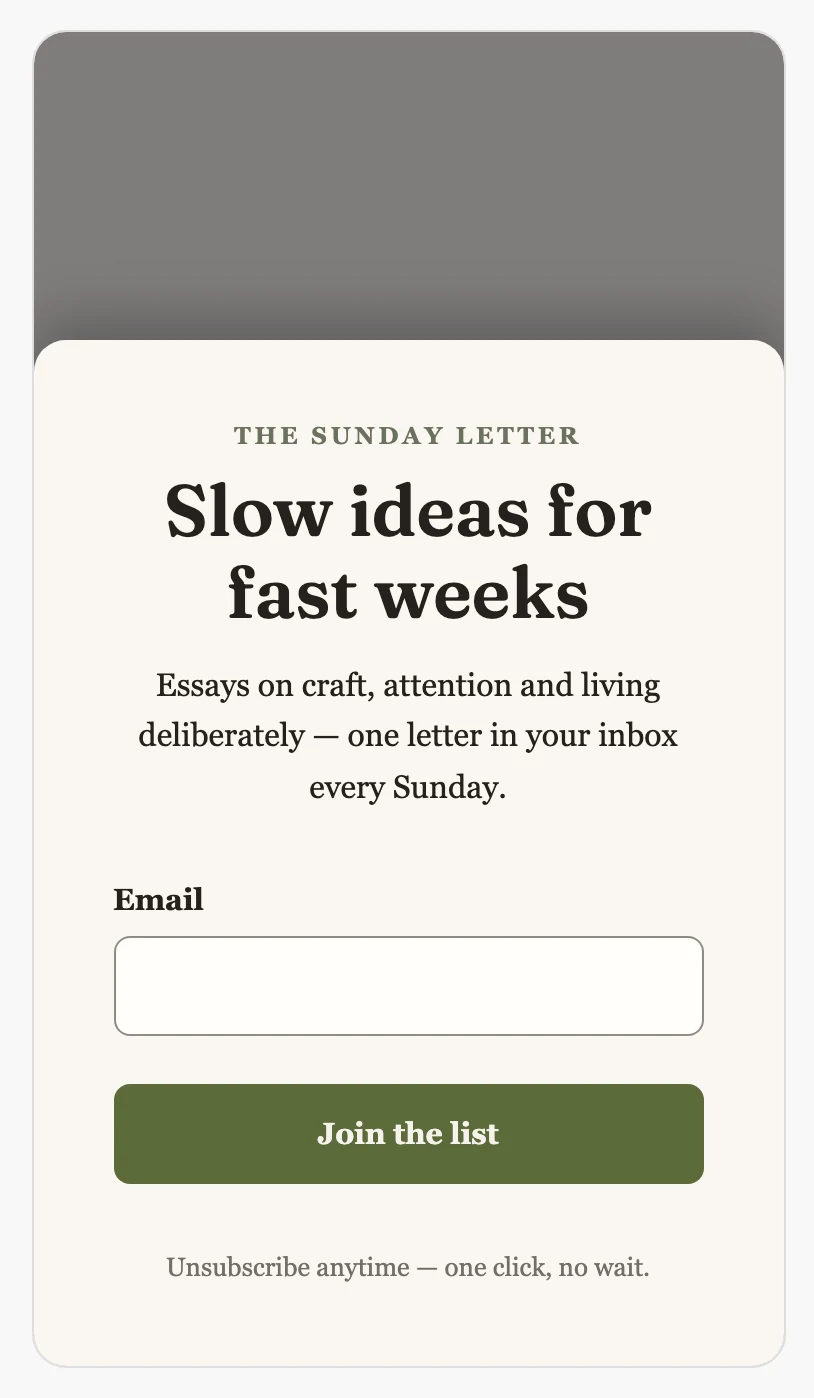
Select Phone in the top bar, beside Desktop. The form shows in a phone-shaped frame, and its words and fields stack the way they do on a phone.
-
Edit as usual. There is one form, so a change you make here shows at Desktop too.
-
Select Desktop to go back. The editor opens on Desktop each time.
A pop-up changes shape on a phone. In place of a card in the middle of the page, it rises from the bottom of the screen.
Phone works with Form and Thank you beside it. Select Phone, then Thank you, to check the thank-you screen at a phone’s width.
Next step
When both widths look right, see Publish your form.
More in this topic
Updated