

Hide or show an element
Short answer
Select a part and press Delete to hide it; nothing is removed. To bring it back, turn its switch on under Elements in the settings panel.
When you’re done, the part is gone from the form, and you know where to find it again. A hidden part never shows on the live form.
Hide a part
- Select the part you don’t want, such as the small line above a heading, an intro, or a field.
- Press Delete or Backspace. The part disappears, and Jounce says where it went: Hidden — it stays in this form’s Elements list. on a pop-up, and this block’s Elements list on the other kinds.
- Changed your mind? Select Show in that message, or Undo in the top bar.
Some parts stay. A heading, the email field and the sign-up button answer with a reason instead; see Why can’t I delete this?
Show it again
- On a pop-up, press Esc until the settings panel’s heading reads Form. On the other kinds, select the block the part was in.
- Under Elements, find the part. Its name is dimmed and its switch is off.
- Turn the switch on. The part comes back where it was, with its words.
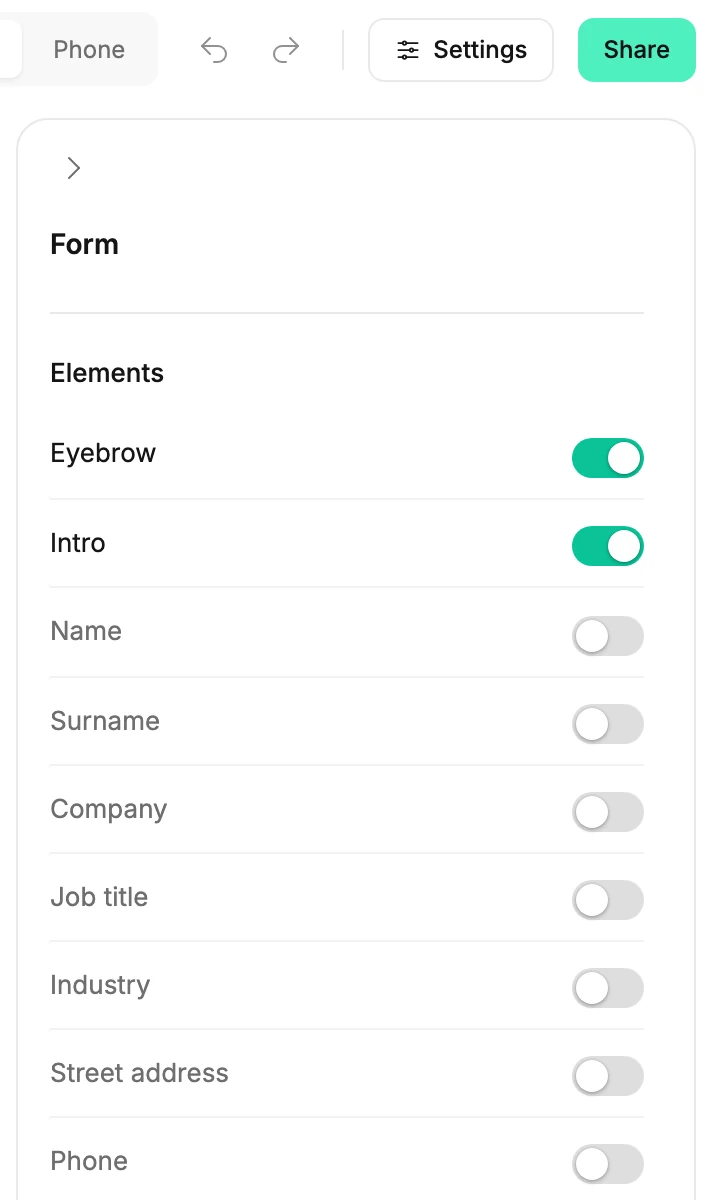
A switch works both ways, so you can hide a part there too.
Fields
A field hides the same way, and its switch sits in the same list. See Add or remove a field.
A whole block
Delete on a whole block is a different act. On a full page it deletes the block, and Jounce offers Undo. See Add, move, or remove a block.
Next step
Change what’s left: Edit the words, images, and buttons.
More in this topic
Updated