

The Share dialog
Short answer
Share at the top right of the editor is where a form goes live: before that it holds the Publish button. After, it holds the page’s link or the form’s embed code, a Copy button, a way to open it, and Unpublish.
Open a form in the editor and select Share at the top right, beside Settings. On the Forms page, a live form’s card menu has Share too. That opens the editor with this dialog showing.
What the dialog holds depends on two things: whether the form is live, and what kind of form it is. A full page or a link-in-bio page has a link. A pop-up or an inline form has embed code. See The four kinds of form.
Before it’s live
For a full page or a link-in-bio page, Your link shows the address the page will have. Under it: Publish to turn this link on. For a pop-up or an inline form, Your embed code holds one line instead. It reads Publish to turn on your embed code, then paste it into your site.
If your workspace has no handle yet, a Manager or an Admin gets Your address in place of Your link. It holds a box with a suggested handle, and .myjounce.com after it. Under the box: Publishing claims this address for every page you publish. The publish button saves the handle first, then puts the page live. See Claim your handle.
Below that is the one button: Publish form, Publish page for a full page, or Publish link in bio for a link-in-bio page. Under it, You can change any of this after it’s live. There is no second confirmation. See Publish your form.
Managers and Admins publish. If your role is Editor, the button’s place holds a Draft label and A manager can publish it.
While Jounce checks a handle in Your address, the publish button waits. It waits too while the box is empty or holds a handle Jounce won’t take, and the box says which.
If Jounce can’t reach the check at all, the button still works, and Jounce checks the handle when you select the button. See Why can’t I publish my form?.
Once it’s live
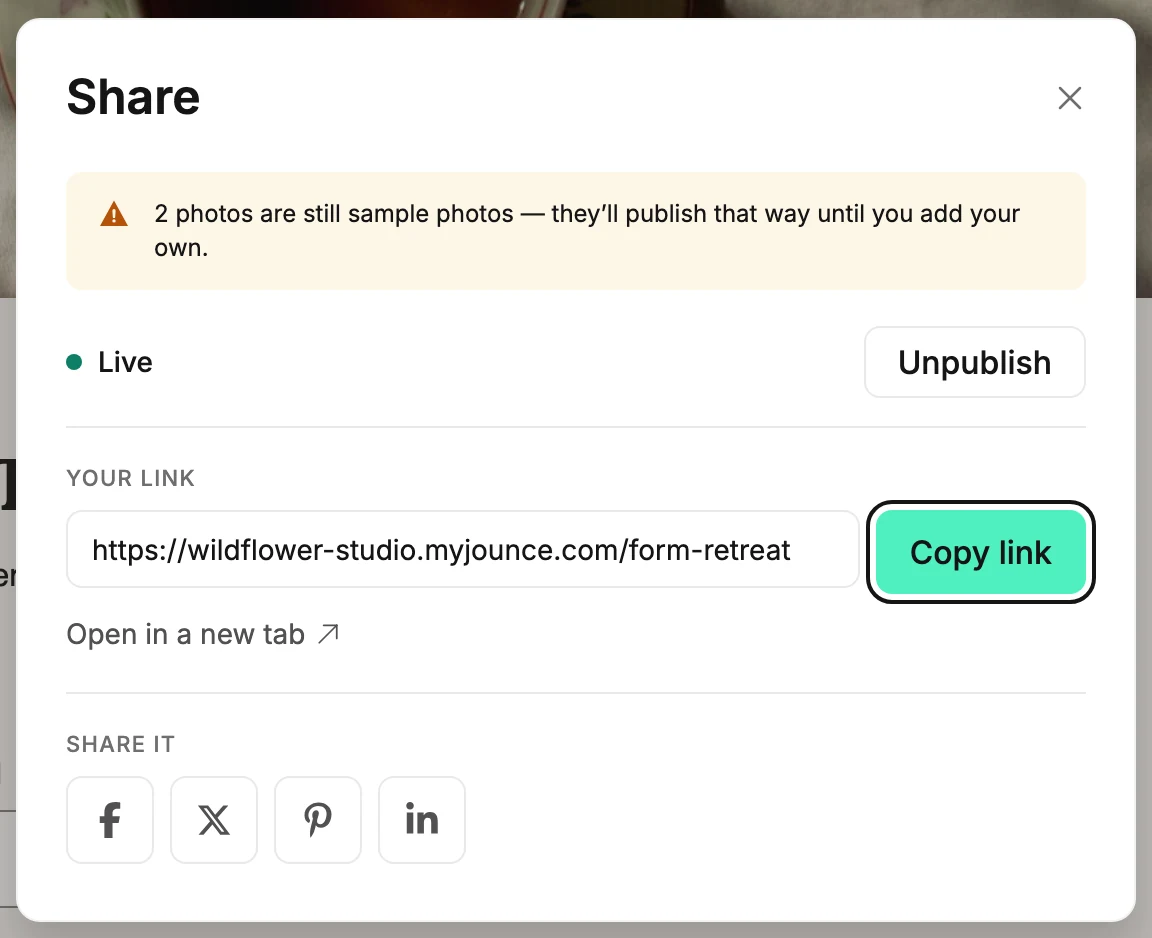
The top row reads Live with a green dot. Beside it, Managers and Admins see Unpublish. It takes the form offline with no confirmation. See Unpublish a form.
Your link
On a full page or a link-in-bio page. The address the page lives at, with Copy link beside it. The button reads Copied for a moment after you select it. Open in a new tab shows you the live page. See Share your page’s link and Your page’s address.
Your address
On a full page or a link-in-bio page whose workspace has no handle, for a Manager or an Admin. The same handle box sits between Your link and Share it. Under it: Claim your address here and this page gets a short link that previews when shared.
Claim address saves the handle. It’s the dialog’s one green button while the box is there. Once you claim, Your address goes away. Your link holds the short address, and the Share it buttons carry it. See Claim your handle.
Share it
On a full page or a link-in-bio page. Three buttons: Share on Facebook, Share on X, and Share on LinkedIn. Each opens that site’s share window in a new tab with your link filled in; you write the post there.
A pin needs a picture, so Share on Pinterest shows only when there’s one to pin. That is the page’s link-preview picture once it’s published, or else a photo on the page. The button sits between Share on X and Share on LinkedIn. The pin uses that picture, with the page’s link preview as the pin’s description.
An Editor sees no box. A line under the buttons says Shared posts won’t preview yet. A manager can set your address in Settings → Public address. The buttons still work. See Share your page’s link.
Your embed code
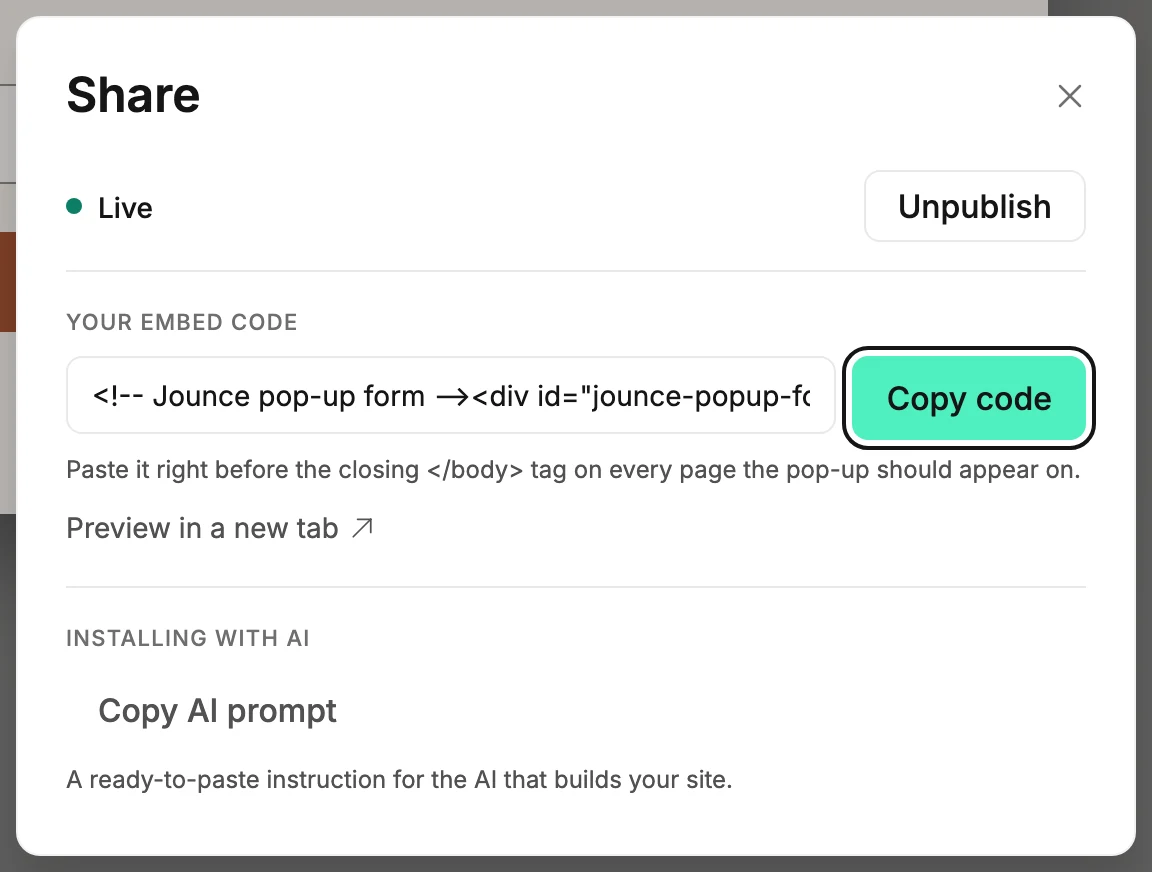
On a pop-up or an inline form. The code to paste into your website, with Copy code beside it.
Under the code, one line says where it goes. For a pop-up it reads Paste it right before the closing </body> tag on every page the pop-up should appear on. For an inline form it reads Paste it into the page, right where the form should appear.
Preview in a new tab opens the form on a plain sample page so you can check it. A pop-up opens over the page, and an inline form sits in it. See Add a pop-up or inline form to your website.
Installing with AI
On a pop-up or an inline form. Copy AI prompt copies A ready-to-paste instruction for the AI that builds your site, with your embed code inside it. See Install your form with an AI site builder.
What each kind gets
| What it holds | Pop-up | Inline | Full page | Link in bio |
|---|---|---|---|---|
| Your link | — | — | Yes | Yes |
| Your address | — | — | Yes | Yes |
| Share it | — | — | Yes | Yes |
| Your embed code | Yes | Yes | — | — |
| Installing with AI | Yes | Yes | — | — |
| Unpublish | Yes | Yes | Yes | Yes |
Your address shows up until the workspace has a handle, and for a Manager or an Admin.
When something doesn’t go through
If you haven’t verified your email yet, the publish button opens a window first: Verify your email to publish. Claim address opens Verify your email to set your public address. Open the link Jounce sent you, select I’ve verified, then select the button again. Unpublish never asks. See Verify your email address.
If publishing fails, Jounce says Couldn’t publish your form right now — your work is safe. Try again., with page in place of form on a full page and link in bio on a link-in-bio page. If unpublishing fails, it says Couldn’t unpublish your form right now — it’s still live. Try again. Your form and its settings are saved either way.
If Jounce has paused publishing for your workspace, selecting the publish button shows a red notice at the top of the dialog. It reads Someone at Jounce took this workspace’s pages offline, so publishing is paused. Your forms and subscribers are safe. Write to hello@jounce.com and ask why.
The notice stays until you close the dialog. Its link, Email Jounce, opens an email to hello@jounce.com. For what to do, see Why can’t I publish my form?.
More in this topic
Updated