

The Public address page
Short answer
The Public address page holds your handle, the first part of every published page’s address. Jounce checks a handle as you type, and Save handle appears once it reads Available.
Select your avatar at the top right and choose All settings, then Public address under Brand.
The line at the top says what it’s for: The address for everything you publish — your forms and bio pages. The link at the end of that line, Claim your handle, opens that article in a new tab. Your handle is the first part of that address, followed by .myjounce.com.
See Your page’s address for what the whole address is made of.
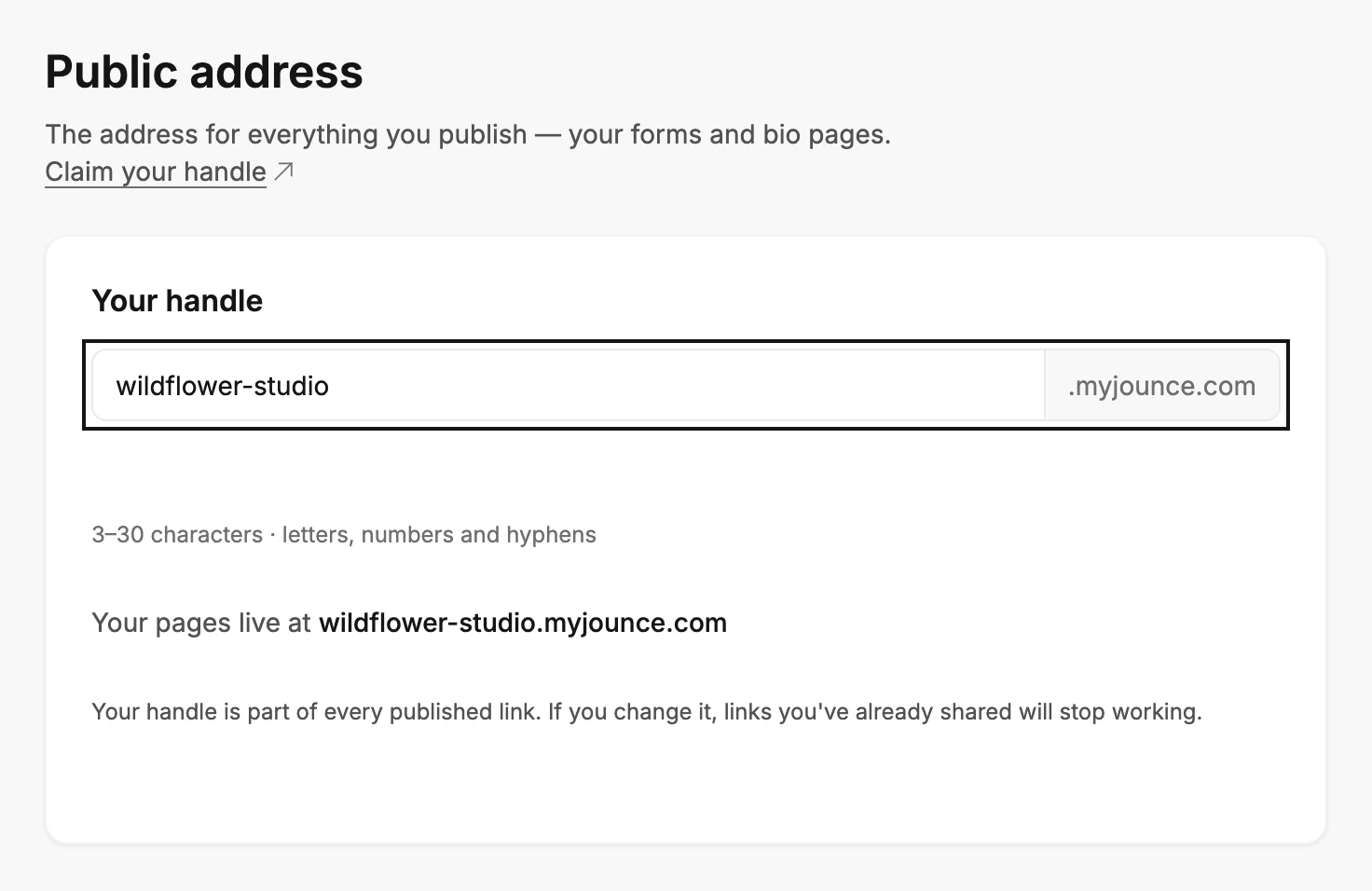
Your handle
The box holds your handle, with .myjounce.com printed after it. Under it, the rule: 3–30 characters · letters, numbers and hyphens. As you type, capitals become lowercase and spaces become hyphens.
A moment after you stop typing, Jounce checks the handle and says what it found under the box:
- Checking. while it looks.
- Available with a check mark when the handle is free.
- Nothing, when you’ve typed your saved handle back in. There is nothing to check.
- This is your current address. when you’ve typed a handle this workspace used before. Jounce keeps it reserved for the workspace, so the line calls it current. It can’t be saved again.
A handle Jounce can’t use turns the box red and says why. See Why won’t Jounce accept my handle?
The line Your pages live at shows the address the box would give you. If your workspace has no handle saved, the box opens with a suggestion. See Why is there a handle I didn’t pick?
Save handle
Save handle appears once the box holds a different handle that reads Available. It also appears if Jounce couldn’t run the check. Jounce checks the handle as it saves. Select it and Jounce saves the handle and says Saved — your address is followed by your new address. The steps are in Claim your handle.
If you haven’t verified your email yet, Save handle opens Verify your email to set your public address before anything else. Open the link Jounce sent you, select I’ve verified, then select Save handle again. See Verify your email address.
If you already have a handle, Save handle opens Change your handle? first. It shows the address you’re leaving and the one you’re moving to, and says the old links will stop working anywhere you’ve shared them. It also says your forms and their data stay exactly as they are. Keep current handle closes it. Change handle makes the change.
Saving moves every page you have live to the new address. If one stays behind, Jounce names it: Your address is set, but Sunday Edit didn’t move to it. Open it and change anything — that moves it. Share says the same thing after a claim there.
If a save fails, a line under the box reads That didn’t save. Your current address is unchanged — try again. The handle you typed stays in the box. A save that ran out of time reads That took too long to finish. Try again.
The same box turns up in Share when a Manager or an Admin publishes a page and the workspace has no handle. Either place saves one handle for the whole workspace. See Claim your handle.
What an Editor sees
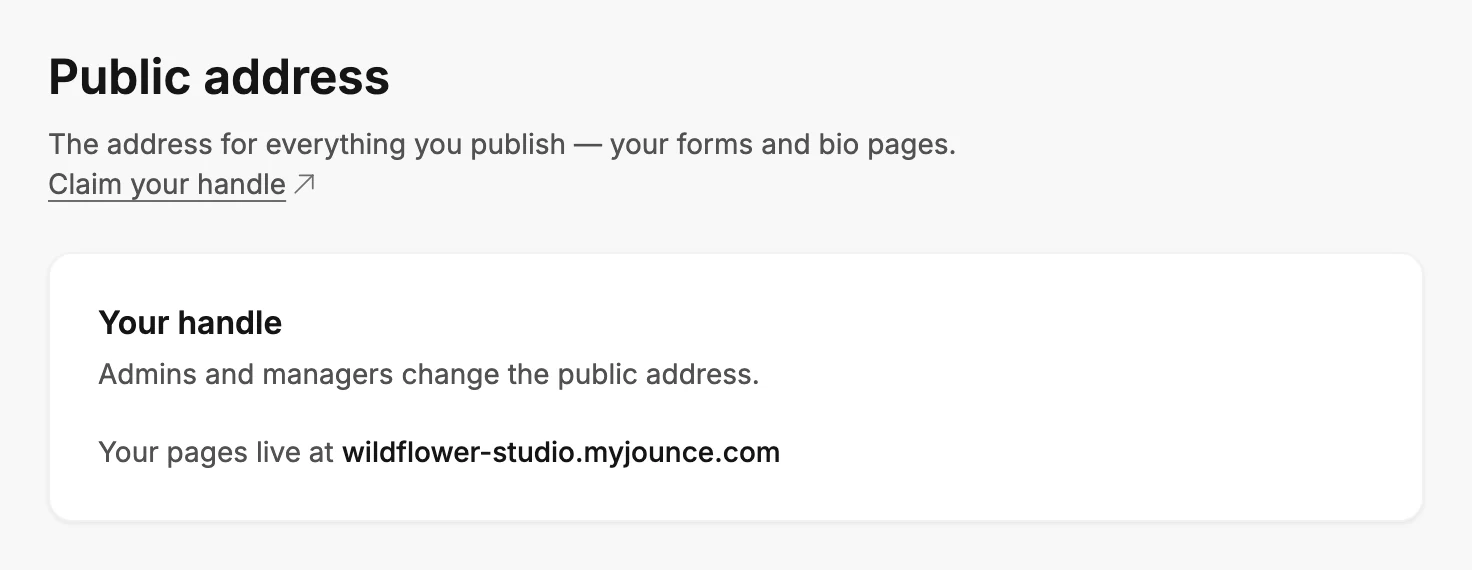
An Editor sees no box. Under Your handle, the page reads Admins and managers change the public address. Below that, Your pages live at shows your address. With no handle saved, it reads No handle yet. See Why can’t I change the public address?
More in this topic
Updated