

The Opt-in setup page
Short answer
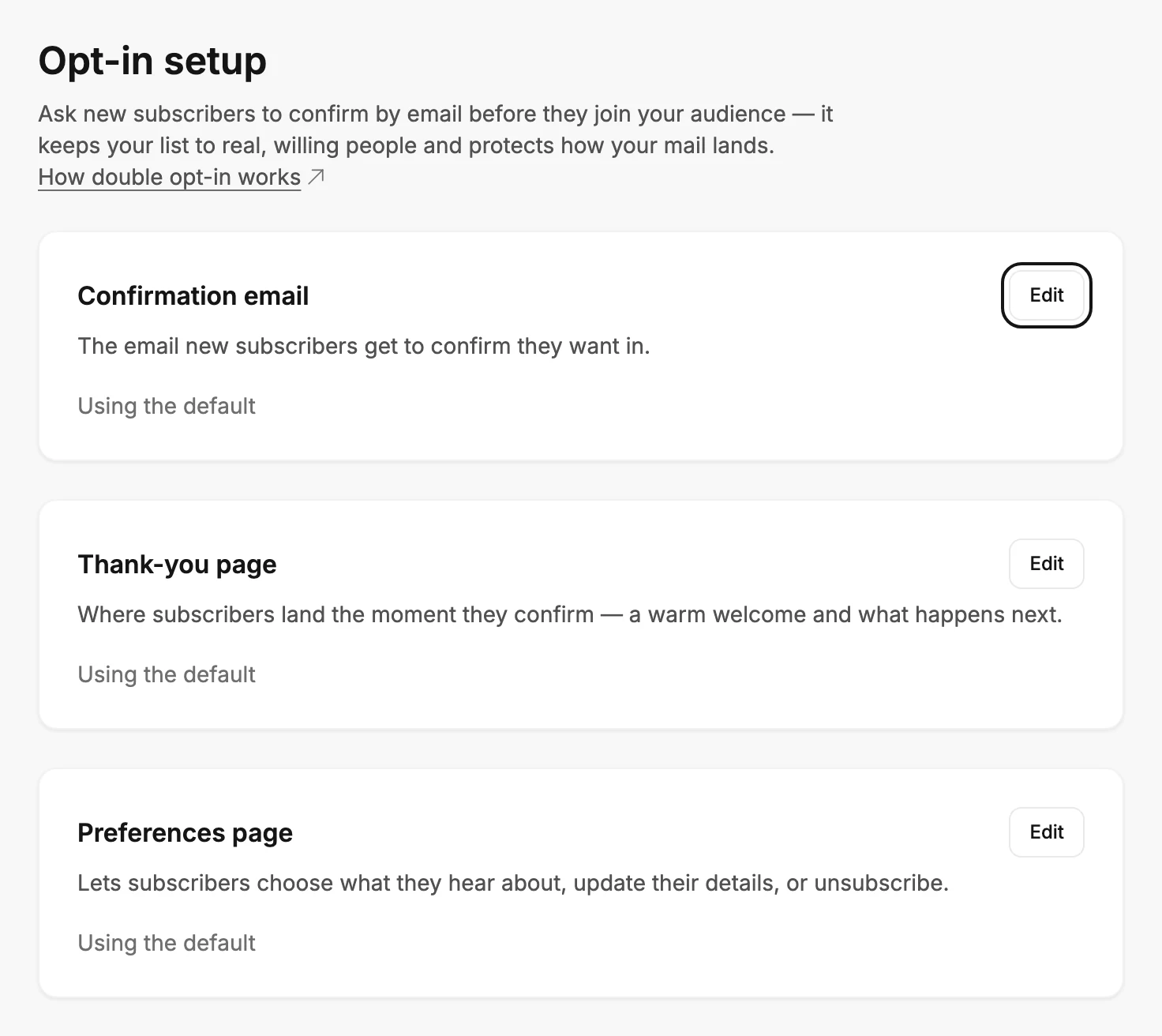
Settings › Opt-in setup has three cards, one for each thing a new subscriber meets: the Confirmation email, the Thank-you page, and the Preferences page. The confirmation email is automatic, and the other two each have an Edit button and a line that reads Using the default or Customised.
Open your avatar at the top right, choose All settings, and select Opt-in setup under Sending in the list on the left.
The page opens with this line: Ask new subscribers to confirm by email before they join your audience — it keeps your list to real, willing people and protects how your mail lands. The link at the end of that line, How double opt-in works, opens that article in a new tab.
Every form in the workspace shares these three. Each form has its own switch that decides whether it asks people to confirm at all. See Ask people to confirm their subscription.
Confirmation email
The email new subscribers get to confirm they want in. Its line reads Automatic: it uses your logo, fonts and button color. Jounce writes and sends this email for you, so there’s nothing to edit here. Edit brand opens the Brand page, where its look comes from. See The confirmation email.
Thank-you page
Where subscribers land the moment they confirm — a warm welcome and what happens next. Edit opens the editor your emails and forms use. See Edit the thank-you page.
Preferences page
Lets subscribers choose what they hear about, update their details, or unsubscribe. Edit opens an editor with a live preview. No email or form sends a subscriber to this page, so read The Preferences page before you spend time on it.
Using the default and Customised
The Thank-you and Preferences cards each show one of two lines. Using the default means you haven’t saved a change there, so Jounce uses its own design. Customised means you have, and the card updates as soon as you change anything in its editor.
Who can edit
Every role in the workspace can edit the Thank-you page and the Preferences page.
More in this topic
Updated