

Choose when a pop-up shows
Short answer
In a pop-up’s Settings, the When it shows menu sets when it appears, and the After it’s dismissed menu sets how long it stays away. The timing lives in the embed code: after a change, leave the editor and open the form again, then copy fresh code from Share.
When you’re done, your pop-up appears when you want it to and stays out of the way for people who closed it.
- Open Forms, select the pop-up, and select Settings at the top right of the editor.
- Under When it shows, pick a moment. The change saves on its own.
- Under After it’s dismissed, pick how long it stays away.
- If the pop-up is already on your site, copy its code again: the timing lives in the code. Select Forms at the far left to leave the editor, open the form again, and select Share. Copy the code and replace the old code on your site. The editor reads the timing once, when it opens, so leave and come back before you copy.
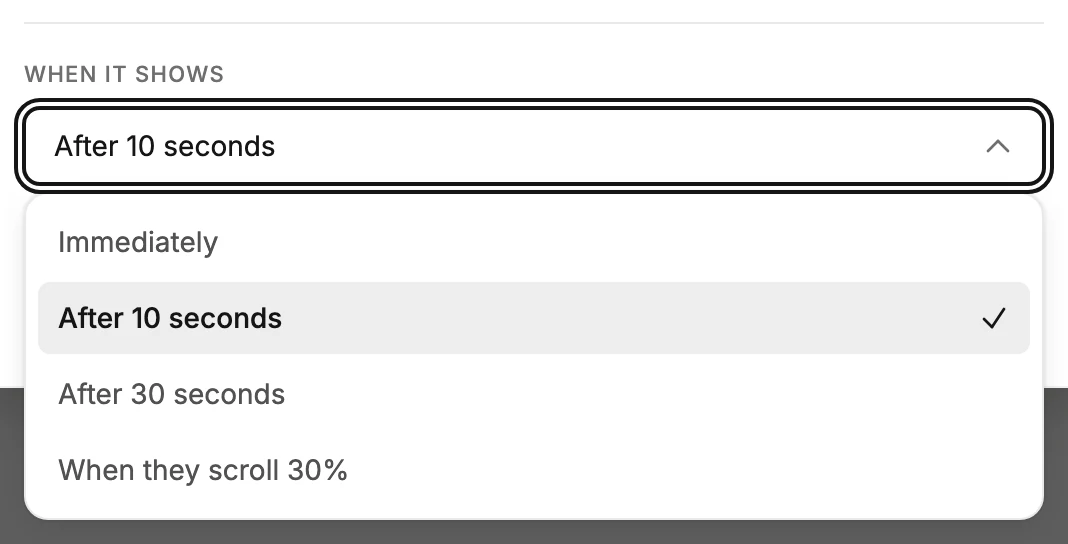
When it shows
- Immediately — as soon as the page loads.
- After 10 seconds and After 30 seconds — a timed wait.
- When they scroll 30% — where every pop-up starts. It appears once the visitor scrolls about a third of the way down. On a page too short to scroll, it appears after 10 seconds instead.
Whichever you pick, the pop-up opens once its form has loaded. That’s usually a second or two later.
On a live pop-up whose timing was never saved, a line under this menu reads On here, not yet in the code you pasted. Copy fresh code from Share to put it on your site.
After it’s dismissed
A visitor dismisses the pop-up with its ×, a click outside it, or the Esc key.
- Every visit — it comes back on the next page load.
- Wait 1 day, Wait 7 days, Wait 30 days — it stays away that long. Every pop-up starts at 7 days.
- Never show again — one close is the last time they see it.
Once someone signs up, the pop-up never shows again in that browser, whatever you picked. The browser keeps track, so the same person sees it again on another device or in a private window.
Note The timing lives inside the code you paste on your site, not on Jounce’s side. The code keeps the timing it had when you copied it, whatever Settings shows.
Next step
Paste the fresh code with Add a pop-up or inline form to your website.
More in this topic
Updated