

Write a link preview
Short answer
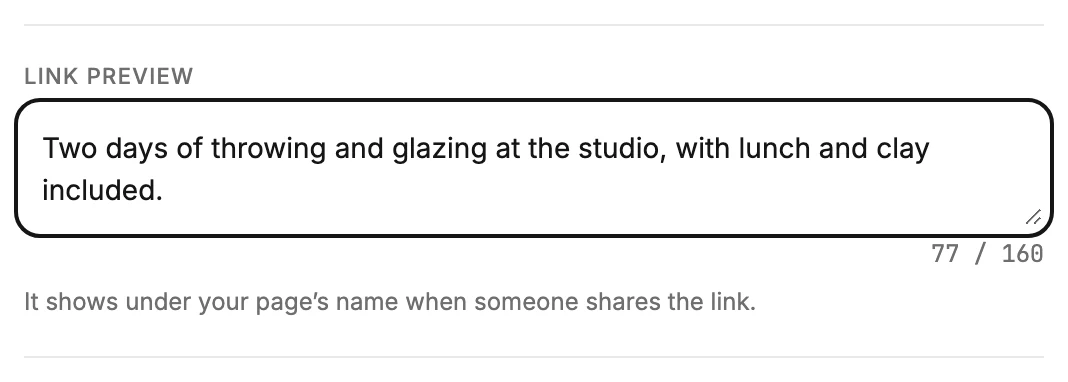
On a full page or a link-in-bio page, open Settings and write a sentence or two under Link preview. It shows under your page’s name when someone shares the link.
When you’re done, a post or a message carrying your page’s link shows a line of your words under the page’s name.
This works on a full page and a link-in-bio page. A pop-up and an inline form sit inside a page of your own site. That page is the one people share, so the row isn’t there. See The four kinds of form.
- Open Forms, select the page, and select Settings at the top right of the editor.
- Under Link preview, write a sentence or two: what the page is, and what someone gets for signing up.
- A count appears under the box, such as 77 / 160. At 160 it turns red and the box takes no more.
- The line saves on its own a moment after you stop typing.
To take the line off again, clear the box.
What to expect
- Jounce keeps the line as one line. Line breaks and runs of spaces close up when it saves.
- Facebook, X, LinkedIn, and messaging apps read the line off the page and show it under the page’s name. Jounce asks search engines to leave your page out until it allows your workspace; see Why isn’t my page in search results?.
- Without a line, a shared link shows your page’s name and nothing under it.
- A preview needs your workspace’s address. Until a Manager or an Admin claims one, a page lives at a longer address on Jounce’s own site. That address shows no preview at all. See Claim your handle.
- On a live page the link carries your line after the save. See Editing a live form.
- If your page has a picture on it, Share on Pinterest appears in the Share dialog. Your line becomes the pin’s description.
Next step
Put the link where people will find it: Share your page’s link.
More in this topic
Updated