

Create a form from a template
Short answer
Select Create form on the Forms page, choose Start with a template, and select a design. Jounce saves your form under the template’s name and opens it in the editor as a draft.
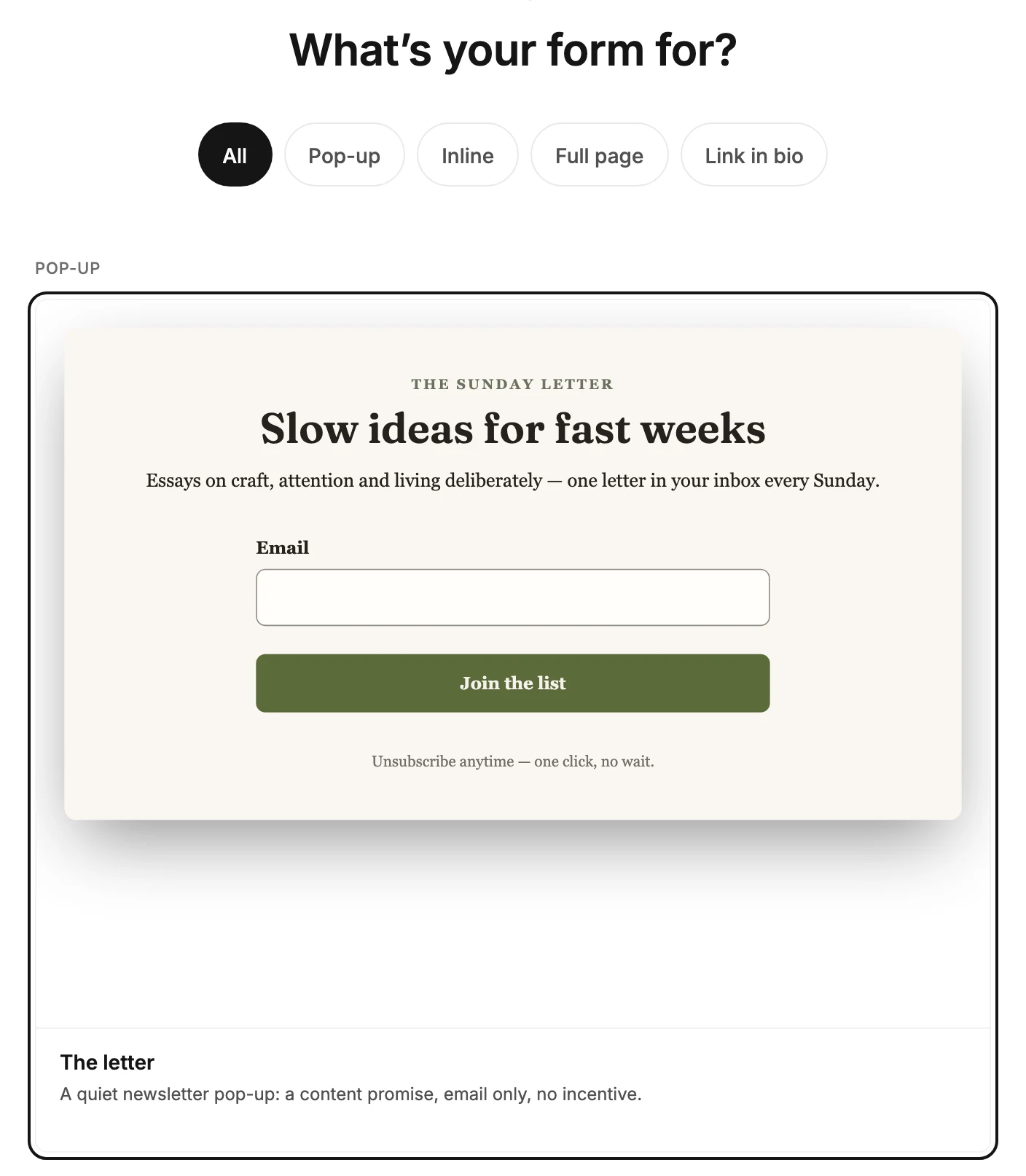
When you’re done, your form is open in the editor as a draft. It’s saved on your Forms page under the template’s name, such as The letter. To change it, see Rename a form.
There is no blank form, because a form with nothing on it can’t collect a signup. You start from a template, or describe the form and let Jounce draft it; see Start a form with AI.
The template also decides what kind of form you get. For a form on a site you already have, pick a Pop-up or an Inline template. A Full page or a Link in bio page needs no site; Jounce hosts it at a link. The four kinds of form says how each one reaches people.
- Open Forms and select Create form. The page asks How do you want to start?
- Choose Start with a template. The gallery asks What’s your form for?
- To see one kind, pick a button: Pop-up, Inline, Full page, or Link in bio. All brings every card back.
- Select a card. A small spinner shows beside its name while Jounce makes the form.
- The editor opens with your form, ready to change.
What to do next
The form is a draft, so nobody can see it yet. Select any heading, paragraph, or picture on it to make it yours. To change the thank-you screen people see after they sign up, select Thank you in the top bar.
Signups go to your audience. A segment is a saved group of subscribers. To also put signups in one, select Settings at the top right of the editor. See Send new subscribers to a segment.
If creating fails, Jounce says Couldn’t create the form. Try again, and nothing is added to your Forms page.
Next step
When it’s ready, see Publish your form.
More in this topic
Updated