

Add Meta Pixel or Google Analytics
Short answer
On a full page or a link-in-bio page, open Settings and paste your Meta Pixel ID or Google Analytics ID under Tracking. Your own analytics then count the page’s visits and signups.
When you’re done, your page reports to your Meta or Google Analytics account: a page view when it loads, and a lead when someone submits.
This works on a full page and a link-in-bio page. A pop-up and an inline form sit inside your own site, which carries its own tracking, so the row isn’t there.
- Open Forms, select the page, and select Settings at the top right of the editor.
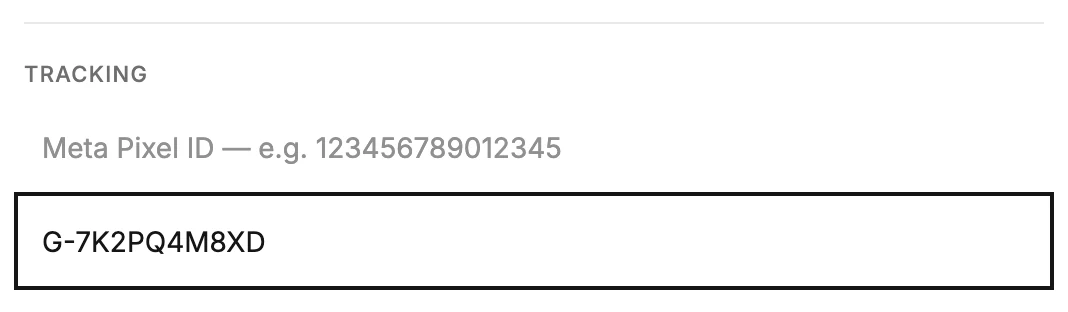
- Under Tracking, paste your Meta Pixel ID into the first box. It is a run of digits, like the example in the box.
- Paste your Google Analytics ID into the second box. It starts with G-, like the example in the box.
- Each box saves on its own a moment after you finish typing. Fill in one or both.
What to expect
- An ID in the wrong shape is left out of the page, and nothing reports. Copy it from your Meta or Google account as it appears there.
- Meta receives a PageView when the page loads and a Lead when someone submits. Google Analytics gets a page view and a generate_lead event.
- On a live page the change reaches visitors after the save. See Editing a live form.
- To stop tracking, clear the box.
Next step
Put the page where visitors find it: Share your page’s link.
More in this topic
Updated