

The Settings dialog
Short answer
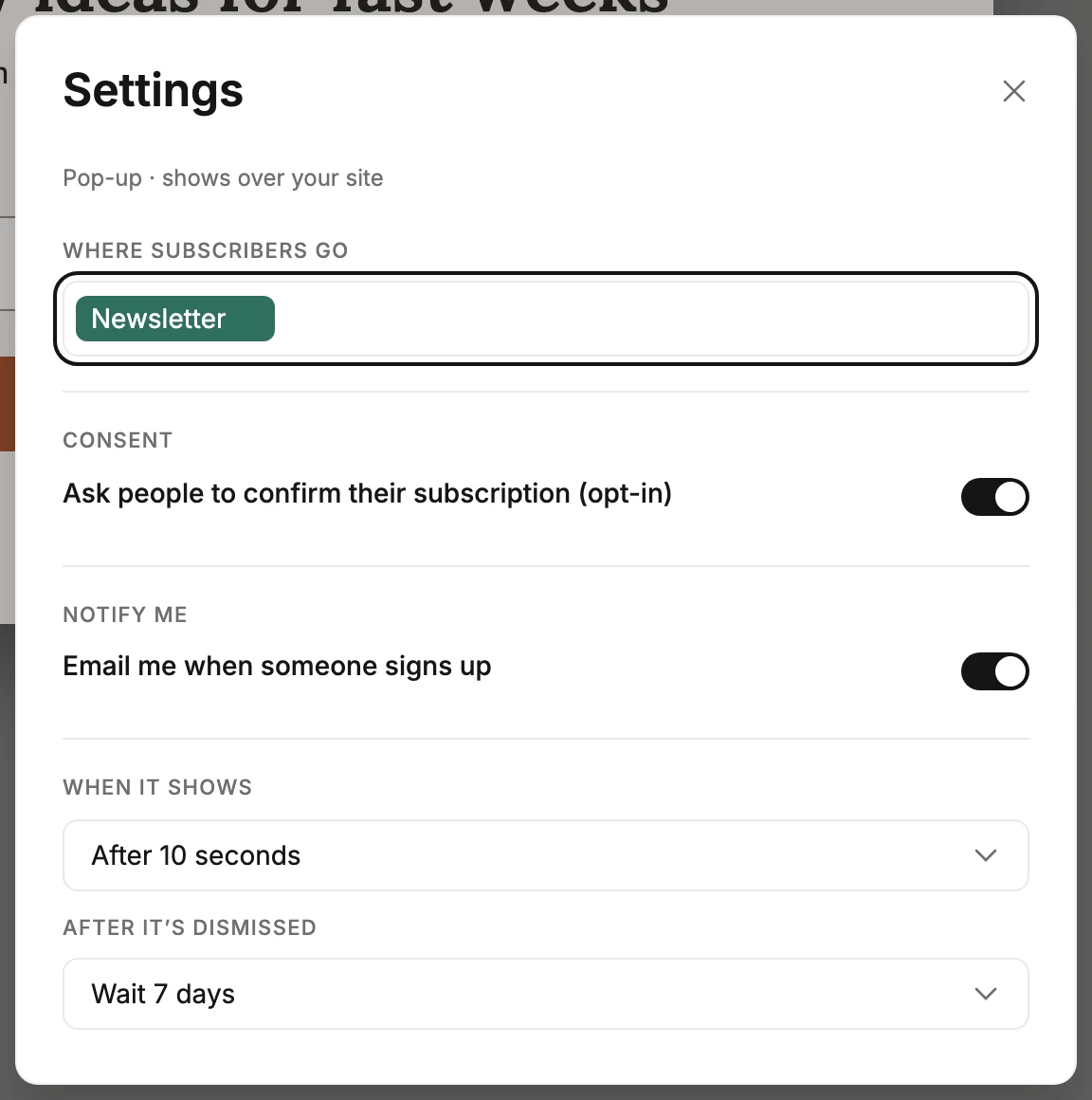
Settings, at the top right of the editor, holds what your form does when someone fills it in. Segments, opt-in, your signup email, what they see next, pop-up timing, link preview and tracking each save on their own.
Open a form in the editor and select Settings at the top right, beside Share. The dialog is about behavior, not looks: what happens when a visitor fills the form in. Colors, words, and fields stay on the form and in its panel.
How it saves
Every change saves on its own a moment after you make it. There is no Save button. If a change can’t be saved, Jounce says Couldn’t save that change — your form is safe and the form keeps its earlier setting.
If you close the tab while a change is still saving, your browser asks whether you want to leave. Once the change has saved, it won’t.
On a live form, the page your visitors see updates itself after each save. See Editing a live form.
The kind, under the title
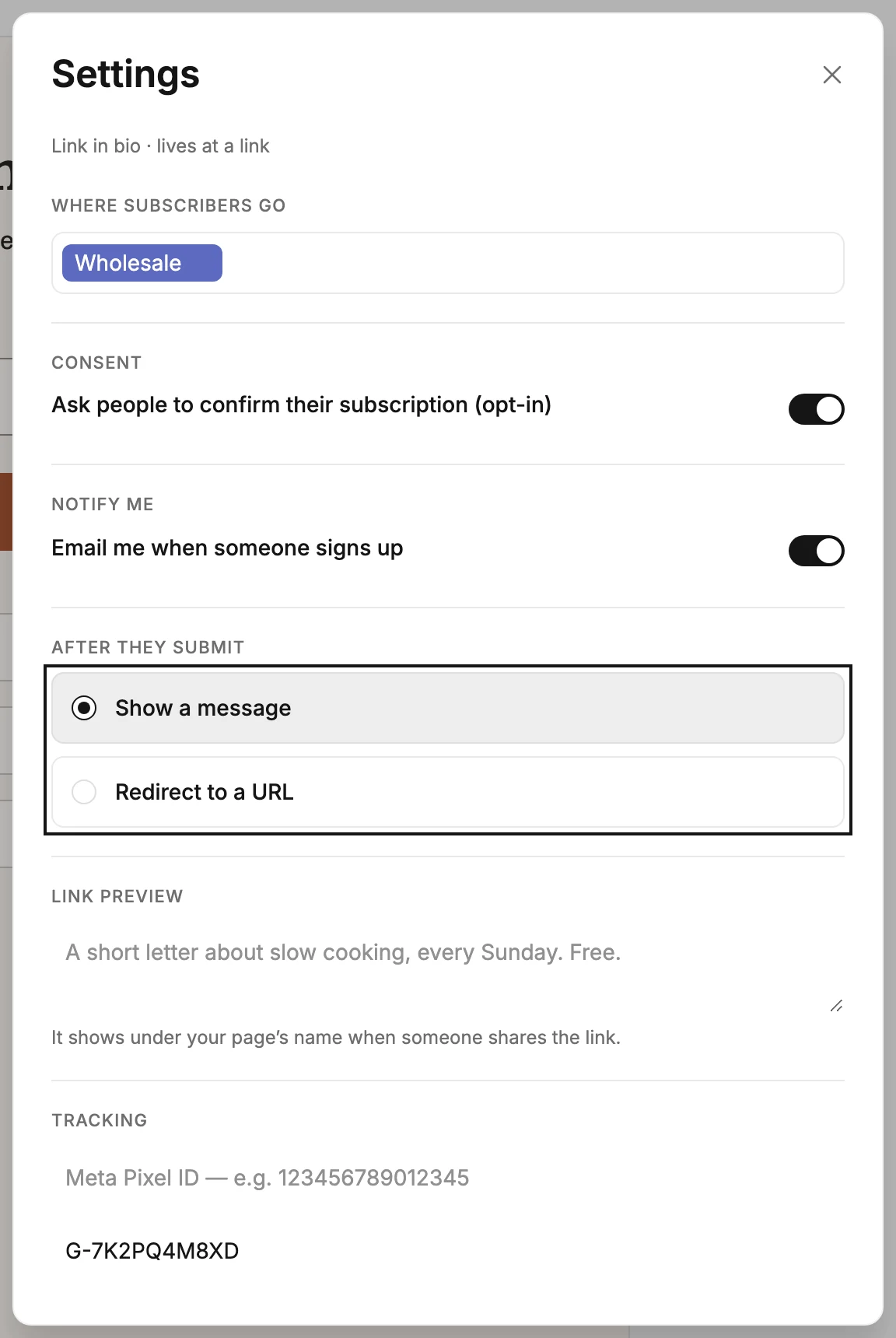
The first line states what kind of form this is. It reads Pop-up · shows over your site, Inline · embeds inside a page, Full page · lives at a link, or Link in bio · lives at a link. It’s a fact about the form, not a choice, and it decides which rows the dialog shows. See The four kinds of form.
| Setting | Pop-up | Inline | Full page | Link in bio |
|---|---|---|---|---|
| Where subscribers go | Yes | Yes | Yes | Yes |
| Consent | Yes | Yes | Yes | Yes |
| Notify me | Yes | Yes | Yes | Yes |
| After they submit | — | — | Yes | Yes |
| When it shows and After it’s dismissed | Yes | — | — | — |
| Link preview | — | — | Yes | Yes |
| Tracking | — | — | Yes | Yes |
Where subscribers go
The segments everyone who signs up joins. Pick from your segments, or type a name to create one. See Send new subscribers to a segment.
Consent
Ask people to confirm their subscription (opt-in). On, someone who signs up gets a confirmation email and joins when they click its link. Off, they join the moment they submit. It starts on for every form you create. See Ask people to confirm their subscription.
Notify me
Email me when someone signs up. On, Jounce emails the workspace owner when someone joins through this form. It starts on for every form. The Turn off these emails link in a signup email switches it off on every form at once. See Get an email when someone signs up.
After they submit
On a full page or a link-in-bio page only. Show a message shows the form’s thank-you screen. Redirect to a URL sends the visitor to an address you type. See Redirect to a page after they submit. If the visitor stays on the form instead, see Why doesn’t my form redirect after they submit?
When it shows and After it’s dismissed
On a pop-up only. When it shows sets how long after the page loads the pop-up appears, or makes it wait for a scroll. After it’s dismissed sets how long it stays away once a visitor closes it. See Choose when a pop-up shows.
Link preview
On a full page or a link-in-bio page only. A box for one or two sentences about the page. The box holds 160 characters, and a count shows under it once you type. The hint reads It shows under your page’s name when someone shares the link. Jounce saves it as one line. See Write a link preview.
Tracking
On a full page or a link-in-bio page only. Two boxes: a Meta Pixel ID and a Google Analytics ID. Jounce runs them on the page so your own analytics count the visits and the signups. See Add Meta Pixel or Google Analytics.
More in this topic
Updated