

Add or remove a field
Short answer
Under Elements in the settings panel, turn a field’s switch on to add it or off to remove it. A removed field is hidden, not deleted, and the email field always stays.
When you’re done, the form asks for what you want and nothing else. Jounce saves the change as you make it.
-
Open the list of switches. On a pop-up, press Esc until the settings panel’s heading reads Form. On the other kinds, select the email field.
-
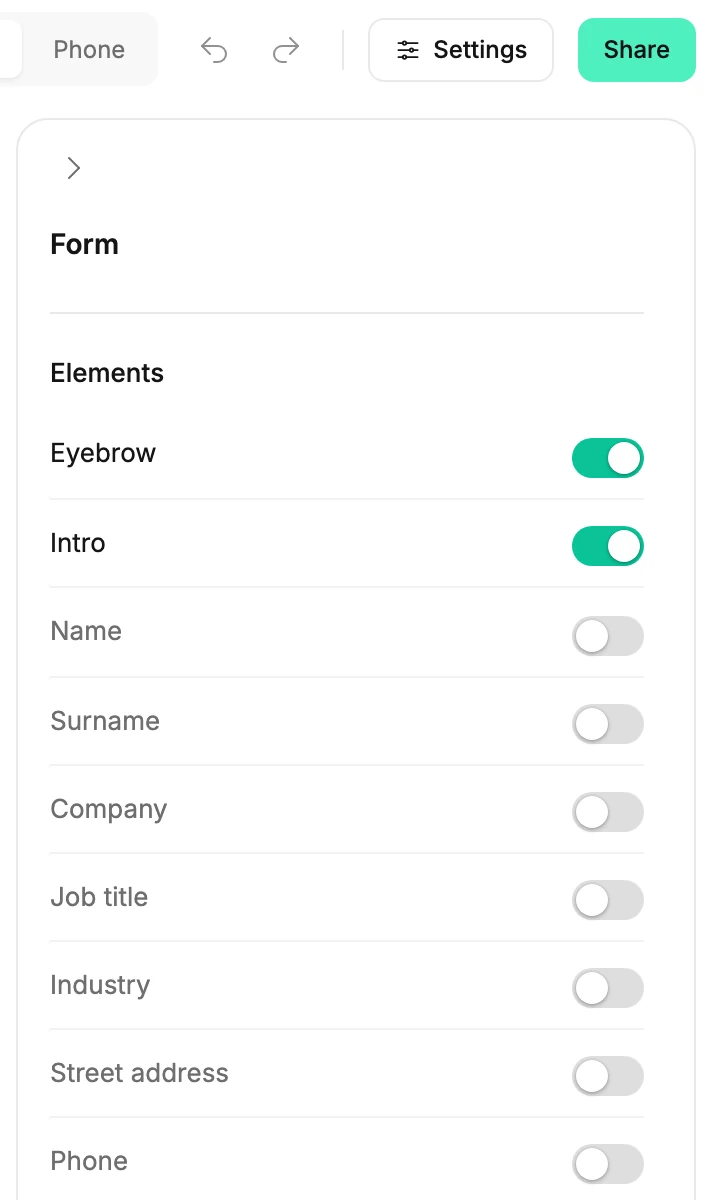
Under Elements, find the field you want.
-
Turn its switch on. The field appears on the form, in the place its design gives it.
-
To remove a field, turn its switch off. Or select the field on the form and press Delete.
A removed field is hidden, not deleted. Turn its switch on and it comes back.
What each switch adds
| Switch | The form shows |
|---|---|
| Name | First name |
| Surname | Last name |
| Company | Company |
| Job title | Role |
| Industry | Industry |
| Street address | Address |
| Phone | Phone |
| Consent | A checkbox, Yes — send me the letter |
Those eight and the email field are the whole list. There is no field of your own to add.
What stays as it is
- The email field has no switch. Every form asks for an email address, and a visitor must always fill it in.
- On a full page that places the sign-up fields twice, one switch changes both. The list says Both sign-ups above the switches.
To rename a field, see Change a field’s label. To make a visitor fill one in, see Make a field required.
Next step
Try your fields the way a visitor does: Test your form.
More in this topic
Updated