

Publish your form
Short answer
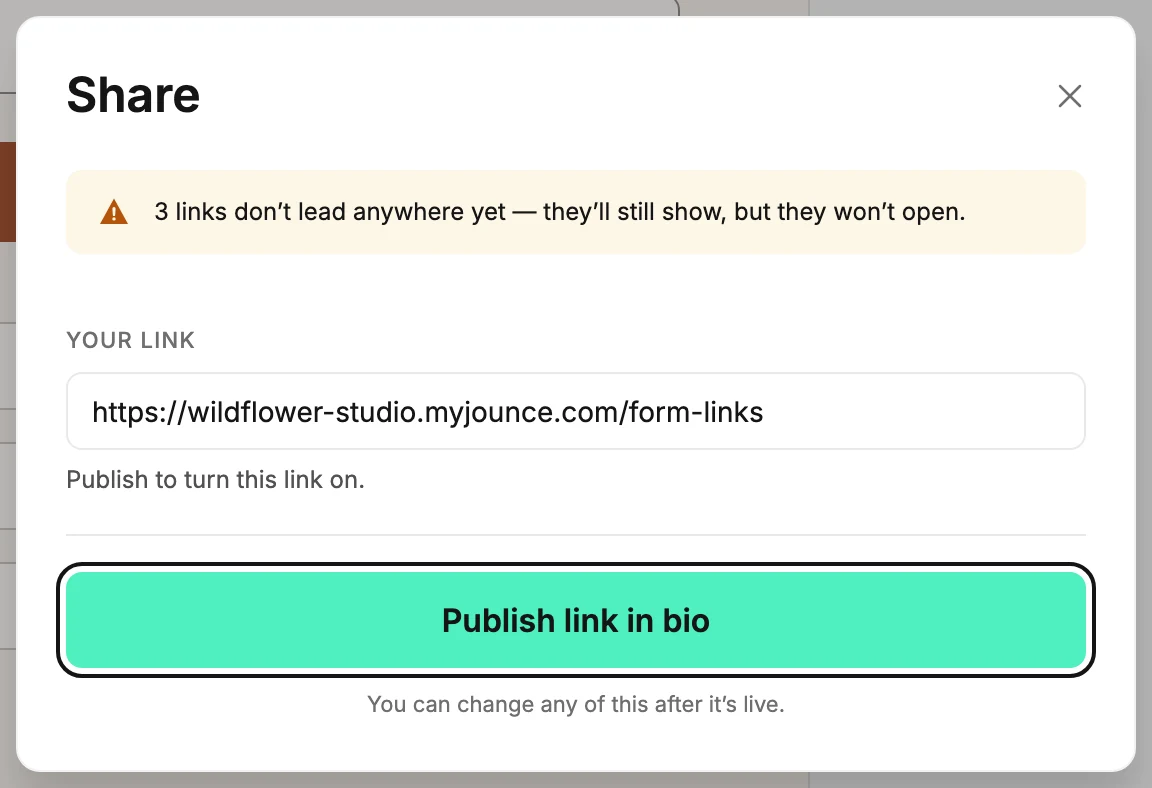
Open the form, select Share at the top right, and select Publish form, Publish page, or Publish link in bio. Jounce says Your form is live, and the link or the embed code is ready to copy.
When you’re done, your form is live. A full page or a link-in-bio page has a working link. A pop-up or an inline form has code to paste into your site.
If you haven’t yet, check the form’s Settings first. That’s where you choose which segment signups join, whether people confirm by email, and whether you get an email. Every setting keeps working after the form is live, so this is a habit, not a gate. See The Settings dialog.
- Open Forms and select the form. The editor opens.
- Select Share at the top right. The dialog shows what publishing gives you: a link for a page, embed code for a pop-up or an inline form.
- On a page, if the dialog shows Your address, keep the handle in the box or type your own. Jounce saves it with the page. See Claim your handle.
- Select Publish form, Publish page for a full page, or Publish link in bio for a link-in-bio page. There is no second confirmation.
- If you haven’t verified your email yet, a window opens instead: Verify your email to publish. Open the link Jounce sent you, select I’ve verified, then select the button again. The form stays a draft until you do.
- Jounce says Your form is live, and the dialog’s top row changes to Live.
- Copy what you need. Copy link for a page, or Copy code for a pop-up or an inline form.
The form’s card on the Forms page changes from Draft to Live, and its menu gains Share.
What to do next
- A page: share its link. See Share your page’s link.
- A pop-up or an inline form: put the code on your site. See Add a pop-up or inline form to your website.
- Keep editing if you like. Changes reach the live form on their own.
Who can publish
Managers and Admins. If you’re an Editor, you see a Draft label and A manager can publish it in place of the button.
Next step
To watch a signup land, see Test your form from Share.
More in this topic
Updated