

Change the thank-you screen
Short answer
In the editor’s top bar, select Thank you to see the screen a visitor gets after they sign up. Select its heading or its line, click again, and type.
When you’re done, every word a visitor sees after they sign up is yours. The change reaches a live form on its own.
-
Open the form from Forms.
-
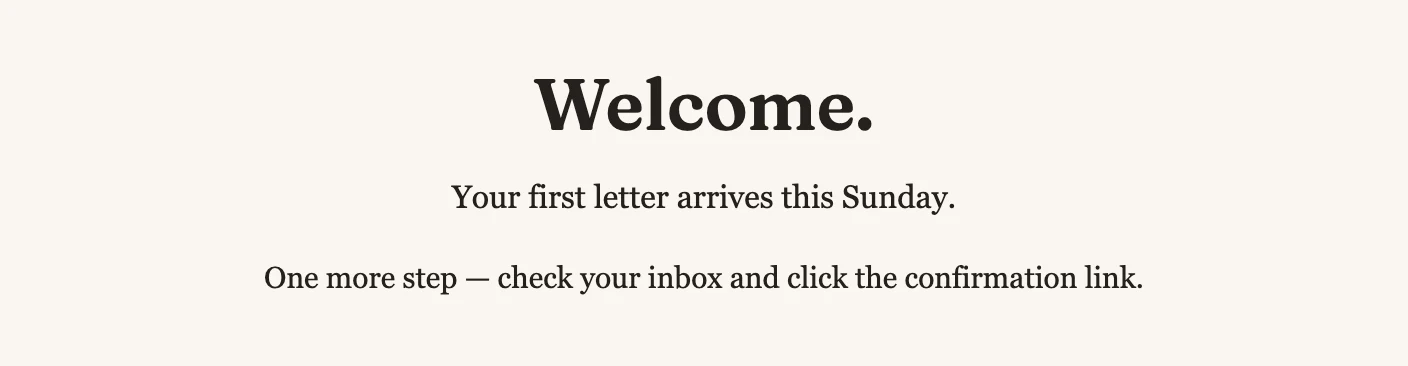
Select Thank you in the top bar. The form gives way to the thank-you screen.
-
Select the heading, then click it again and type. Do the same for the line under it.
-
Select Form in the top bar to return to the form.
The screen comes with words from the template, or from Jounce when it drafted the form. Read them before you publish. A template’s line can promise something your business doesn’t do, like a code by email. Jounce AI can change them for you too; see Edit your form with Jounce AI.
Jounce writes the lines a visitor sees after a mistake, such as a field left empty. They show only on your live form. See See your form and its thank-you screen.
Show or hide a part
Some screens come with a part switched off, like Eyebrow, the small line above the heading.
- Select any words on the thank-you screen, then press Esc.
- In the panel’s Elements list, turn a part on or off. The screen shows the change.
- To write in a part you turned on, select its words, click again, and type.
A photo on the screen changes the way any photo on a form does. See Edit the words, images, and buttons.
The screen keeps the blocks it came with. You can change what’s in them, but you can’t add, move, or delete one there.
The line Jounce adds
A form can ask people to confirm their subscription. While it does, the screen ends with one more line. It reads One more step — check your inbox and click the confirmation link. Already subscribed? You’re all set.
Everyone who signs up sees the same line. The second sentence is for someone who’s already Subscribed: Jounce doesn’t send them a confirmation email.
Jounce adds that line, so you can’t select it or change it. It follows the form’s Alignment, like the rest of the screen.
Sending them somewhere instead
A full page or a link-in-bio page can send the visitor to a page of yours instead of showing this screen. That choice lives in Settings; see Redirect to a page after they submit.
This screen isn’t the thank-you page people see after they click a confirmation email. For that one, see Edit the thank-you page.
Next step
See it after a real submit: Test your form.
More in this topic
Updated