

Share your page’s link
Short answer
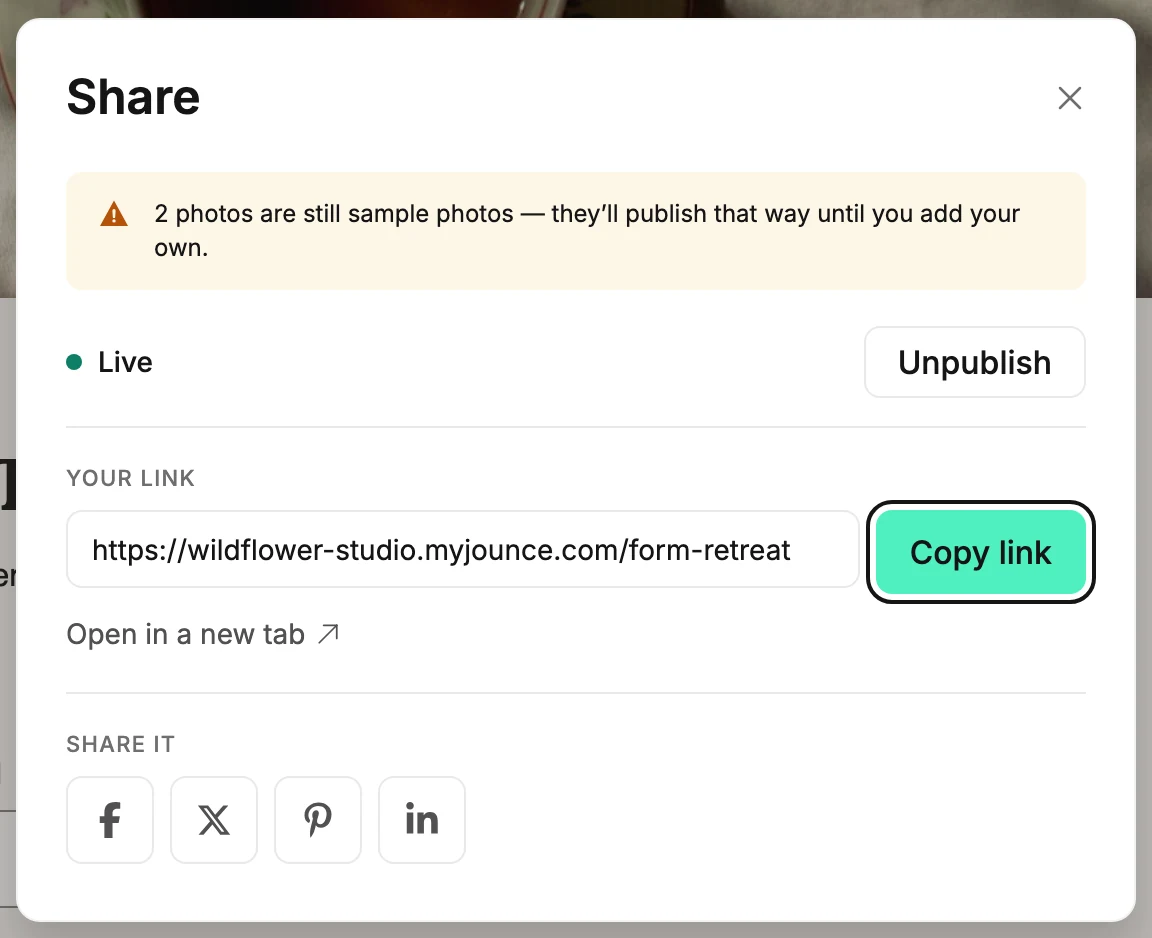
Once a full page or a link-in-bio page is live, Share holds its link to copy. The buttons under Share it start a post on Facebook, X, or LinkedIn.
When you’re done, your page’s link is wherever you want it. That might be a social post, your bio, an email, or a button on your website.
Jounce asks search engines to leave your pages out until it allows your workspace; see Why isn’t my page in search results?.
- Open Forms and select the page. Or open its card’s menu and select Share. That opens the editor with the dialog ready.
- If the editor opened without the dialog, select Share at the top right. Under Your link is the address your page lives at.
- Select Copy link. The button reads Copied for a moment.
- Paste the link wherever you like. Open in a new tab shows you the page your visitors will see.
Posting it
Under Share it, select Share on Facebook, Share on X, or Share on LinkedIn. That site’s share window opens in a new tab with your link filled in. You write the post there, signed in to your own account on that site.
Share on Pinterest is there when your page has a picture on it, because a pin needs one. Your logo and any picture you hid don’t count. The pin uses the page’s picture, with your link preview as its description.
The link preview
When your workspace has a handle, a shared post shows a preview card with your page’s name on it. The line under the name is yours to write: open Settings in the editor and fill in Link preview. With no line, the card shows the name by itself. See Write a link preview.
Without a handle, the post shows a bare link and no card. It still works, and people can still sign up through it.
Managers and Admins fix that in the dialog. Your address sits between Your link and Share it, with a box for the handle. Under the box: Claim your address here and this page gets a short link that previews when shared. Select Claim address. The link and the share buttons then use the short address instead. See Claim your handle.
An Editor sees no box there. A line under the buttons says Shared posts won’t preview yet. A manager can set your address in Settings → Public address.
Pop-ups and inline forms
They have no link to share. They live inside your website, so Share gives you code instead. Preview in a new tab opens the form on a plain sample page so you can check it. A pop-up opens over the page, and an inline form sits in it. See Add a pop-up or inline form to your website.
Next step
Watch what the link brings in: The Forms page counts its views and signups.
More in this topic
Updated