

Edit the thank-you page
Short answer
On Settings › Opt-in setup, select Edit beside Thank-you page. It opens in the editor your emails and forms use, where you type on the page and switch parts on or off under Elements.
When you’re done, everyone who confirms lands on a page with your words, in your brand. One page serves every form in the workspace.
- Open your avatar at the top right, choose All settings, then Opt-in setup under Sending.
- Beside Thank-you page, select Edit. Your page opens in the same editor as your emails and forms, with a panel headed Page on the right.
- Select the heading on the page, click it again, and type. The line under it works the same way.
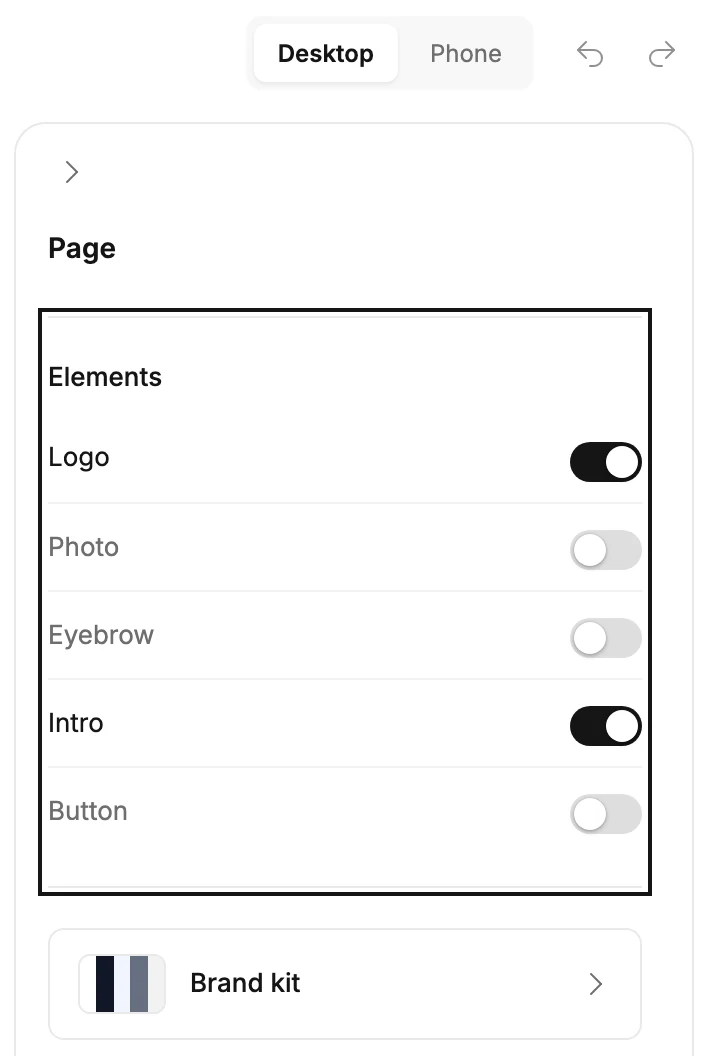
- Under Elements, switch parts of the page on or off: Logo, Photo, Eyebrow (a small line above the heading), Intro and Button.
- For a button, turn on Button and select it. Type its web address under Link in the panel, then click the button again to change its words.
- For a photo, turn on Photo and select it. Point at the picture in the panel and select Replace to use your own.
- Select Opt-in setup at the top left when you’re finished.
Each change saves a moment after you make it, and the next person who confirms sees it. A new page reads You’re in and Thanks for confirming — you’re on the list. Look out for the next message.
Your logo, colors and fonts
The page wears your brand kit, the same one your emails use. To change it, select Brand kit below Elements. It opens over the page, and what you save there shows on the page at once.
With no logo in your kit, the page shows what Without a logo, show says: your brand name, or nothing. Until you save a brand kit, the page wears a plain look, dark words on white.
What only the live page shows
The page in the editor is the page subscribers see, with two differences. The button shows only once it has a link. Until then, the panel says Subscribers see this button once it has a link. A small Made with Jounce line also sits under your words, unless you’ve turned off Show the Jounce credit on the Brand page.
Where it fits
This page shows after the confirmation click, not after the form. What people see right after they submit is set on each form. See Redirect to a page after they submit.
If it says Couldn’t save
Jounce saves in the background and speaks up only when a save fails. Then it says Jounce couldn’t save your last change, but it’s still on your screen. Copy any new words, then refresh the page. A label at the bottom right of the page also reads Couldn’t save.
The live page keeps what it had. Copy any words you typed, refresh the page, and make the change again.
Note If the label goes away before you refresh, there’s nothing to fix. Jounce saves the whole page each time, so your next change carried the one that failed.
If the editor doesn’t open
- On a phone, it reads This editor needs a bigger screen. Open Jounce on a laptop or desktop instead.
- If Jounce takes you back to Opt-in setup with Your thank-you page couldn’t be opened, nothing was changed. Select Edit to try again. If it keeps happening, chat with Jo.
Next step
Try it yourself with Test your form. Each screen on the way is in What subscribers see when they confirm.
More in this topic
Updated