

Start an automation from scratch
Short answer
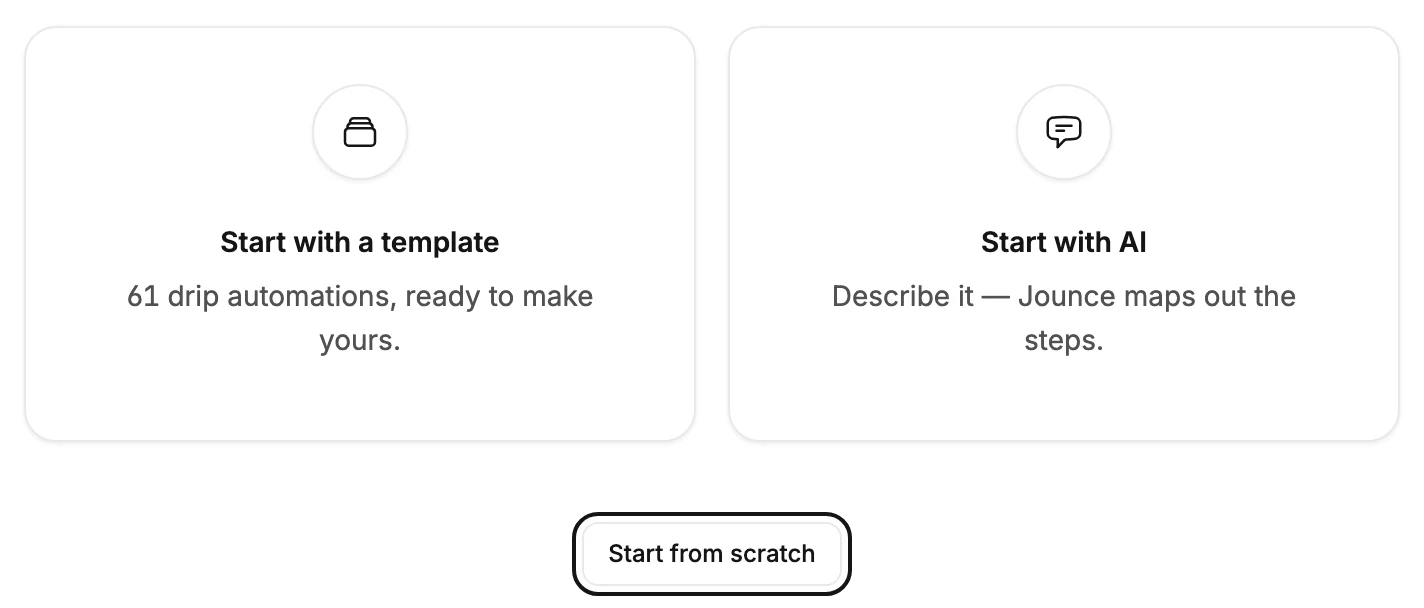
Select Create automation, then Start from scratch below the two boxes. Jounce opens an empty automation named Untitled with only its trigger in place.
When you’re done, an empty automation is open, and it’s listed on your Automations page as Untitled.
-
Open Automations and select Create automation.
-
Below the two large boxes, select Start from scratch. The button shows it’s working while Jounce makes the automation.
-
The automation opens. One card sits on the canvas: the trigger. Under it a line reads Start with a trigger — when someone joins, Jounce takes it from there.
Select the trigger to choose what starts the automation, then add steps below it. The automation is a Draft until you launch it, so nobody enters it while you build.
The automation is named Untitled. Rename it from the name at the top of the automation. See Rename an automation.
If it doesn’t go through, Jounce says Couldn’t create the automation. Try again. If Jounce says instead that your account isn’t allowed to make that change, your access to this workspace changed. Refresh to see what you can do. Either way, nothing was made.
If you’d rather begin with the steps in place, the boxes above the button offer a template or a draft from your description. See The Create automation screen.
Next step
Pick the trigger first with Choose what starts your automation, then add steps from The Add a step menu.
More in this topic
Updated