

Start an automation with AI
Short answer
Select Create automation, then Start with AI, describe what the automation should do, and select Generate automation. Jounce drafts the trigger and the steps, then opens the draft for you to finish.
When you’re done, a draft automation Jounce mapped from your description is open. Its trigger and steps are drawn, and the parts only you can choose are marked.
-
Open Automations and select Create automation. Jounce asks How do you want to start?
-
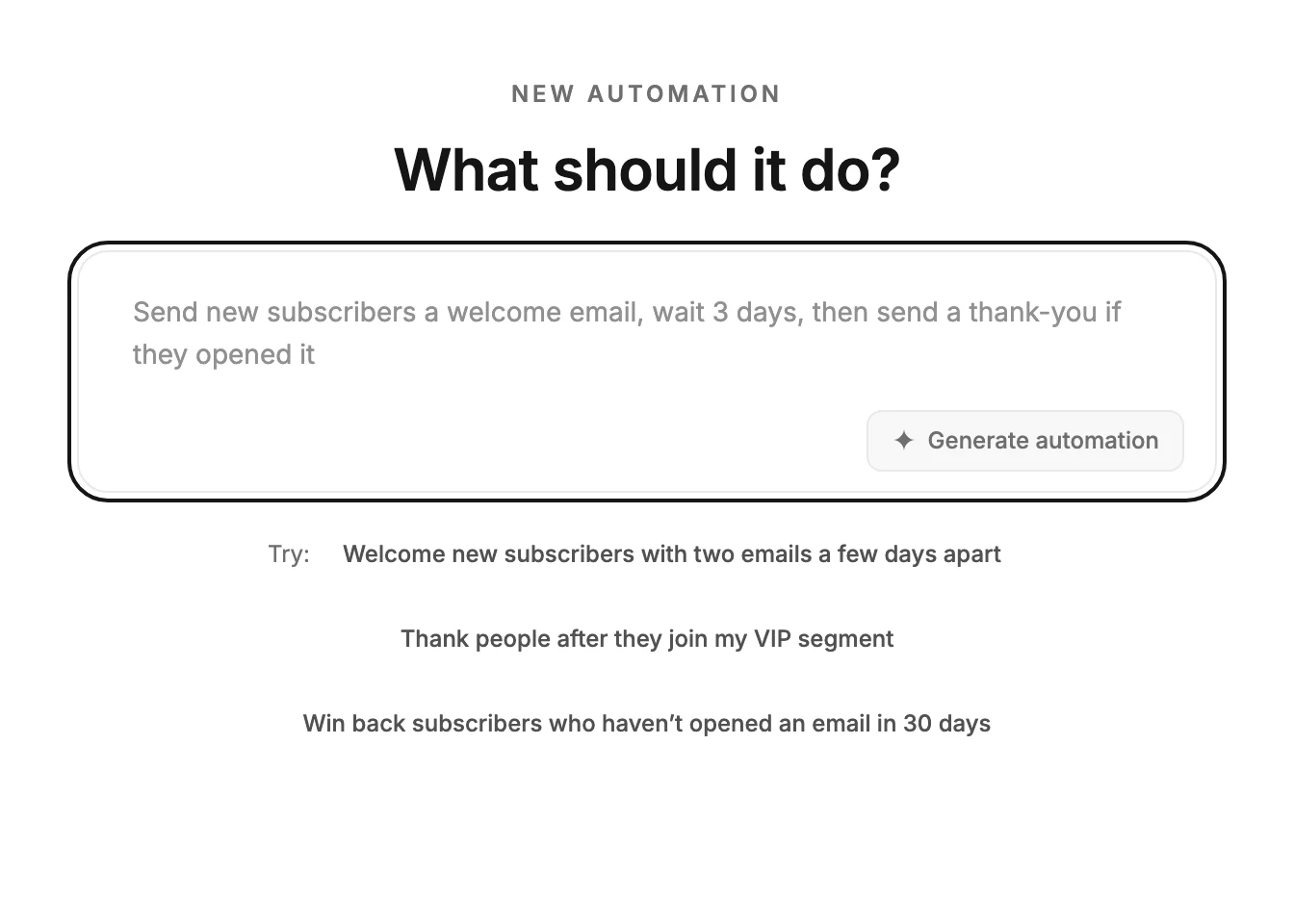
Select Start with AI. A page opens with one question, What should it do?, and a text box.
-
Describe the automation in the box: what starts it, which emails go out, and how long to wait between them. The grey example in the box shows the shape. To try one, select a line after Try: and it fills the box. The examples fit the industry on your Brand profile.
-
Select Generate automation, or press Enter. The box reads Reading your request., then Drafting your automation. This can take a little while.
-
The automation opens with its steps drawn. A message says Draft ready — check the highlighted steps. If nothing is left to pick, the message tells you to review and launch instead.
Note If you signed up with an email and a password, verify your email first. Until you do, Generate automation opens a window titled Verify your email to use AI, and your description stays in the box. Open the link in your email, select Verify email if asked, then I’ve verified, then Generate automation again.
Starting from Jo
You can also ask Jo, the chat behind the Help button, to make an automation. Select Generate automation on the card it shows, and this page opens with the description in the box. Jounce starts drafting at once, as in step 4.
Writing the description
Say what starts it, what goes out, and when. Welcome new subscribers with two emails a few days apart is enough. A date works too: Jounce reads a final reminder on August 1st as the next August 1st, by your local time.
Name your segments and forms the way they’re spelled in Jounce. An exact name fills the step; any other wording leaves it for you to pick. A counter under the box shows how much room is left as you type.
What Jounce leaves to you
Jounce drafts the steps and sets the waits. It can’t design your emails or guess a form it doesn’t know, so those steps carry a red mark that says what to pick.
Jounce sends each email with its own subject line, which you can change in the step’s Subject row. Nothing runs until you launch. See Why does my new automation have red warnings on its steps?
The draft takes a name from your description. Rename it from the name at the top of the automation. See Rename an automation.
If it doesn’t go through
Jounce shows one line saying what happened, and nothing is created. Your description stays in the box. See Why didn’t Jounce draft my automation?
Back, at the top left, returns you to the Create automation screen. If you came from Jo, it returns you to the page you were on. Leave while Jounce is still drafting and nothing is made.
Next step
Design each marked email with Create a new email for a step, then Launch an automation once the marks are gone.
More in this topic
Updated