

Duplicate an automation
Short answer
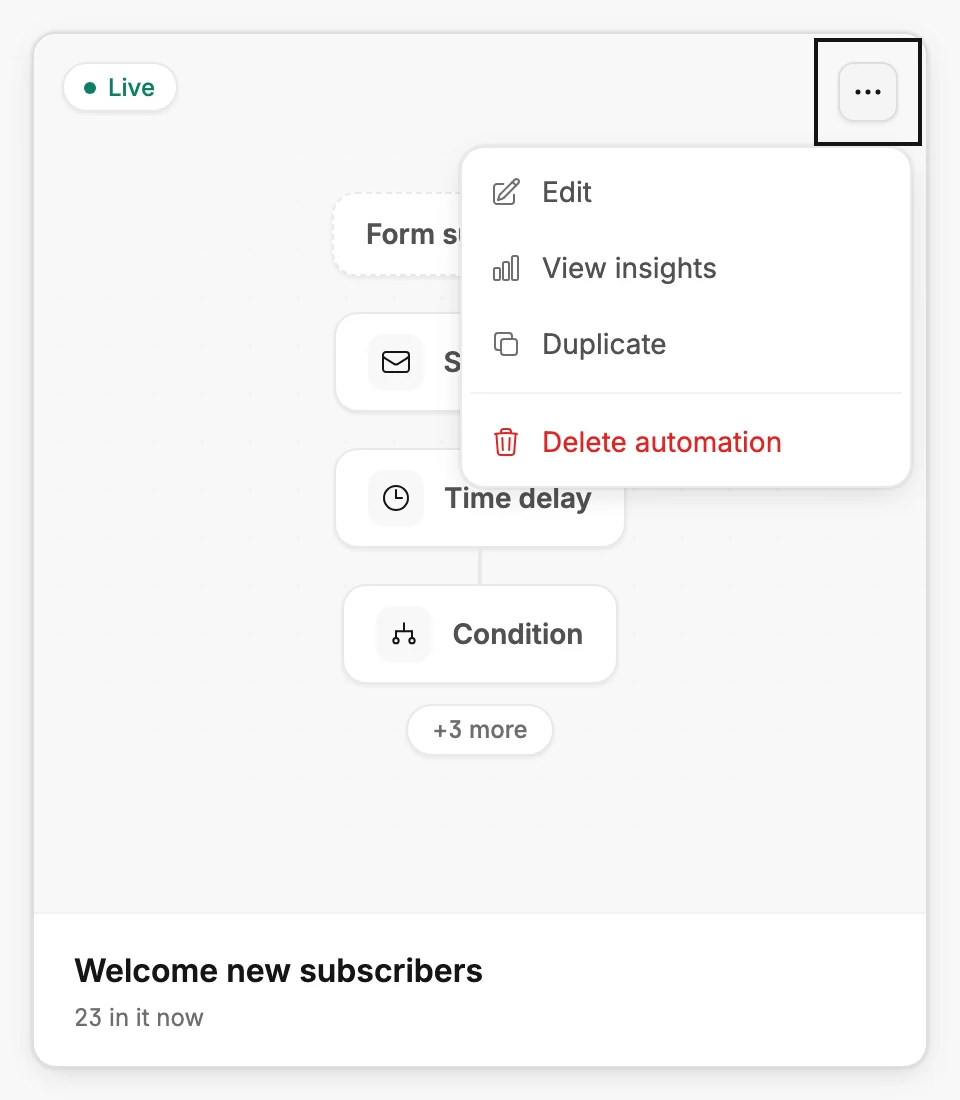
Open the three dots on the automation’s card and choose Duplicate. Jounce makes a draft copy with the same steps and its own copies of the emails, so editing one never changes the other.
When you’re done, a new draft named after the original, with (copy) on the end, sits at the top of your list.
-
Open Automations and find the automation.
-
Select the ⋯ (three dots) on its card, or at the end of its row.
-
Choose Duplicate. Jounce says Automation duplicated. and the copy appears in the list.
-
Open the copy to rename it and change its steps.
The copy keeps every step, the trigger, and its settings. Each email in the automation is copied too. Editing an email in the copy never changes the original, and the other way round. The copy is always a Draft, even if the original is live. Nobody enters it until you launch it.
If the copy doesn’t go through, Jounce says Couldn’t duplicate the automation. Try again. If Jounce says instead that your account isn’t allowed to make that change, your access to this workspace changed. Refresh to see what you can do. Either way, nothing was made.
Anyone in the workspace can do this, Editors too.
Next step
Give the copy its own name with Rename an automation, then change its steps in The automation builder.
More in this topic
Updated