

Edit an automation’s email
Short answer
Select the Send email step, then the email’s picture in its panel. The editor opens, Done takes you back to the step, and your edits change only this automation’s copy.
When you’re done, the step sends the changed email.
-
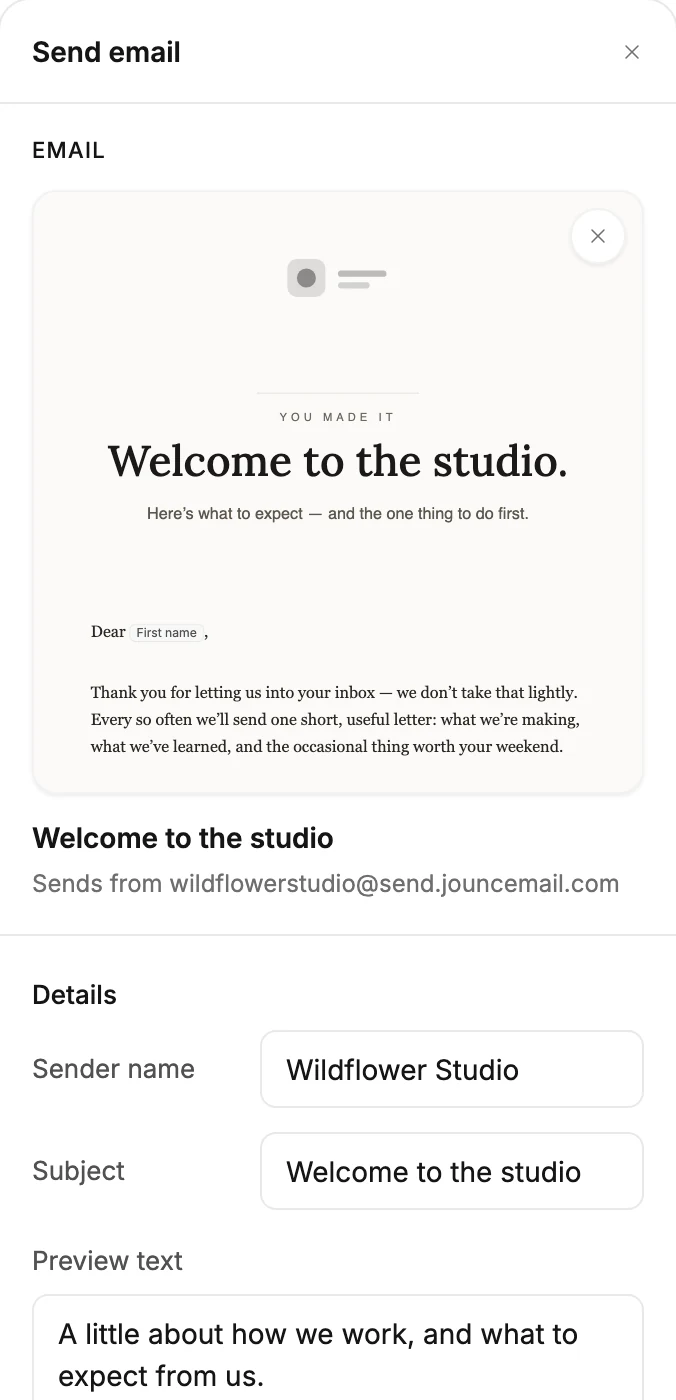
Select the Send email card. Its panel opens with the email’s picture under Email.
-
Point at the picture and Edit appears over it. Select it. The editor opens with the email.
-
Make your changes. They save on their own, and the editor’s own Undo covers them.
-
Select Done at the top right, or the arrow Back to automation. You’re back on the step with its panel open.
Preview and Send test stay in the editor’s top bar, so you can send yourself a copy before the step sends it. See Send a test email.
You can change three things without the editor: the Sender name, Subject, and Preview text rows under the picture. See The Send email step.
The email is this automation’s own copy. Editing it never changes the email you copied it from, or any other automation’s email.
Note On a live automation, an email edit reaches everyone the step hasn’t sent to yet, even subscribers already inside. Changes to the steps work differently. See Editing a live automation.
Next step
When every step is ready, see Launch an automation.
More in this topic
Updated