

Duplicate an existing email for a step
Short answer
Select the Send email step, choose Duplicate an existing email, and pick one of your emails on the page that opens. Jounce copies it for this step, and the original stays as it was.
When you’re done, the step has its own copy of the email, and the card on the canvas reads the copy’s subject.
-
Select the Send email card. Its panel opens with two boxes under Email.
-
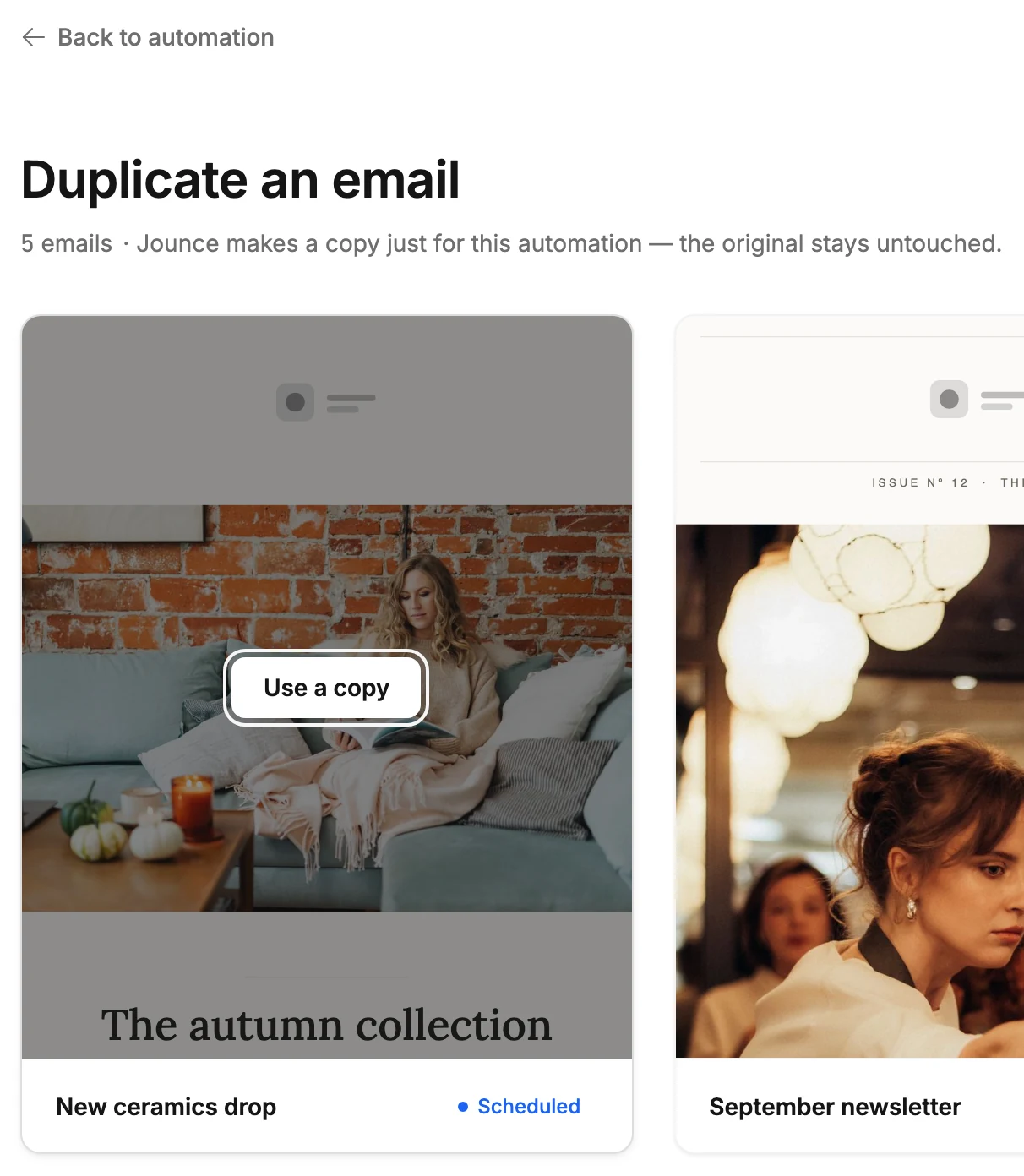
Select Duplicate an existing email. A page called Duplicate an email opens with your emails.
-
Find the email. Search matches part of a name, and Sort and Status work the way they do on the Emails page.
-
Point at the email and select Use a copy. Jounce copies it and takes you back to the step. Its panel is open, with the copy in place.
The Duplicate an email page
Each card shows the email itself with its status label, so you can tell the one you sent from an abandoned draft. Back to automation at the top left returns you to the step with nothing copied.
The page lists the emails from your Emails page. It never offers another automation’s copy. If you have no emails yet, it reads No emails yet and offers Create new email. That opens the template gallery instead. See Create a new email for a step.
If the copy fails, Jounce says Couldn’t copy the email — your original is untouched. Try again.
The copy is yours to change without touching the original. See Edit an automation’s email.
Next step
Change the copy’s design in Edit an automation’s email.
More in this topic
Updated