

Delete a step
Short answer
Point at the card and select the trash icon at its top-right corner. Then choose Delete step in the window that names the step; Undo in the top bar brings it back.
When you’re done, the card is gone and the cards below it have moved up to close the gap. Subscribers who reach that point go straight to the next step.
-
Point at the card. A trash icon appears at its top-right corner. On a touch screen, it’s always there.
-
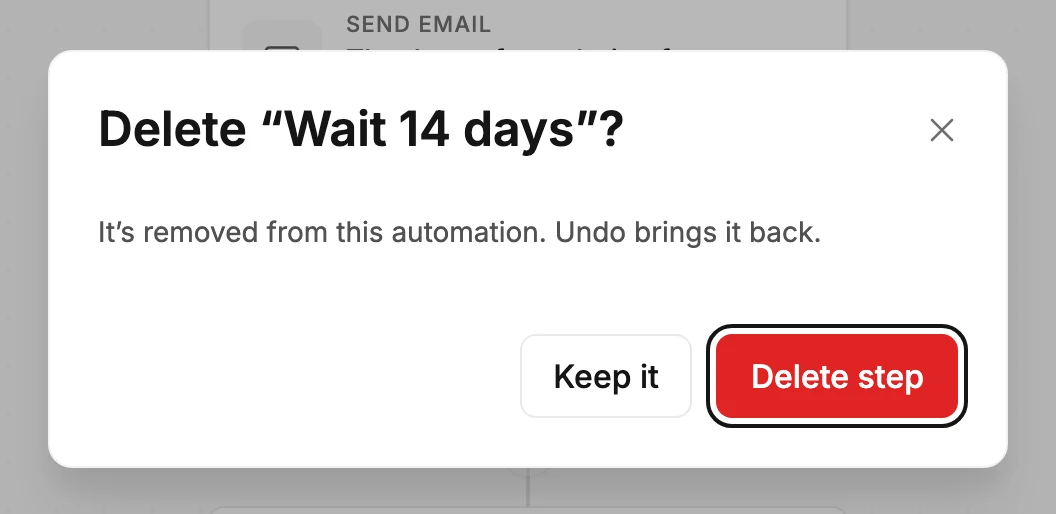
Select the trash icon. A window names the step by its card’s words, such as Delete “Wait 14 days”?. It also says It’s removed from this automation. Undo brings it back.
-
Select Delete step. Keep it closes the window with nothing changed.
A step you haven’t set up yet asks Delete this step? instead.
If a Condition or a Percentage split has steps in its branches, the window counts them: The 3 steps inside its branches go with it. Undo brings them back. The button reads Delete 4 steps: the step and the 3 inside it. See How steps connect.
The trigger has no trash icon. To change what starts the automation, select the trigger card and pick in its panel. See Choose what starts your automation.
Changed your mind? Undo in the top bar puts the step back with its settings, and a Send email step comes back with its email. See Saving and undo in the builder.
On a live automation, Editors don’t see the trash icon. See Why can’t I change the steps of my automation?
Next step
To put a different step in its place, see The Add a step menu.
More in this topic
Updated