

Open an automation’s insights
Short answer
On the Automations page, open the three dots on the automation’s card and choose View insights. The same page opens from a row on the Automations tab in Analytics.
When you’re done, the automation’s insights page is open: who entered and finished, how every email did, and any note about the automation.
- Open Automations and find the automation.
- Select the three dots on its card. Its menu opens.
- Choose View insights. The page opens over the app, with Back to automations at the top left.
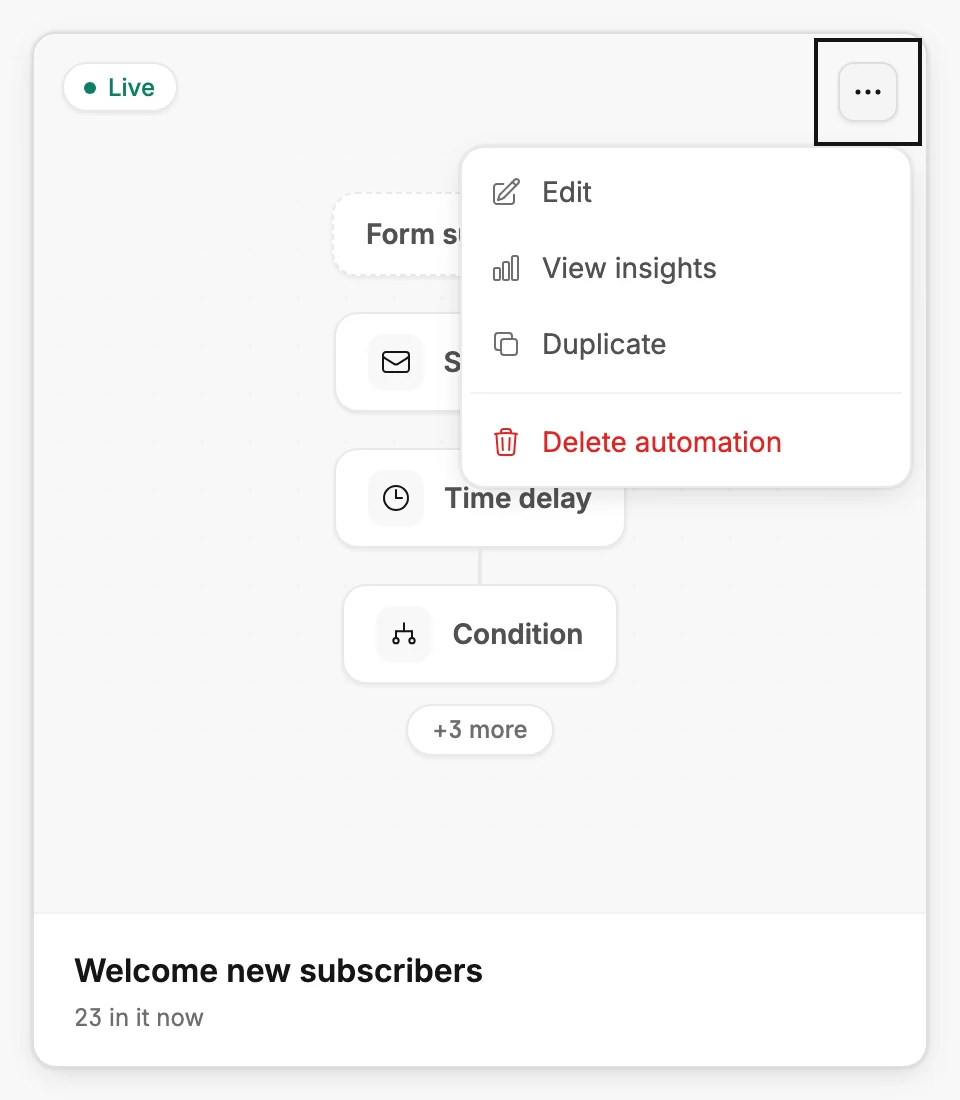
View insights is there in every status and for every role. In the list view, the three dots sit at the right end of the row.
From Analytics
Open Analytics and choose the Automations tab. Under Your automations, select a row. The page opens with Back to analytics at the top, so you land back on the tab when you leave. See The Automations tab.
To leave
Select the back link at the top left, or press Esc. You land where you came from.
Note A draft has no insights yet. Its page reads This automation hasn’t started yet and offers Edit automation. See Why can’t I see insights for an automation?
Next step
Each card and note is explained in The insights page. To compare the emails, see The Performance by step table.
More in this topic
Updated