

The automation template gallery
Short answer
The gallery’s goal buttons and Industry menu narrow the cards, and each card sketches its steps and counts its emails and days. There’s no search box or preview: selecting a card makes the draft at once.
The gallery has one job: help you find a template. There’s no search box and no preview. You browse by what the automation is for, narrow by industry if you like, and pick a card. Picking makes the draft straight away.
The goal buttons
Under What’s your automation for? sits a row of buttons. One is selected at a time, and the cards below change as you pick. All shows every template.
| Goal | Holds |
|---|---|
| Welcome & onboarding | Welcome series and first-month sequences for new subscribers |
| Nurture & follow-up | Follow-ups after an inquiry, a quote, or a freebie |
| Launch & sell | Launch runways, upgrades, and open-to-close enrolment arcs |
| Events | Confirmations and reminders anchored to your event date |
| Post-purchase & loyalty | Thank-yous, reorder reminders, cross-sells, and VIP notes |
| Re-engagement | Win-backs, list cleanup, and reactivation for quiet members |

Industry
The Industry menu at the end of the row narrows the cards to sequences written for one kind of business. It lists All industries and then only the industries that have a template, with a count beside each. A Search box at the top of the menu finds an industry by name.
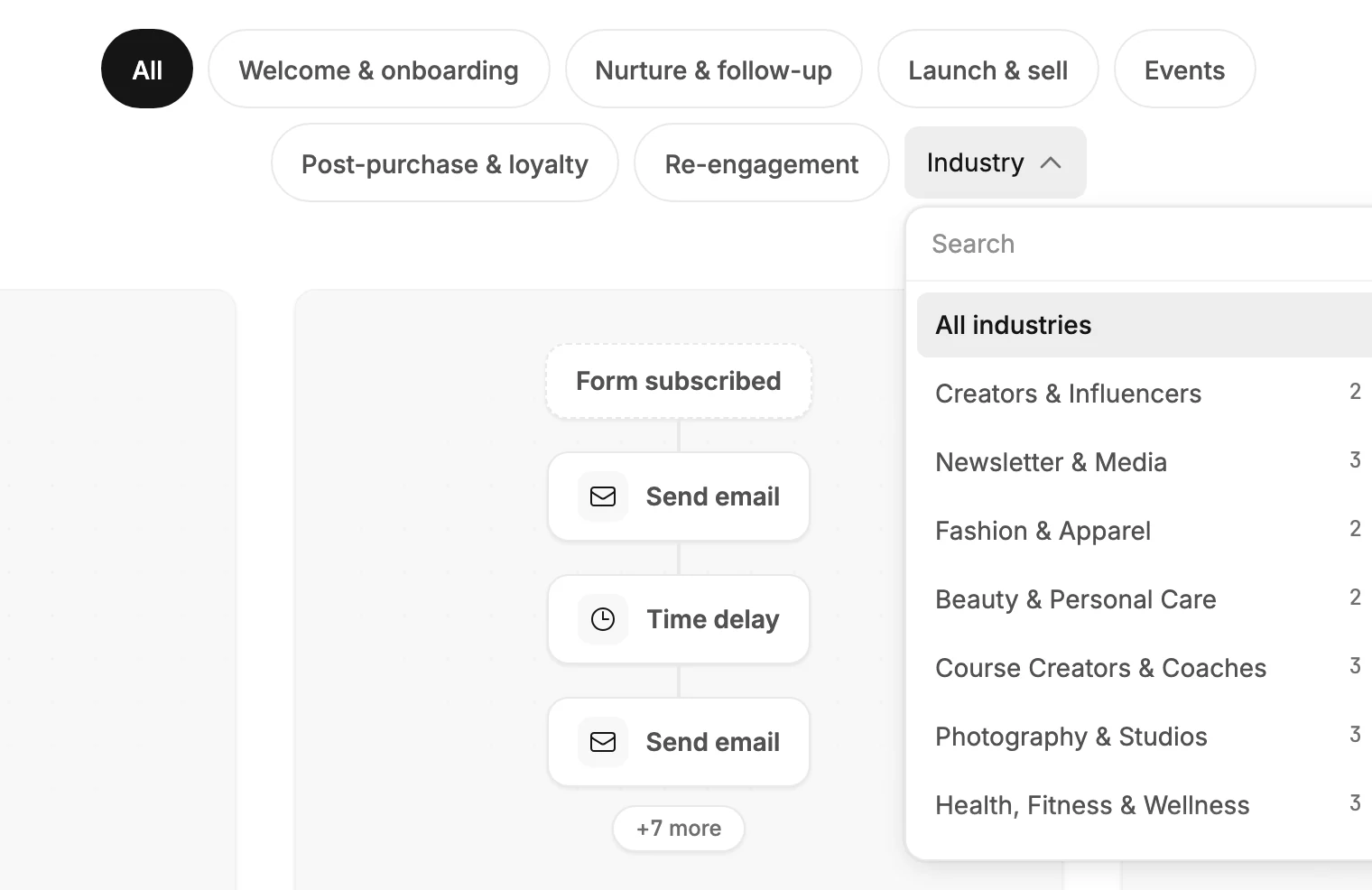
The goal and the industry apply together. When you pick an industry, its name replaces Industry on the menu button. Templates written for any business show only under All industries, so an industry’s count covers only the sequences written for it.
The cards
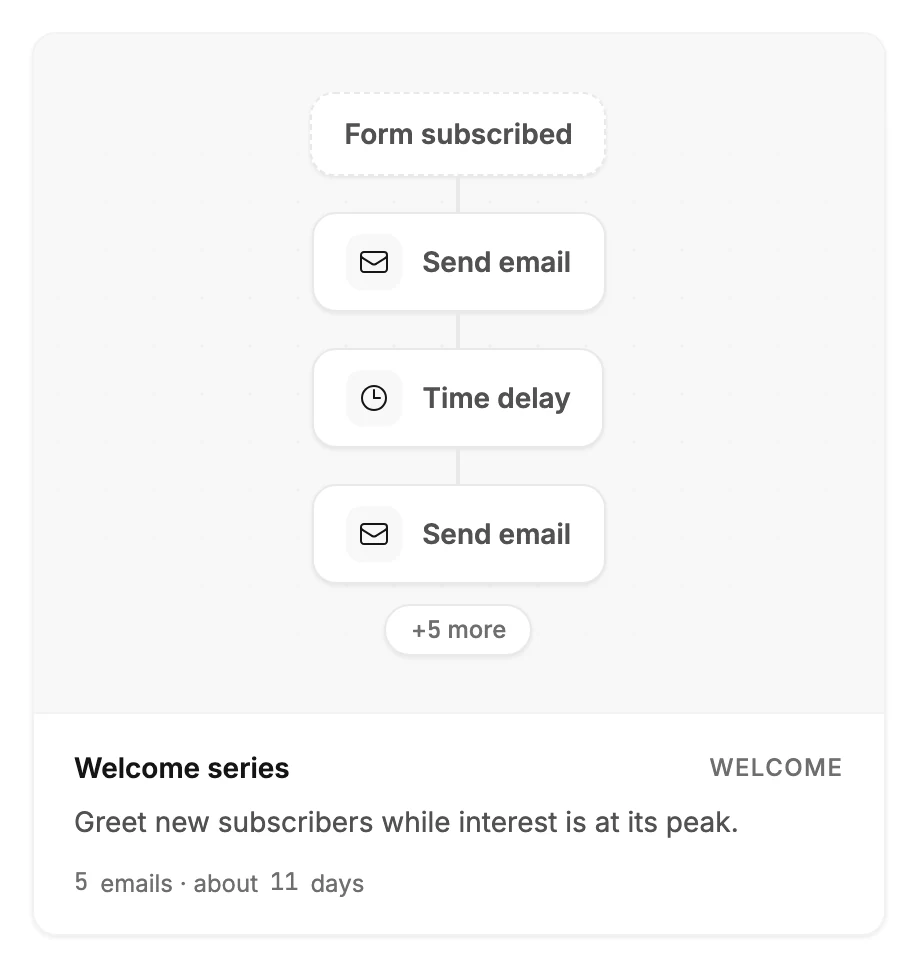
Each card shows a sketch of the steps: what starts the automation, then its first steps in order. When the sketch runs out of room it ends with +5 more. Under the sketch sit the template’s name, its goal in small capitals, and a one-line description.
The bottom line says how much the template sends and how long it runs. 5 emails · about 11 days counts every email the template can send and adds up its waits. runs on dates you set means a step waits for a date you pick, such as an event. same day means nothing waits between the steps.
Select a card to make the draft. Its bottom line reads Creating your draft while Jounce works, and the other cards fade and can’t be selected. See Create an automation from a template. If it isn’t the one, delete the draft from the Automations page and pick another. See Delete an automation.
When nothing matches
A goal and an industry with no template in common show No templates match. Try a different goal or industry. Select Clear filters to return to All.
Back
Back, at the top left, returns you to the Create automation screen.
More in this topic
Updated