

Delete an automation
Short answer
Open the three dots on the automation’s card, choose Delete automation, and confirm. Only Managers and Admins see that row, and a message offers Undo for a moment after.
When you’re done, the automation is gone from the Automations page.
-
Open Automations and find the automation.
-
Select the ⋯ (three dots) on its card, or at the end of its row.
-
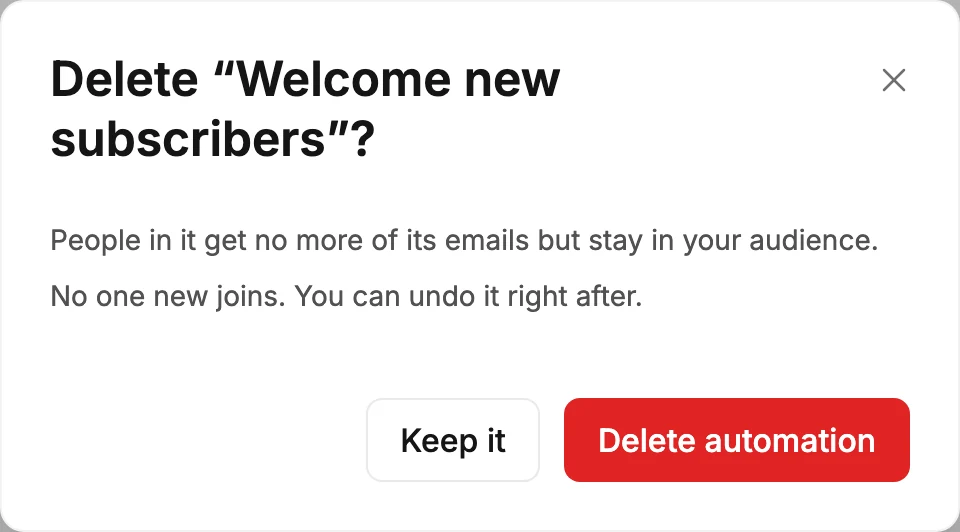
Choose Delete automation. A window names the automation and says People in it get no more of its emails but stay in your audience. No one new joins. You can undo it right after.
-
Select Delete automation. Or select Keep it to change your mind.
A draft has no one in it, so its window says This deletes the automation. You can undo it right after.
Once Jounce deletes the automation, the window closes. A message at the bottom of the page says the automation was deleted. It stays a few seconds and offers Undo. Select Undo and the automation comes back to the list, with its steps and settings as they were. Once the message goes away, you can’t bring the automation back.
Careful Deleting a live automation stops it. Nobody new enters. The people inside go no further, and their waiting emails don’t send. Select Undo in time and they carry on. If you only want to stop it for a while, open it and press Pause instead. See Automation statuses.
If the delete doesn’t go through, the window stays open and says Couldn’t delete the automation. Nothing was removed — try again. The automation stays in your list the whole time.
Managers and Admins see Delete automation. If the row is missing from your menu, see Why can’t I delete an automation?
Next step
To start fresh, see Create an automation from a template. To stop one for a while instead, see Pause an automation.
More in this topic
Updated