

The automation builder
Short answer
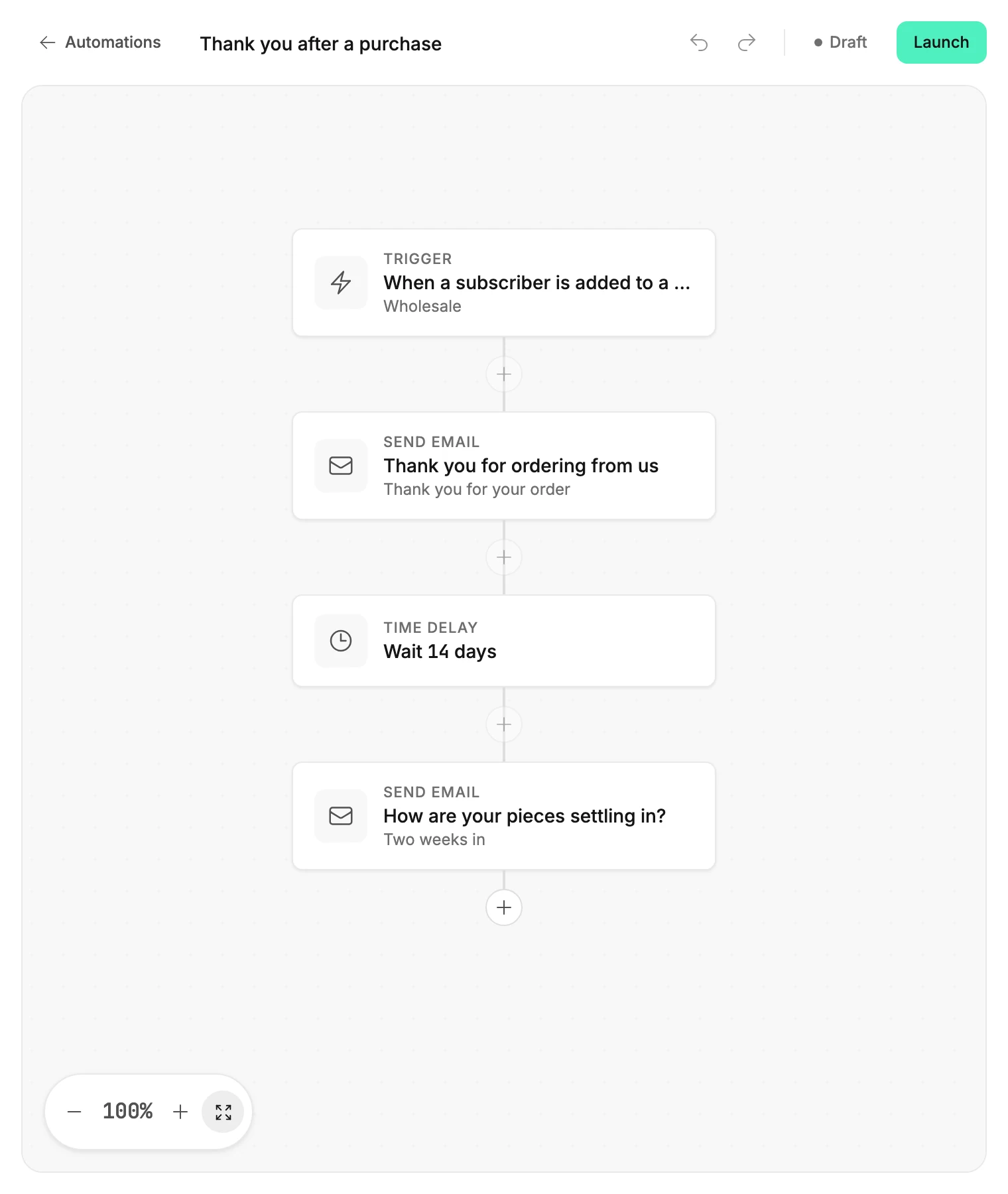
Open an automation and its steps fill the screen as cards on a canvas, the area your steps sit on. The top bar holds the name, Undo, Redo, and Launch, a step’s settings open in a panel on the right, and the zoom buttons sit at the bottom left.
Select an automation on the Automations page and the builder fills the screen. Your automation sits in the middle as a column of cards on a dotted canvas, one card per step. Everything else is there to change it.
The top bar
- Automations, at the far left, returns you to the list. Your work is already saved, unless a label at the bottom right reads Couldn’t save.
- The automation’s name sits beside it. Select it and type to rename. See Rename an automation.
- The two arrows at the right are Undo and Redo. See Saving and undo in the builder.
- The label beside them is the status: Draft, Live, Paused, or Ready. See Automation statuses.
- Beside the status, a draft has Launch, a live automation has Pause, and a paused one has Relaunch. Admins and Managers see the button. An Editor sees the status alone.
The line under the bar
While the automation is live, a line under the bar says what your edits do to the people inside. See Editing a live automation. If subscribers have stopped partway through, a yellow strip counts them and offers Resume subscribers.
If a live automation sends email while your postal address is missing, a yellow strip at the top says Jounce is holding its emails. Add address, at its right, opens a window to add one. See Why hasn’t the next email gone out?
The canvas
The trigger is the top card. Steps hang below it on a line, with a + on the line for adding a step between two cards. A Condition or a Percentage split opens branches side by side. See How steps connect.
Each card shows a small label with its kind, then what it does: Wait 3 days, the email’s subject, Opened the email within 7 days?. A Send email card also shows the email’s name under its subject. An Exit automation card shows its name alone.
A red line on a card names a choice still to make before launch, such as Choose an email to send. A small number at the card’s right edge counts the subscribers at that step right now. It shows only while someone is there.
A label on a Send email card, such as Mostly images, means the email is worth a look before it goes out. The step’s panel says why.
An automation with no trigger chosen yet shows a dashed Add trigger card. Under it, one line reads Start with a trigger — when someone joins, Jounce takes it from there.
The panel
Select a card and its settings open in a panel on the right. The panel’s title is the step’s kind: Trigger, Send email, Time delay, and so on. The card shows a ring while its panel is open. Change anything in the panel and the card updates as you do.
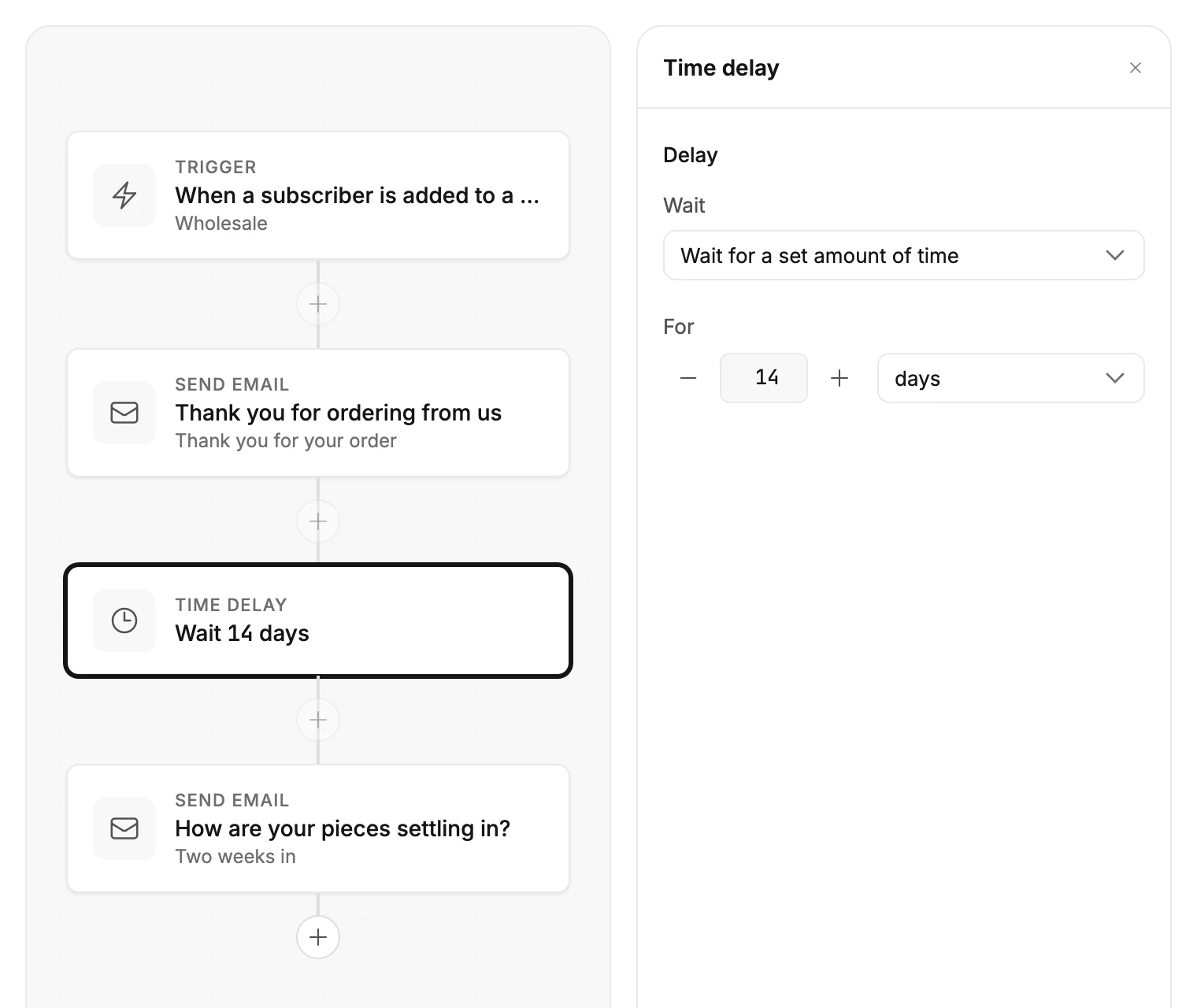
If the number in the zoom buttons reads under 100% when you select a card, Jounce zooms in too. That card lands in the middle of the canvas at 100%.
Select another card to switch to its settings. Press Esc, or select the × at the top of the panel, to close it. Selecting the empty canvas keeps the panel open. Exit automation has nothing to set, so it has no panel.
With the keyboard, Tab to a card and press Enter or the space bar. The panel opens, and your next Tab lands inside it: first the ×, then the step’s settings. Esc closes the panel and puts you back on the card. While you’re in a field, Esc does nothing, so Tab out of it first.
Point at a card and a trash icon appears at its top-right corner. See Delete a step.
The two corners
At the bottom left, a row of buttons zooms the canvas in and out and fits the whole automation in view. See Zoom and move around your steps.
The bottom right stays empty while your changes save. If one doesn’t, a label there reads Couldn’t save. See Why does it say my changes didn’t save?
More in this topic
Updated