

How steps connect
Short answer
Steps run from the trigger down, one after another. A Condition or a Percentage split opens branches that never join back; a subscriber is done at the end of the path they take.
An automation is a path. It starts at the trigger and runs down the canvas, one card after another. Each subscriber moves along the path on their own, because each entered at their own moment. One person can be at the second email while another is still waiting at the first delay.
Adding and removing steps
The + on the line between two cards adds a step there. The + at the end of a path adds one below the last card. It’s the only place you can add Exit automation. Point at a card and a trash icon appears at its corner. Select it and a window names the step and asks before anything goes.
Branches
Two kinds of step split the path. A Condition opens a Yes branch and a No branch. A Percentage split opens A, B, and more, each labeled with its share. Every branch is a path of its own, and it never joins back to the main path. Give each branch the steps it needs on its own side.
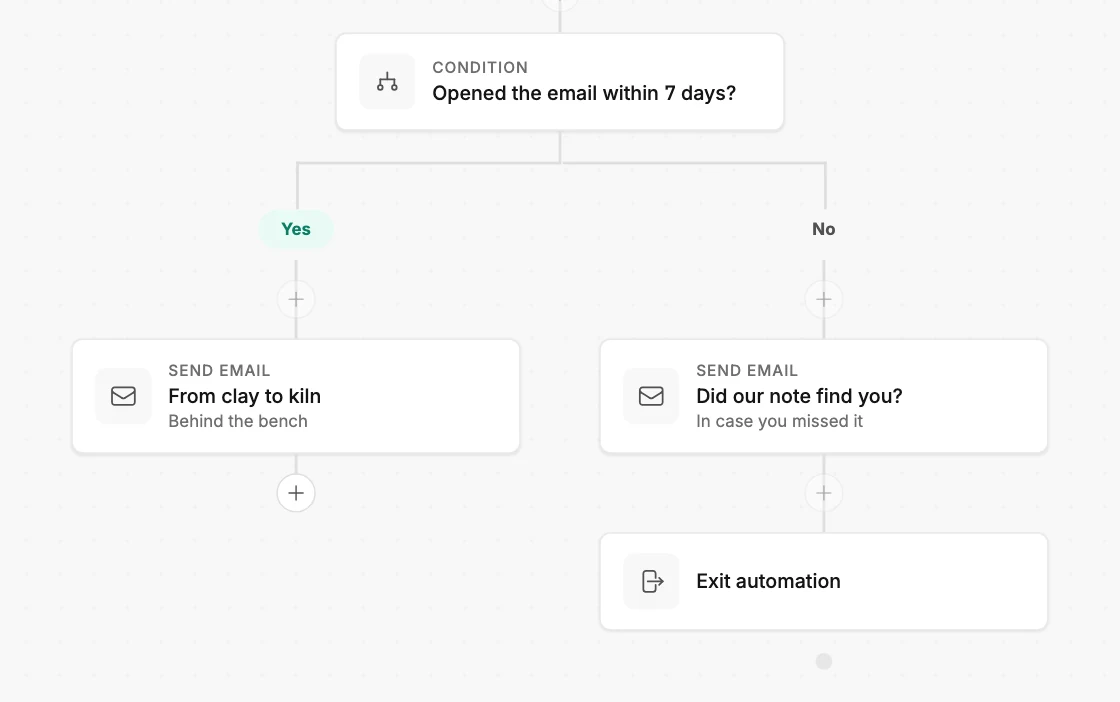
Say you add a Condition or a Percentage split above steps you already have. Those steps move into its first branch: Yes, or A.
Delete a Condition or a Percentage split, and every step in its branches goes too. The window counts them: The 3 steps inside its branches go with it. Undo brings them back. Keep it closes the window with nothing changed.
Where it ends
A subscriber is done when they reach the end of their path. Nothing more sends, and they can’t enter this automation again.
Exit automation is a step you add only at the end of a path. Its card shows only the step’s name; the line Subscribers leave the automation here is in the Add a step menu. It has no settings.
Use Exit automation when you want a branch’s ending to read plainly on the canvas. A path without one still ends after its last step.
The insights page shows the two endings apart. People who pass the last step are under Finished. People who reach an Exit automation step are in a note as having left.
More in this topic
Updated