

Add a wait between two emails
Short answer
Select the + between the two Send email steps, choose Time delay, then set the number and unit under For. The card reads Wait 3 days.
When you’re done, a Time delay card sits between the two emails. A subscriber who gets the first waits the time you set before the second.
-
Open the automation. Point at the line between the two Send email cards; a + sits on it.
-
Select the +. The Add a step menu opens.
-
Choose Time delay. A card appears between the two, reading Wait 1 day, and its panel opens on the right.
-
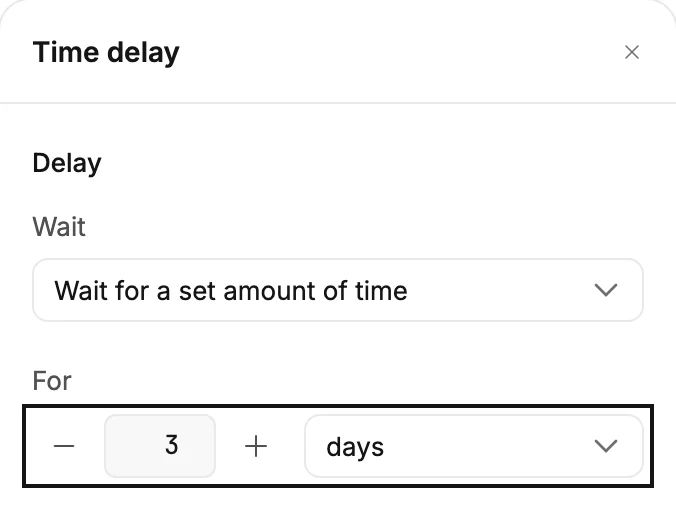
Under For, type the number and pick the unit. The card updates as you type.
-
Press Esc, or select the × at the top of the panel, to close it.
The wait starts when each subscriber reaches the card, so everyone gets the same gap between the two emails. For a wait that ends on a day of the week, at a time of day, or on a date, change the Wait row. See The Time delay step.
Next step
Want a different follow-up for people who didn’t open? See Branch on whether someone opened or clicked. Otherwise, see Launch an automation.
More in this topic
Updated