

Create an automation from a template
Short answer
Open Automations, select Create automation, choose Start with a template, and select a card. Jounce makes a draft with the template’s steps and opens it, with the choices only you can make marked on the steps.
When you’re done, a draft automation with the template’s steps is open, and it’s listed on your Automations page as a Draft.
-
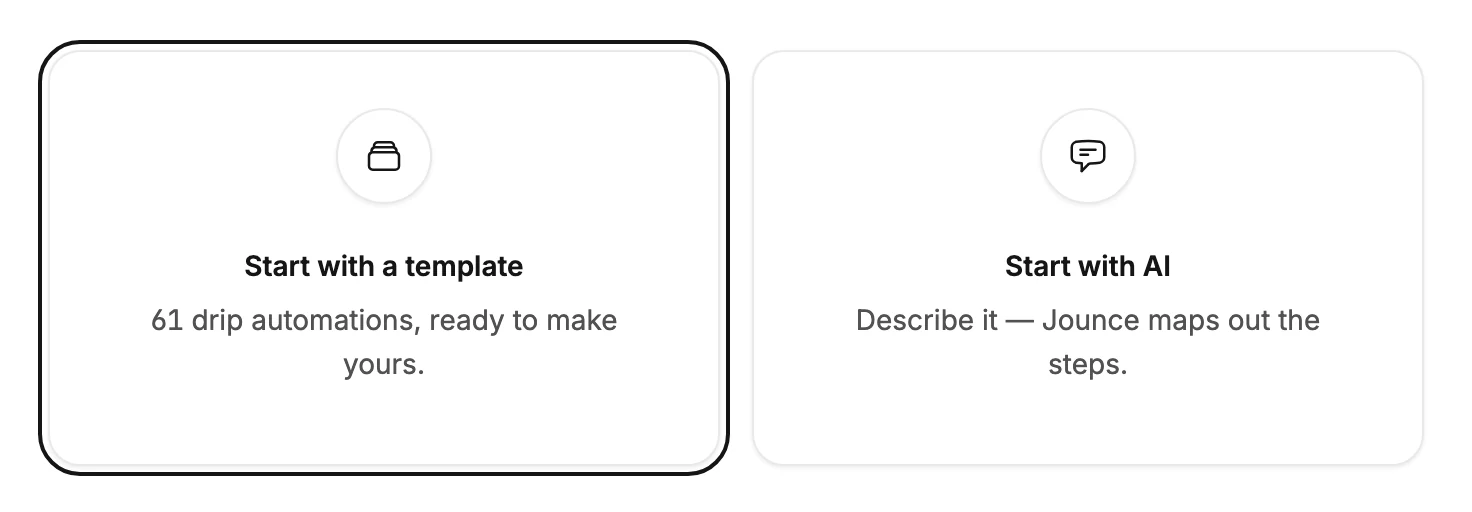
Open Automations and select Create automation. Jounce asks How do you want to start?
-
Select Start with a template. The gallery opens, with every template as a card.
-
Narrow the cards if you like. Pick a goal under What’s your automation for?, or an industry from the Industry menu.
-
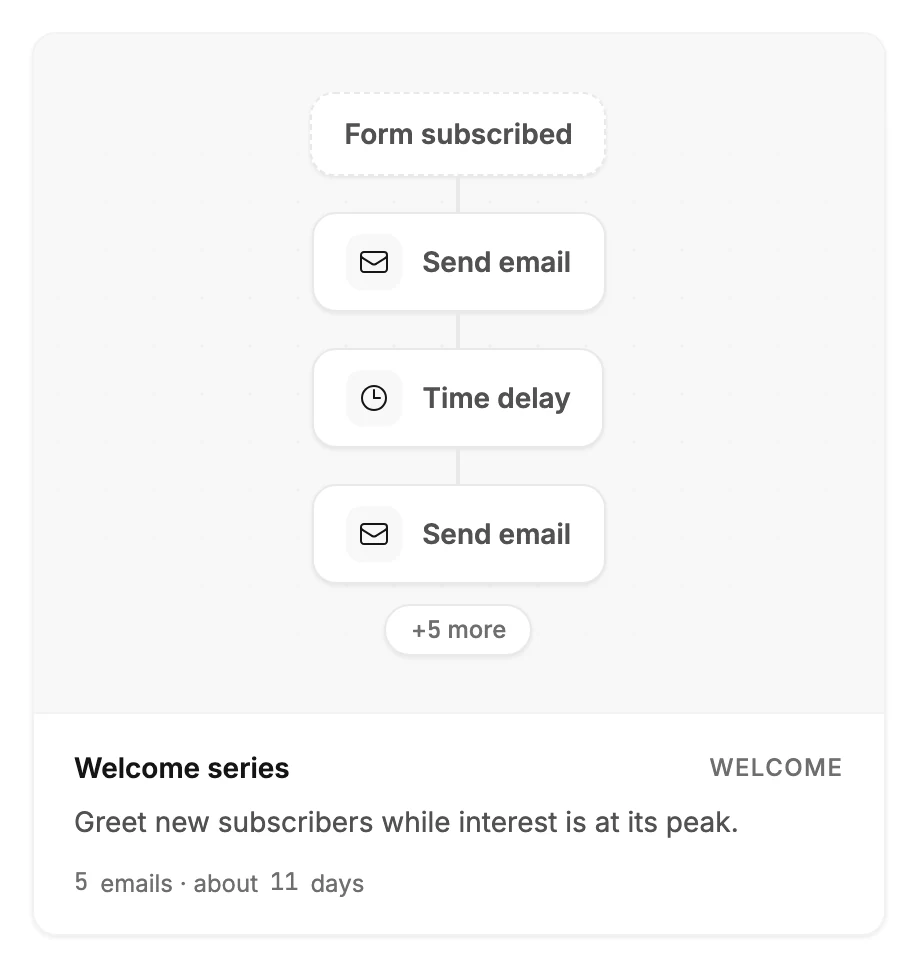
Select a card. Its bottom line reads Creating your draft while Jounce makes the automation, and the other cards fade and can’t be selected.
-
The automation opens with its steps drawn, and a message says Draft ready — check the highlighted steps.
There’s no preview step. Picking a card makes the draft, and the draft is the preview: every step is on the canvas, and nothing runs until you launch.
What the template leaves to you
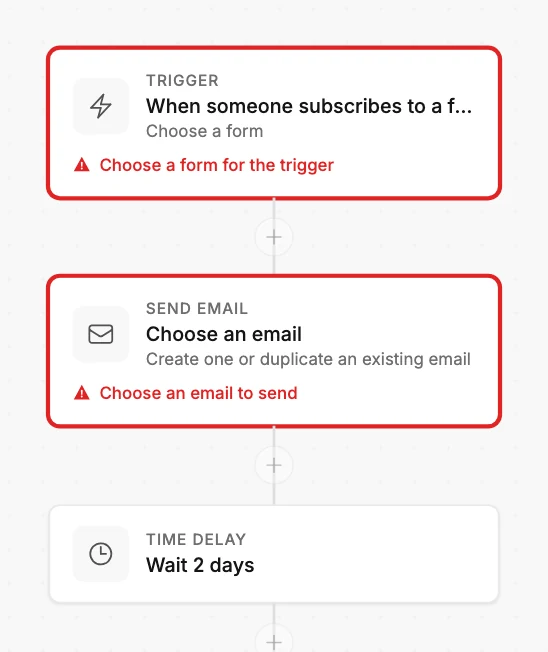
The template brings the order of the steps, the waits between them, and a subject line for each email. It can’t know your forms, segments, or emails, so those steps carry a red mark that says what to pick:
- The trigger reads Choose a form for the trigger or Choose a segment for the trigger. Select it and pick which form or segment starts the automation.
- Each Send email step reads Choose an email to send. Select it and create the email, or duplicate one you’ve made.
- A step that waits for a date reads Pick a date for the delay.
The marks clear as you fill them in. See Why does my new automation have red warnings on its steps?
The draft takes the template’s name. Rename it from the name at the top of the automation. See Rename an automation.
If the draft doesn’t go through, Jounce says Couldn’t create the automation — nothing was saved. Try again. If Jounce says instead that your account isn’t allowed to make that change, your access to this workspace changed. Refresh to see what you can do.
If you leave the gallery while a card still reads Creating your draft, you stay on the page you moved to, and the draft appears in your list when it finishes.
Next step
The marked steps come first: Choose what starts your automation, then Create a new email for a step.
More in this topic
Updated