

Choose what starts your automation
Short answer
Select the trigger card at the top of your automation. Under Begin when, pick Someone subscribes to a form or Subscriber is added to a segment, then choose the form or segment.
When you’re done, the trigger card names the form or segment that starts the automation, and its red line is gone.
-
Open the automation from the Automations page.
-
Select the trigger card at the top of the canvas. On an automation started from scratch it reads Add trigger. The Trigger panel opens on the right.
-
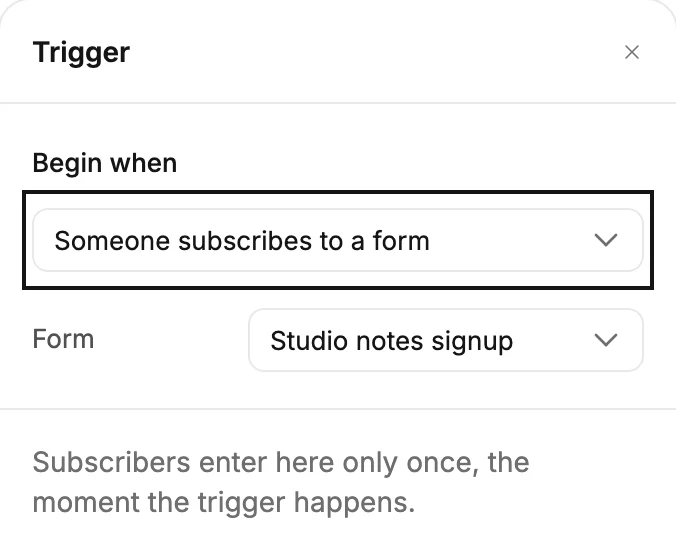
Under Begin when, pick Someone subscribes to a form or Subscriber is added to a segment.
-
A Form or Segment row appears below. Choose one. Type to search when the list is long.
-
The card updates with your choice, and its red line clears. Jounce saves as you go.
Nobody gets in while the automation is a Draft. Launch it when the steps are ready. See Automation statuses.
Which start suits which job, and who counts as entering, is in The trigger.
Next step
Add the first step below the trigger from The Add a step menu, then Create a new email for a step.
More in this topic
Updated