

The Time delay step
Short answer
A Time delay holds each subscriber before the next step. It can wait for a set amount of time, or until chosen days of the week, a time of day, or a specific date.
A Time delay holds a subscriber where they are, then lets them continue. The card reads what it waits for: Wait 3 days, Wait until Mon, Thu, Wait until 09:00, or the date. Select it and the panel reads Time delay. The Wait row picks one of four kinds.
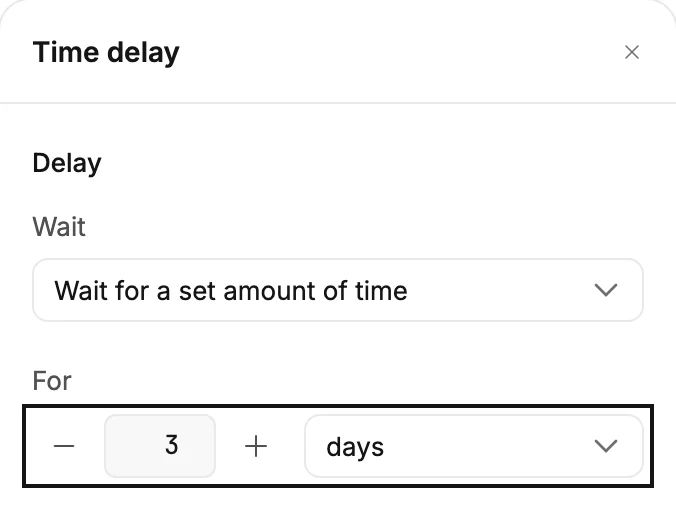
Wait for a set amount of time
For takes a number and a unit: minutes, hours, days, weeks, or months. The clock starts the moment the subscriber reaches the step.
A wait in months lands on the same day of the next month; when that month is shorter, it lands on its last day. A delay you’ve just added starts at one day. If the email after the wait seems late, see Why hasn’t the next email gone out?
Wait until day(s) of the week
Days lists Mon to Sun; tick one or more. Subscribers wait here until the next chosen day. The next one is never the same day. Someone who arrives on a Monday with only Mon ticked waits a week. They continue at the time of day they arrived.
Wait until a time of day
Time takes a time. Subscribers wait until the time of day matches. If that time has already passed today, they go on at that time tomorrow.
Wait until a specific date
Date takes a date. Subscribers wait until this date — handy for birthdays, launches and holidays. They go on at 9:00 that morning. A date that has already passed lets them through at once.
Note Times of day, days of the week, and dates use UTC, the world’s reference clock, not your local time. See Why did my delay end at the wrong time?.
Before you launch
A delay that isn’t set shows a red line and holds Launch. The line names the gap. Set how long the delay should last. Pick at least one day for the delay. Pick a time for the delay. Pick a date for the delay.
More in this topic
Updated