

The Automations page
Short answer
Open Automations to see every automation you’ve made, one card each, with a sketch of its steps, its status, and who’s in it now. Search, Sort, and Status sit above the cards, with Create automation at the right.
Automations in the top bar opens the Automations page. Under the heading, a count says how many automations you have. An automation is a series of emails and waits. It runs on its own once someone sets it off.
Each card
Each card sketches the automation’s steps. First comes what starts it, then each step in order, such as Send email and Time delay. A long automation shows its first steps and +3 more. An automation with no steps yet reads Empty automation.
The label in the card’s corner is the automation’s status: Draft, Live, or Paused. A live one reads Ready while Jounce has switched automations off for now, for everyone who uses Jounce. Automation statuses explains each one.
Under the name, a line reads 23 in it now when people are inside the automation. They’re waiting on a delay or between steps. The line only appears while someone is in it. An automation you start from scratch shows as Untitled until you rename it.
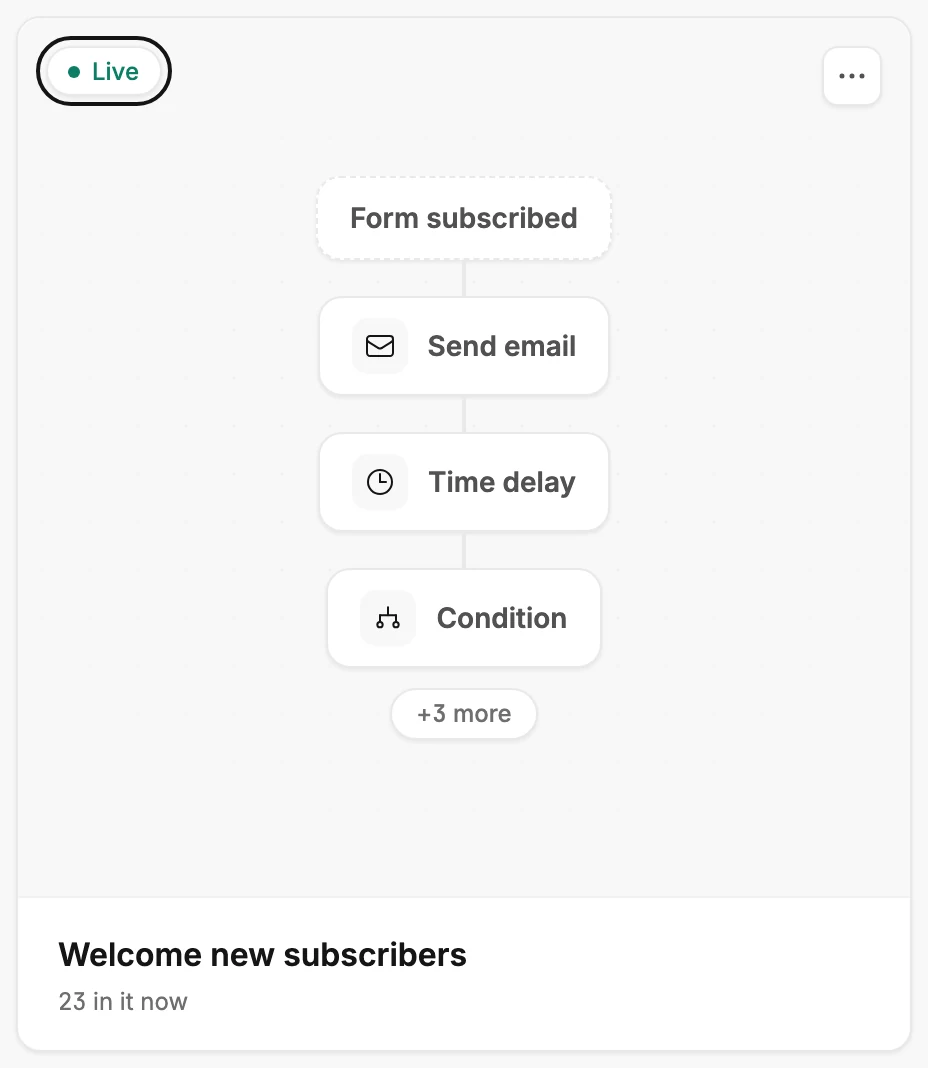
Point at a card and Edit appears over the sketch. Select anywhere on the card to open the automation and its steps.
The menu on a card
The three dots on a card open its menu. The rows are the same in every status:
- Edit opens the automation’s steps.
- View insights opens its results: who entered, who finished, and how each email did. On a draft, the insights page says nothing has run yet.
- Duplicate makes a draft copy. See Duplicate an automation.
- Delete automation removes it. Managers and Admins see this row; Editors don’t. See Delete an automation.
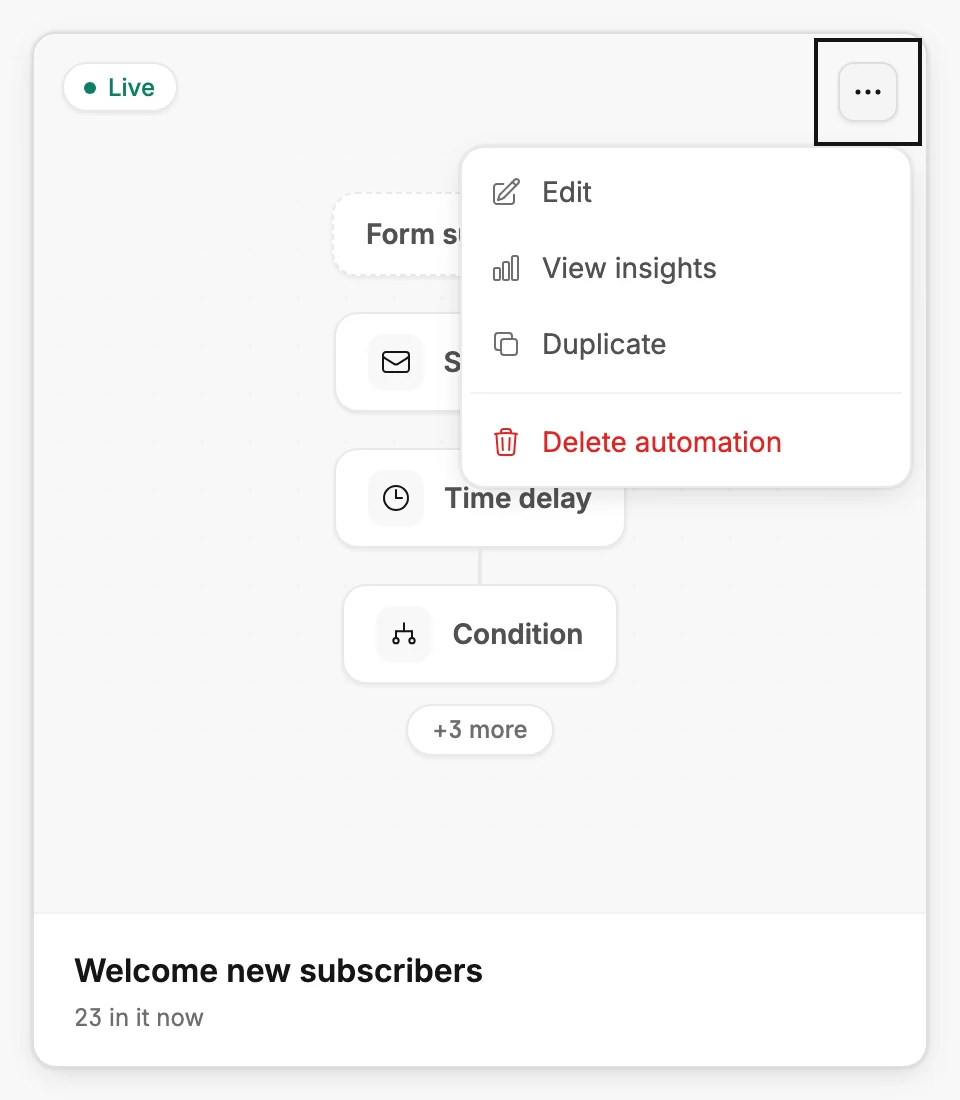
There is no rename row. You rename an automation in its top bar. See Rename an automation.
Above the cards
Search matches part of an automation’s name. Sort offers Newest, Oldest, Name (A–Z), and Name (Z–A). The page opens on Newest, so the most recently created automation comes first. Sort appears once you have more than one automation.
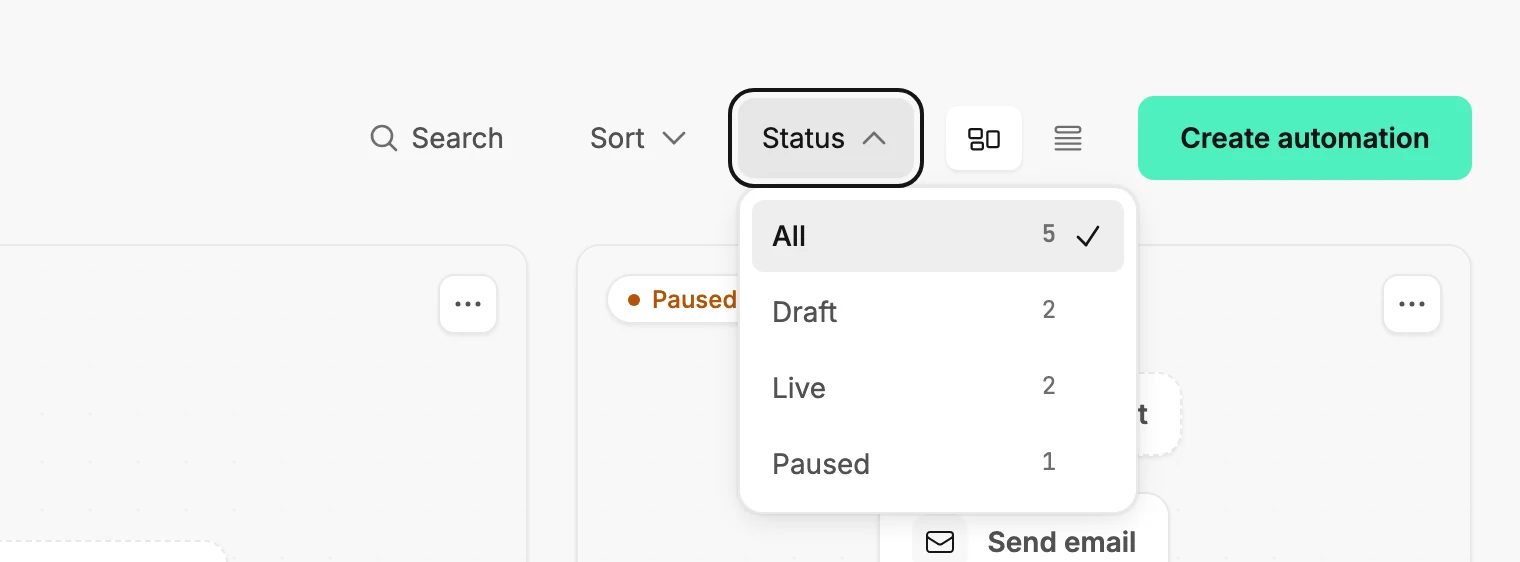
Status lists All, Draft, Live, and Paused, with a count beside each. The three status rows are always there, even at zero, so the menu never changes shape. In a narrow window, Sort, Status, and the two view buttons move under Filters. Search, sort, and filter a list covers the details.
When nothing matches, the page says No automations match. Its button names what is narrowing the list: Clear search, Clear filters, or Clear search & filters. Automations don’t have folders.
Create automation opens a page that asks how you want to start: from a template, by describing it to Jounce, or from scratch.
Cards or a list
The two small buttons beside Create automation switch between cards and a list.
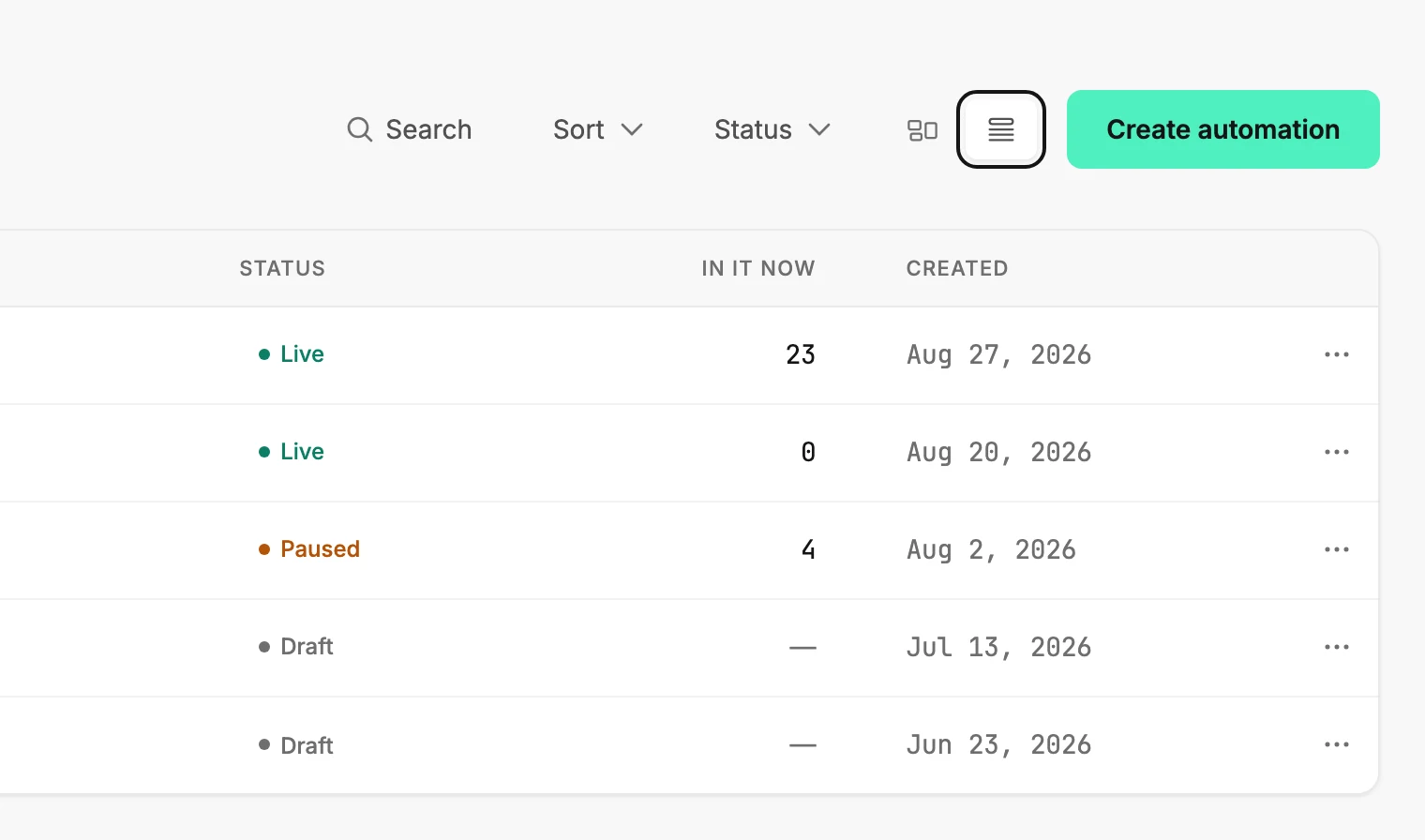
The list shows the same automations as rows and adds two columns at the right. In it now is the number of people inside the automation. Created is the date it was made, the same date Newest sorts by. Rest your pointer on the date to see the exact time.
A dash in In it now means there is no count to show. See Why doesn’t my automation show how many people are in it?
A page holds twelve cards or fifty rows. The control under the list turns pages and changes the page size. This browser remembers the view you pick. See Switch between cards and a list.
Before your first automation
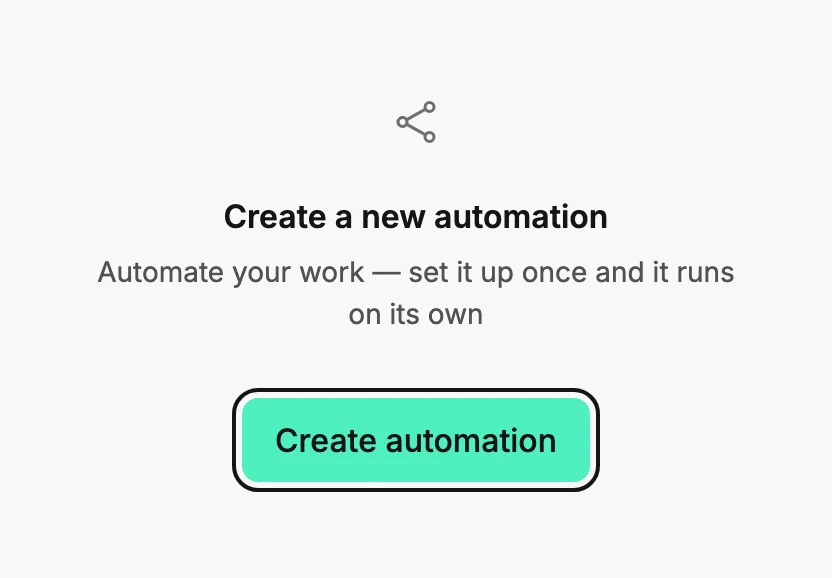
With no automations yet, the page reads No automations yet and shows one button, Create automation. It leads to the same place as the button at the top.
More in this topic
Updated