

Search, sort, and filter a list
Short answer
Select Search above the list and type part of a name, or open a menu such as Sort or Status and pick an option. The list changes as you go; on a phone or in a narrow window, the menus sit under Filters.
When you’re done, the list shows what matches and nothing else. Nothing is removed: clear the search or the filter and everything comes back. Search, Sort, and Status combine, so you can search inside one status.
Search
- Select Search above the list. A field opens with the cursor in it.
- Type part of the name. The list narrows as you type.
- To stop, select the ✕ at the end of the field, or press Esc. Press Esc once more and the field tucks away.
Search matches names, not the words inside an email. On Subscribers it matches the start of a name or email address, so type the first few letters.
Sort
Open Sort and pick Newest, Oldest, Name (A–Z), or Name (Z–A). What Newest goes by depends on the list:
- On Emails, the latest activity. That’s the date on each card, such as when the email was sent or when a draft was last edited.
- On Automations, the day each one was made. Their cards show no date; the list view shows it in the Created column.
- Forms have no Newest. They sort by name only.
Each time you open a list, it starts on Newest, or on Name (A–Z) for forms. Sort appears once a list has two or more items.
On Subscribers, select the Name, Status, or Added heading to sort by that column. Select it again to flip the order.
Status
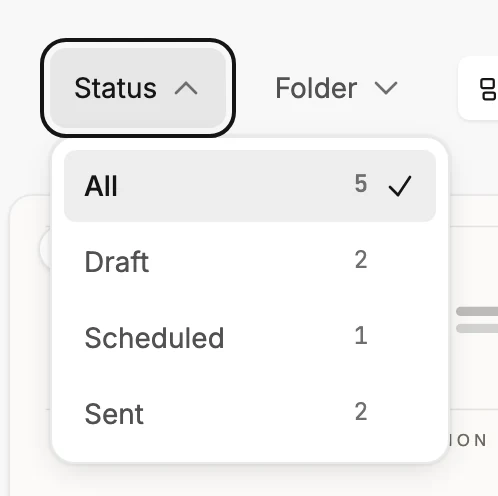
- Open Status. Each option shows how many items are in it.
- Pick one. The button shows your pick in place of the word Status, so you can see a filter is on.
- Pick All to bring everything back.
Subscribers also has Segment and Filter for narrower questions. The Audience part of this help covers those. Emails and Forms have a Folder menu once you’ve made a folder. See Organize emails and forms with folders.
On a phone or in a narrow window
Above the list, Filters sits beside Search. It holds every menu, and the two buttons that switch between cards and a list.
- Select Filters. The Filters dialog opens with a row for each menu, and each row shows its current choice.
- Select a row, such as Status, and pick an option. The list changes at once, and the dialog stays open.
- Close it with the ✕, a click outside it, or Esc.
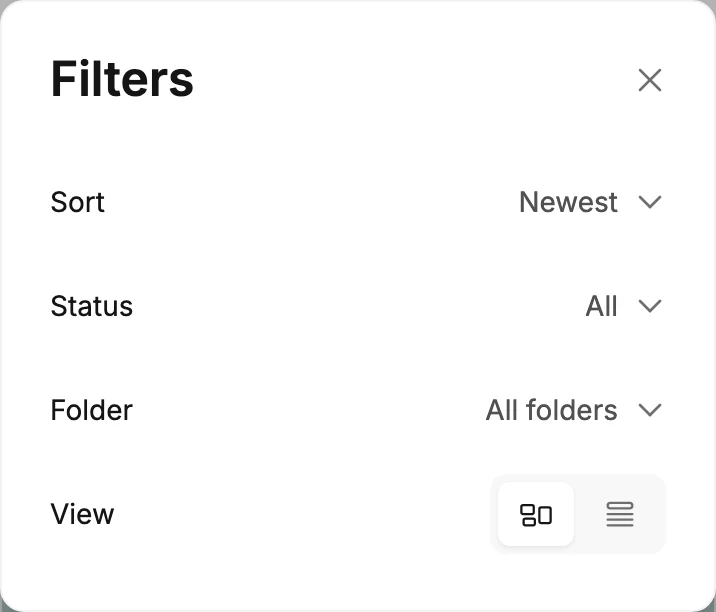
While a filter is on, the button shows how many, as in Filters · 2. Sort and the view never count: they change the order or the look, not what shows.
When nothing matches
The list says No emails match, with one button under it. Forms and automations say the same in their own words. The button names what it clears: Clear search, Clear filters, or Clear search & filters.
Next step
To see numbers beside each row, see Switch between cards and a list. For narrower questions on Subscribers, see Filter your subscribers.
More in this topic
Updated