

Switch between cards and a list
Short answer
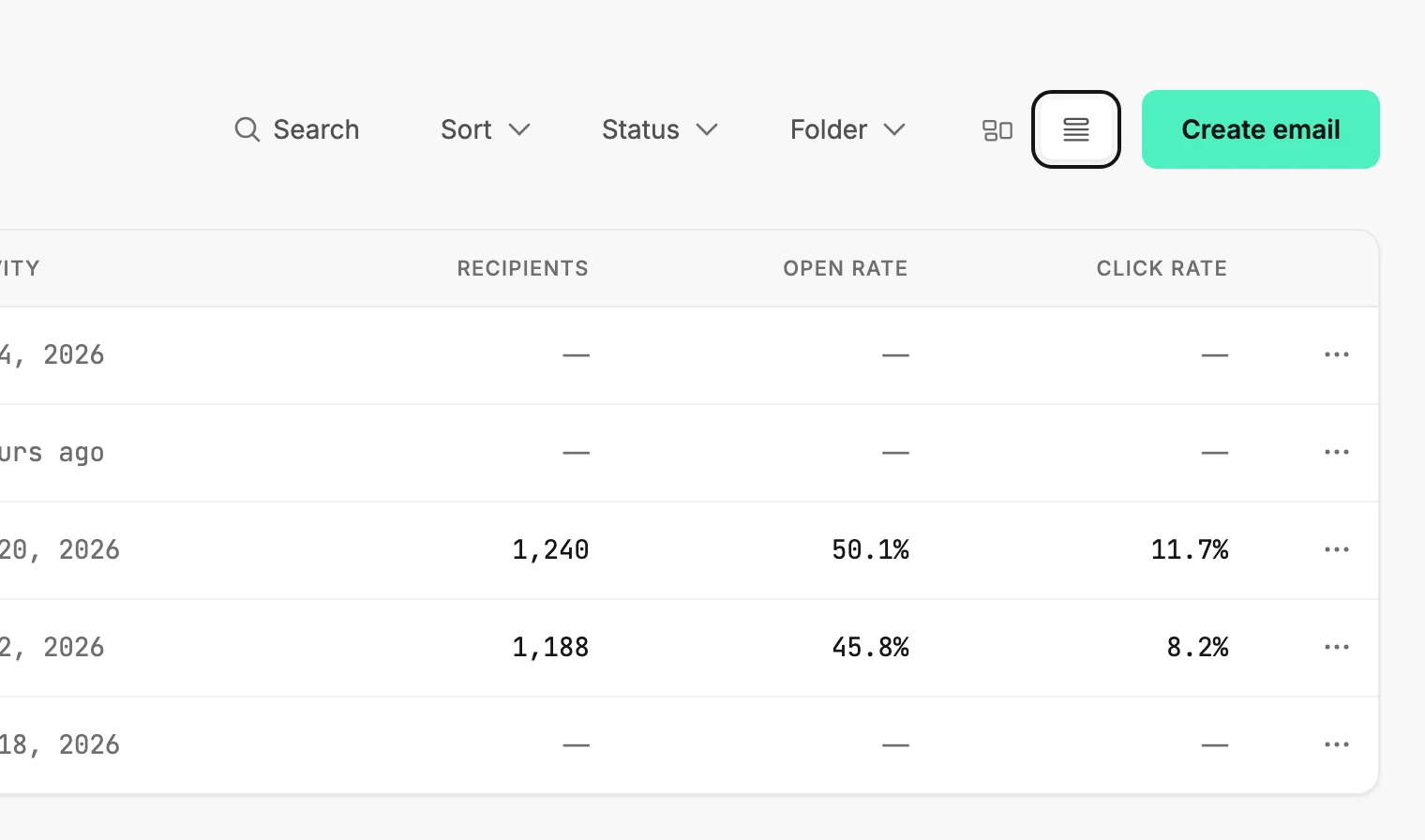
Beside the create button, two small buttons switch Emails, Forms, and Automations between cards and a list; in a narrow window, they sit under Filters. Jounce remembers your choice for each page on this browser.
When you’re done, the same items show either as cards with a preview or as rows with numbers. Pick whichever suits the job.
- Open Emails, Forms, or Automations.
- Find the two small buttons between the filters and the create button. The first is Card view, the second List view. Rest your pointer on one and its name appears.
- Pick one. The page switches at once.
In a narrow window, select Filters above the list. The two buttons are its last row, View.
Cards
Each card shows a picture, its status in the corner, and its name. On Emails and Forms, the picture is a preview of the design. On Automations, it’s a sketch of the steps.
Only email cards show a date under the name, such as when the email was sent or when a draft was last edited. Automation cards show how many people are in them instead, as in 23 in it now, while anyone is inside.
Point at a card and its main action appears over the picture: Edit for a draft, for example. The ⋯ (three dots) in the corner holds the other actions.
The list
Rows show the same items with their numbers beside them.
| Page | Columns |
|---|---|
| Emails | Name, Status, Activity, Recipients, Open rate, Click rate |
| Forms | Name, Status, Kind, Views, Submissions, Conversion |
| Automations | Name, Status, In it now, Created |
A dash means there is nothing to count yet, like a draft’s recipients. The ⋯ at the end of a row holds the same actions as a card’s.
In a narrow window, the list keeps Name and Status and hides the other columns. The same can happen when the chat is open beside the page. The columns come back once the list has room again: widen the window or select Collapse chat.
Long lists
A long list shows one page at a time. The line at the bottom says which items you’re seeing, with page numbers beside it and a per-page picker.
| View | Per page |
|---|---|
| Cards | 12, 24, or 48 |
| List | 50, 100, or 200 |
Your per-page choice is remembered on this browser too. A new search, sort, or filter takes you back to the first page.
Next step
The numbers in a row come from its results page: Open an email’s results.
More in this topic
Updated