

Resend a confirmation email
Short answer
Choose Resend confirmation from the menu at the end of an Unconfirmed person’s row, or beside the status label on their page. Jounce emails them the confirmation link again.
When you’re done, the person has a fresh confirmation email in their inbox. Once they confirm from it, they join your list as Subscribed.
- Open Audience and find them. Their status label reads Unconfirmed.
- Select the three dots at the end of their row, then Resend confirmation.
- Select Resend confirmation in the dialog. Jounce says Confirmation sent.
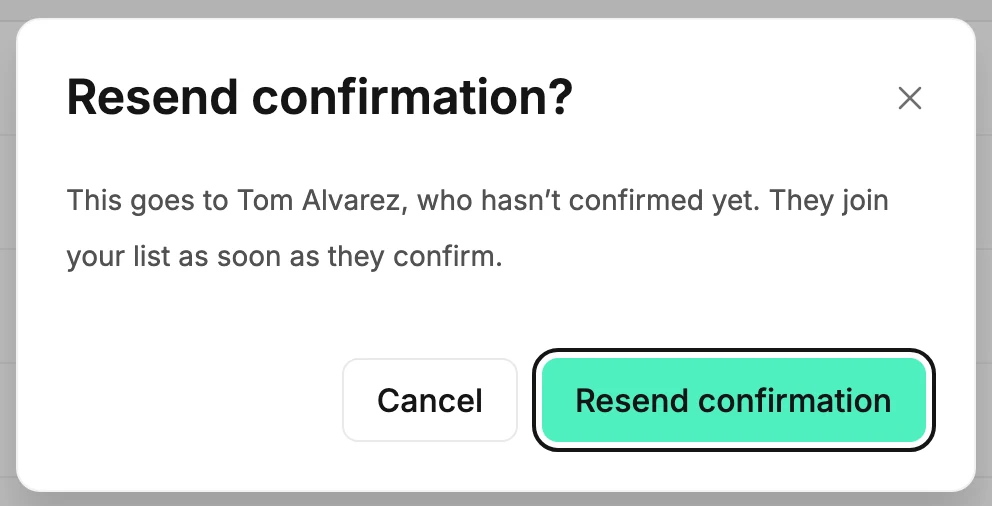
You can’t confirm someone for them. Only their own click confirms them, and that’s what makes the list safe to send to.
From their page
Open the person from the list. If they’re Unconfirmed, Resend confirmation sits beside their status label, under their name. It opens the same dialog.

Several at once
Tick the rows, then select Resend confirmation in the toolbar above the list. It shows only when someone you picked is Unconfirmed. Jounce sends only to those people, then says how many went: Confirmation sent to 4 subscribers.
How often you can resend
Jounce waits 15 minutes between confirmation emails to one person, and sends one person five at most. The first email from your form counts too, and so does one sent before you deleted them and added them back: the count goes with their email address, and clears a year after the last one.
A resend inside the wait, or past the five, sends that person nothing:
- Jounce waits 15 minutes between confirmation emails to one person, so it didn’t send one. Resend in 15 minutes.
- They’ve had five confirmation emails, the most Jounce sends one person.
They stay Unconfirmed, and the list doesn’t refresh. After five, check the address they typed: unanswered emails often mean a typo.
What Jounce says
If only some of the people you picked were waiting, Jounce counts what went: Confirmation sent to 12 of 50 — the rest weren’t waiting to confirm. If the rest were held back by the wait or the five, the message says that instead.
If nobody was waiting, no email goes out. Jounce says what happened instead, and the list refreshes so the labels catch up.
- They’re already on your list. They joined while your list was open.
- They unsubscribed, so Jounce didn’t email them.
- Their address bounced, so Jounce didn’t email them. Or They reported an earlier email as spam, so Jounce didn’t email them. Jounce doesn’t email a blocked address again, so resending can’t reach them. Ask them for another address.
- That address isn’t on your list anymore. Someone deleted them, or their email address was changed. After a change, they’re on your list under the new address — resend from that row. (For a moment while the change finishes, the message reads Their address changed, so Jounce didn’t email the old one.)
- No one you selected is waiting to confirm. More than one of these happened among the people you picked.
- Jounce didn’t email anyone you selected. Some weren’t waiting, and the wait or the five held back the rest.
For several people, each message counts them, as in All 3 are already on your list.
Two messages mean sending didn’t finish:
- The rest weren’t sent — Jounce sent some and stopped. The message says why and what to do. The reason can be a daily limit, a pause only Jounce can lift, a busy minute, or a problem on Jounce’s side. A daily limit clears after midnight Pacific time, which may not be midnight where you are.
- That didn’t go through, and your list is unchanged. Jounce hit a problem sending. Try again in a moment.
Only Managers and Admins see Resend confirmation.
If the owner hasn’t verified their email
Jounce sends confirmation emails only if the workspace owner has verified their email address. Until then, a resend sends nothing.
If you’re the owner, the window Verify your email to send opens. Open the link Jounce sent you, select I’ve verified, then select Resend confirmation again. See Verify your email address.
Anyone else reads Ask this workspace’s owner to verify their email address. Nothing was sent.
Next step
For the page their link opens, see What subscribers see when they confirm; for what the email says, see The confirmation email.
More in this topic
Updated