

Create a segment
Short answer
On the Segments tab, select Create segment, type a name, and select Create segment again. The segment appears at the end of your cards, empty and ready for people.
When you’re done, an empty segment with the name you chose sits at the end of your cards. Fill it from the Subscribers page.
- Open Audience, then the Segments tab.
- Select Create segment at the top right. The Create a segment dialog opens with the cursor in Segment name.
- Type a name. If it’s taken, Jounce says You already have a segment called “VIP.” Try another name, and the button waits.
- Select Create segment, or press Enter. The dialog closes and the card appears.
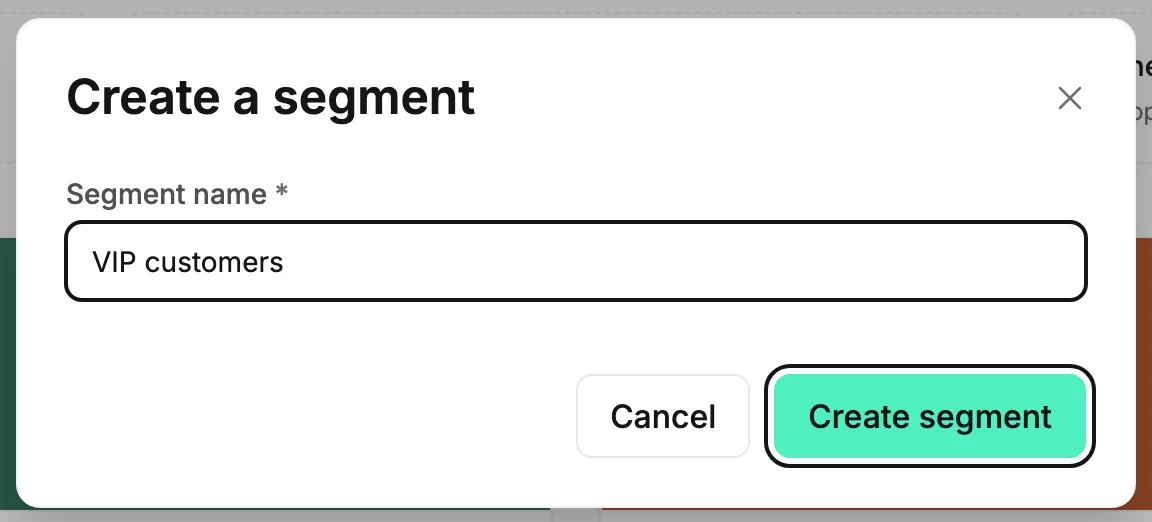
Capitals don’t make a name different, so vip and VIP are one segment. Spaces before or after the name don’t either. A segment you deleted frees its name.
Every role can create a segment, even Editors.
Other ways a segment gets made
- From a filter. Apply a filter and select Save as segment. Everyone who matches joins the segment you name.
- While adding people. In the Add to segment dialog, type a name that doesn’t exist and pick Create “…”. The segment is made and picked in one step.
- From a CSV import. Every import lands in a segment named for the day. See Import subscribers from a CSV file. If your file has a Segments column, it fills only segments that already exist; see Why aren’t imported subscribers in the segments from my file?
- From the Suggested cards on the Segments page. See The engagement presets.
If it didn’t save
Jounce says Couldn’t create the segment. Try again. Nothing was made; select Create segment once more.
Next step
Put people in it: Add subscribers to a segment, or fill it from a filter with Save a filter as a segment.
More in this topic
Updated