

The filter builder
Short answer
The Filter subscribers dialog has three presets, a live count of who matches, one or more filter groups, and Apply.
Filter on the Subscribers page opens this dialog. Read it top to bottom: presets, the count, the groups, then the footer.
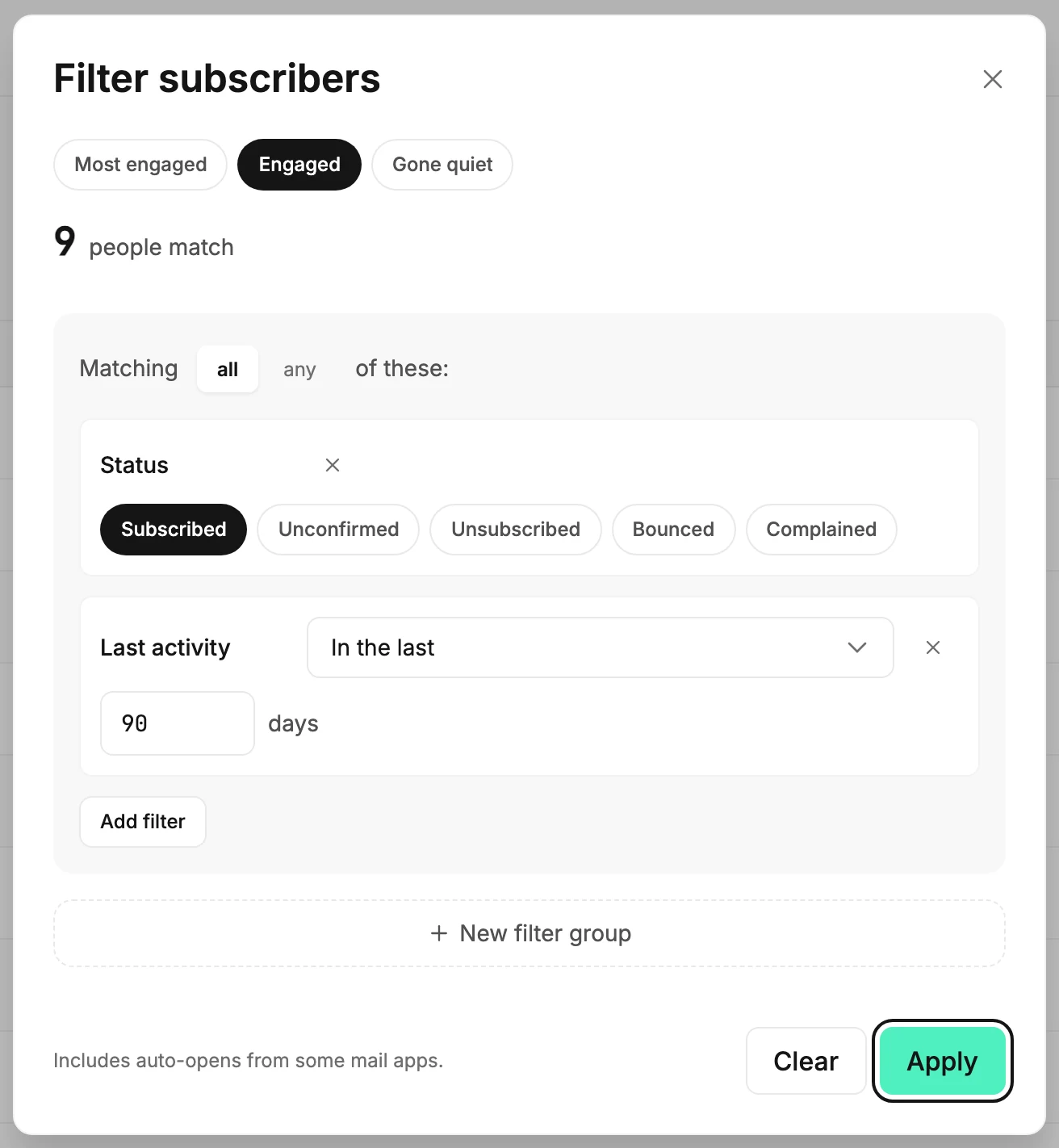
The presets
Three buttons sit at the top: Most engaged, Engaged, and Gone quiet. Pick one, and its filters replace whatever is below. You can change any row afterwards. See The engagement presets for what each one means.
The count
The big number is how many people match the filters as they stand, counted from your real list. It reads Counting the matches while Jounce works, then settles, for example 9 people match. Until a filter is complete, it says Add a filter to see who matches. When nobody matches, it says No one matches these filters yet.
A row marked in red holds the count back. The line says Fix the marked filter to see who matches, and Apply stays off until you fix or remove that row.
A row turns red when it names a segment that was deleted. A Data
field row turns red on the one-word name of a field Jounce keeps by itself,
such as email.
On a large list the count doesn’t run on its own. A Preview count button appears instead, so you decide when to count.
A filter group
A group is a box that reads Matching all of these. Change all to any to match people who meet at least one row instead of every row.
Each row inside is one filter: its name, a condition, and a value. The small × at the row’s end removes it. Add filter at the bottom of the group opens the list of twelve filters. See The filter types.
New filter group
Below the last group, New filter group adds another box. A picker between the boxes reads And or Or and says how the groups combine. The small × in a group’s corner removes that group. See How filters combine.
The footer
- A note reads Includes auto-opens from some mail apps whenever a row asks about opens or clicks. See How Jounce measures activity.
- Clear empties every group.
- Apply puts the filter on the list. You can’t select it until every row has a value. A Segments or Location row with nothing picked, or an empty email text, holds it back, and so does a row marked in red.
The same dialog elsewhere
In an automation, a condition step uses this same builder to decide who goes on. The rows mean the same thing there.
More in this topic
Updated